
Package Exports
- @senjinthedragon/sillytavern-discord-connector
- @senjinthedragon/sillytavern-discord-connector/index.js
This package does not declare an exports field, so the exports above have been automatically detected and optimized by JSPM instead. If any package subpath is missing, it is recommended to post an issue to the original package (@senjinthedragon/sillytavern-discord-connector) to support the "exports" field. If that is not possible, create a JSPM override to customize the exports field for this package.
Readme
SillyTavern Discord Connector



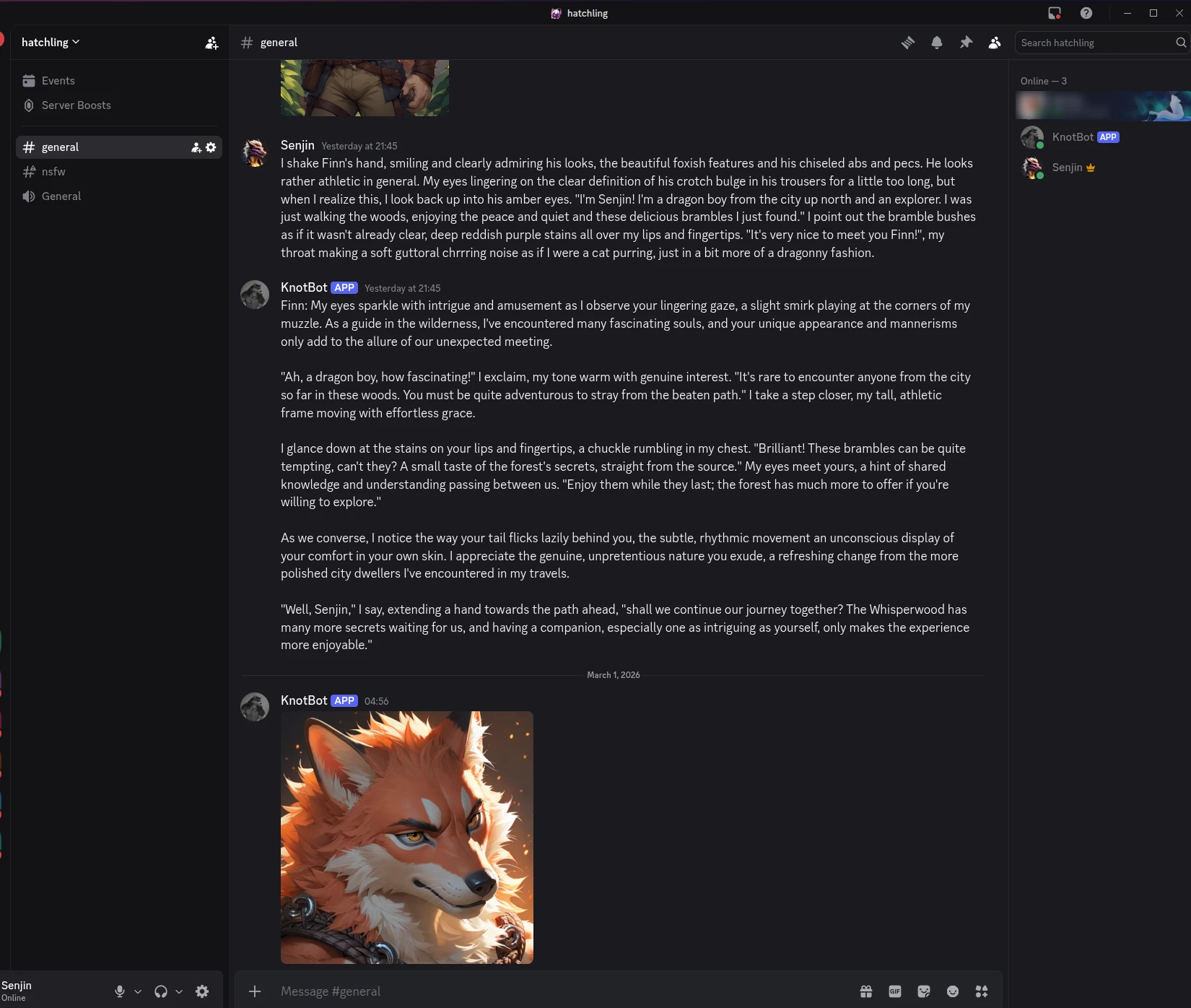
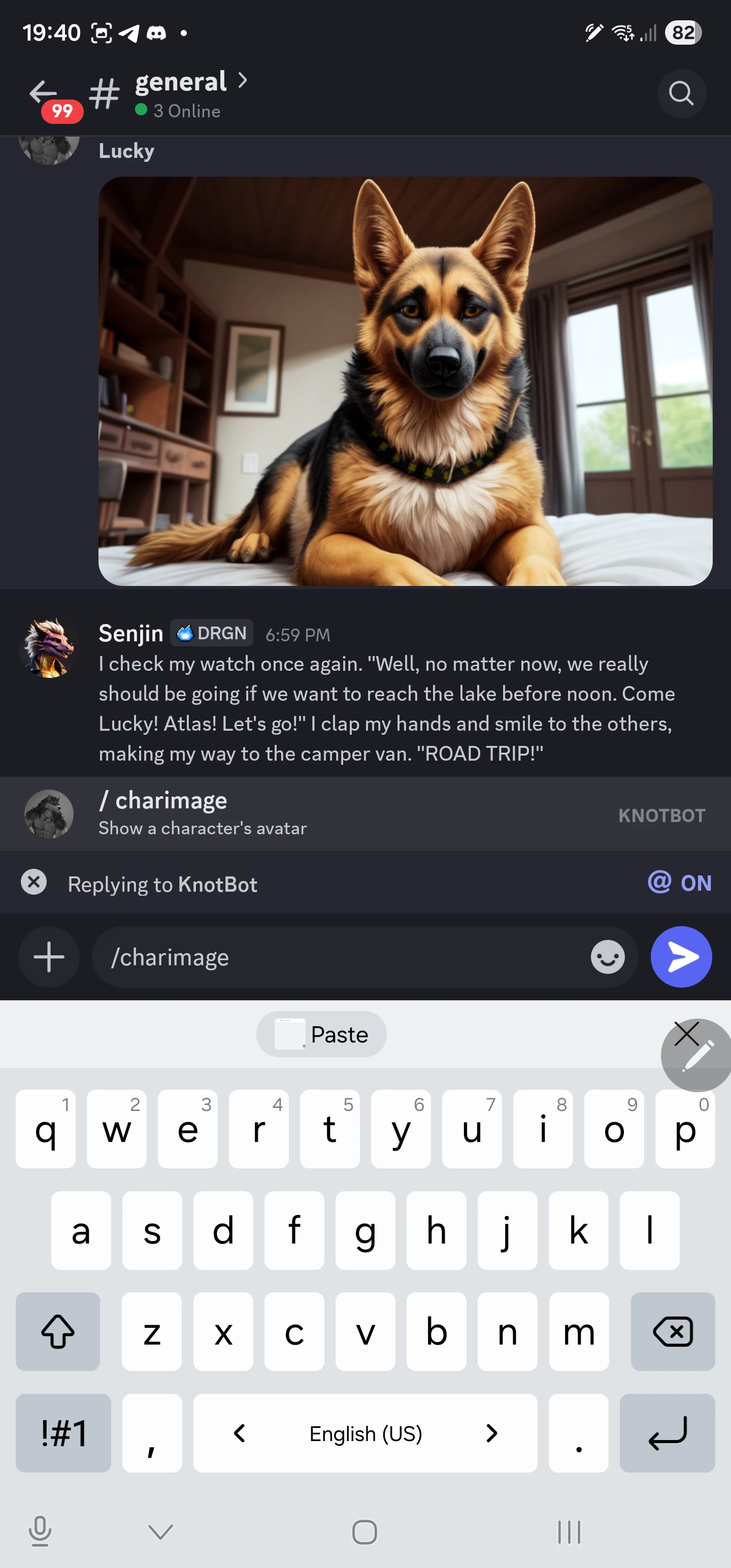
Bridge your SillyTavern character to Discord for real-time roleplay. Messages sent in a Discord channel are routed through SillyTavern's AI pipeline and responded to as your active character, with full streaming, image and expression support.
Most people set this up on their own private Discord server and keep it to themselves - and that works perfectly. But you can also invite a small group of trusted friends and chat together around the same character, like a campfire where the character actually talks back. Everyone shares the same story and the same character; each person can set their own persona so the character knows who they are. Just keep in mind it's not designed for large groups where everyone wants a completely private session with their own separate chat history - it's a shared experience by design.
This is an independent extension for SillyTavern and is not affiliated with the SillyTavern development team
 |
 |
☕ Support the Developer
I am a solo developer building this bridge to make mobile RP better for the community. I maintain this project in my free time, and as I'm currently navigating some financial challenges, any support is deeply appreciated.
If this extension adds value to your roleplay experience, please consider:
- Sponsoring me on GitHub
- Buying me a coffee on Ko-fi
- Bitcoin:
bc1qjsaqw6rjcmhv6ywv2a97wfd4zxnae3ncrn8mf9 - Starring this repository to help others find it.
Requirements
- SillyTavern (latest recommended)
- Node.js v18 or higher
- A Discord bot token with the Message Content privileged intent enabled
- A Discord server with a channel where you want to send messages. You can set this up yourself, for free, with Discord. It's at the bottom of your server list, Add a Server (the little icon with a + sign)
- (optional) If you want to use the
/imagecommand to ai generate images, theImage Generationextension that comes with SillyTavern needs to be set up correctly and be working. - (optional) The same goes for expressions, your
Character Expressionsextension needs to be set up correctly and be working if you want those to be sent to Discord.
Quick Start
Note for Mobile/Android Users: You only need to perform these steps on the computer running your SillyTavern server. Once the bridge is running, you can chat from your phone using the standard Discord app.
Don't worry about all the scary instructions. If you follow them step by step, you should be able to get started in a few minutes.
1. Install the extension
- In SillyTavern → Extensions menu (The stack of cubes) → Install extension
- Paste:
https://github.com/senjinthedragon/SillyTavern-Discord-Connector - Click Install for all users or Install just for me.
The Discord Connector Settings should now appear in your extensions list.
2. Create your Discord bot
- Go to Discord Developer Portal
- Click New Application, give it a name (
SillyTavern Bridgefor example), check the box and click Create - Go to the Bot tab:
- Customize your bot. You can give it an Icon, Banner and Username
- Reset/Copy your Token and store it somewhere safe. (The long line of random letters and numbers)
- Under Privileged Gateway Intents, enable Message Content Intent
- Go to the OAuth2 tab:
- Under OAuth2 URL generator:
- Scopes:
bot,applications.commands - Bot Permissions:
Send Messages,Read Message History,Manage Messages[^1] - Leave Integration Type set to Guild Install
- Copy the Generated URL and open it with a browser to invite your bot to your Discord server
- Scopes:
- Under OAuth2 URL generator:
[^1]: Manage Messages is used to delete the streaming message and repost it cleanly.
3. Configure the SillyTavern Bridge Server
These folders and files can be found in the server folder of your SillyTavern extension which you can commonly find in the following locations:
- Windows: [Your SillyTavern Folder]\data\default-user\extensions\SillyTavern-Discord-Connector\server
- Linux/Mac: ~/.local/share/sillytavern/default-user/extensions/SillyTavern-Discord-Connector/server
- Docker: /home/node/app/data/default-user/extensions/SillyTavern-Discord-Connector/server
Windows:
Copy or rename config.example.js to config.js
Linux/Mac:
cp config.example.js config.jsBoth:
Edit config.js and change these lines:
discordToken: 'YOUR_BOT_TOKEN_HERE', // The one you copied to a safe place in part 2
allowedUserIds: [], // add your Discord User ID here to keep the bot private to yourself
allowedChannelIds: [], // (optional) restrict the bot to specific channels only
You can change the other lines in the config.js as well, but the ones listed above are the important ones.
[!TIP] To get a Discord User ID: enable Developer Mode in Discord settings, then right-click a user and select Copy User ID.
To get a Discord Channel ID: enable Developer Mode in Discord settings, then right-click a channel and select Copy Channel ID.
To enable Developer Mode: Discord settings → ...Advanced → Developer Mode
You can copy and rename the server folder to wherever you like for convenience. Do mind that the original must stay in the extension folder - the extension needs it to load its translations. If you move it out entirely rather than copying it, the settings panel will lose its translations. Copies won't be updated automatically when the extension updates, so you will need to re-copy after updates.
[!CAUTION] SECURITY WARNING: If you leave
allowedUserIdsempty, the bot is public.
ANYONE who finds your bot on Discord can trigger generations on your SillyTavern server.
It is highly recommended to add your own user ID toallowedUserIdsbefore sharing your bot invite link with anyone.
4. Start the bridge server
Windows:
Run start-bridge.bat from the server folder. It installs dependencies and starts the server automatically.
Linux/macOS:
Run start-bridge.sh from the server folder. Make it executable once with chmod +x start-bridge.sh, then launch it with ./start-bridge.sh.
Both:
This will run the Bridge Server required to make Discord and SillyTavern talk to each other. You need to run the server every time and keep this window open for it to work.
5. Connect the extension
- In SillyTavern, open the Discord Connector panel in the Extensions tab
- Click Connect - or enable Auto-connect to connect on every page load
- Start chatting in Discord to chat with the default character or use
switchcharto select a different character from the list.
Commands
The bridge supports a full set of slash commands for controlling characters, chats, personas, image generation and more. See the full command reference for details.
Bot responses are available in 13 languages. Each user can set their own preference with /setlang and the bot will reply to them in that language, regardless of what anyone else has set.
How It Works
The extension runs inside SillyTavern's browser environment and connects to the bridge server. When a Discord message arrives, the server forwards it to SillyTavern, which generates a response using your active character and AI settings. The reply streams back through the bridge and updates in real time in Discord as the AI generates.
When /newchat is used, the character's greeting is automatically forwarded to Discord. In group chats, each member's individual greeting is sent in turn. Any images embedded in a greeting come through as well.
Images that SillyTavern adds to a reply - whether generated automatically after a message or requested via /image - are detected and posted to Discord as attachments. Images that exceed Discord's upload limit are scaled down automatically before sending.
Troubleshooting
**Bot doesn't respond:**
Check that the bridge server is running and the extension shows "Connected" in green.
**Message Content Intent error:**
This intent must be explicitly enabled in the Discord Developer Portal under your bot's settings - it is not on by default.
**Port conflict:**
If port 2333 is in use, change wssPort in config.js and update the bridge URL in the extension settings to match.
**Autocomplete shows "Loading options failed":**
This can happen if Discord has cached an old version of your slash commands. Simply restart your Discord app to force it to fetch the latest command definitions from the bot.
**Slash commands don't appear in Discord:**
The applications.commands scope must be included when generating the bot's invite URL.
If you invited the bot already, generate a new invite URL with the scope added and open it in a browser - you do not need to kick and re-invite the bot, visiting the new URL is enough to grant the missing scope. Slash commands can also take up to an hour to appear in Discord after the bridge first starts.
Pro Plugins
Want to take your roleplay beyond Discord? Telegram and Signal plugins are available as a paid add-on, letting you chat with your SillyTavern character through those platforms using the same commands and features you already know.
These plugins run as independent modules on your bridge server. Each plugin comes with its own setup guide and is distributed under a proprietary license. Purchasing a pro plugin directly supports the continued development of this project!
Note: Unlike the Discord plugin, the Telegram and Signal plugins do not have a built-in user allow-list. They are designed for personal or small-group use where you control who has the phone number or bot link. If you expose them publicly, anyone who can reach your bot can send messages to your SillyTavern instance.
License
This project is licensed under a split-license model to ensure compatibility with upstream requirements while keeping the core bridge open for everyone:
- SillyTavern Extension (
/srcand root): Licensed under GNU AGPLv3 (see LICENSE). - Bridge Server (/server): Licensed under MIT (see server/LICENSE).