
Package Exports
This package does not declare an exports field, so the exports above have been automatically detected and optimized by JSPM instead. If any package subpath is missing, it is recommended to post an issue to the original package (database-notebook) to support the "exports" field. If that is not possible, create a JSPM override to customize the exports field for this package.
Readme
Database Notebook
Database Notebook is a Visual Studio Code extension that allows access to various databases through the VSCODE Notebook interface.
It also provides a CSV and Har file preview feature.

Features
- Access various databases through Notebooks, Sidebars, and panel UIs
- MySQL, PostgreSQL, SQL Server, SQLite, Redis, AWS, Keycloak, Auth0
- Execute & stop SQL, JavaScript code in node.js
- Execute SQL mode
- Execute query (Default)
- Execute explain plan (Generates a query plan).
- Execute explain analyze (Displays actual execution time and statistics)
- SQL history management
- Variable sharing between notebook cells
- ER diagram creation in mermaid format
- Count all tables in the schema
- Provide IntelliSense with database resource names and comments
- Intuitive visualization of result sets
- Difference display using comparison key (Primary or Unique key)
- Label display using code label resolver
- Verify result sets comply with a rule.
- Output in Excel file format
- Generate descriptive statistics
- Support graphs
- Create and execute SQL statements to undo changes
- Export notebook as an HTML file
- File preview
- CSV file preview
- Har file preview
- Evaluate SQL statements with AI
- Generate SQL queries with AI
Screenshots
Setup connection settings, access to Mysql through the Side-panel
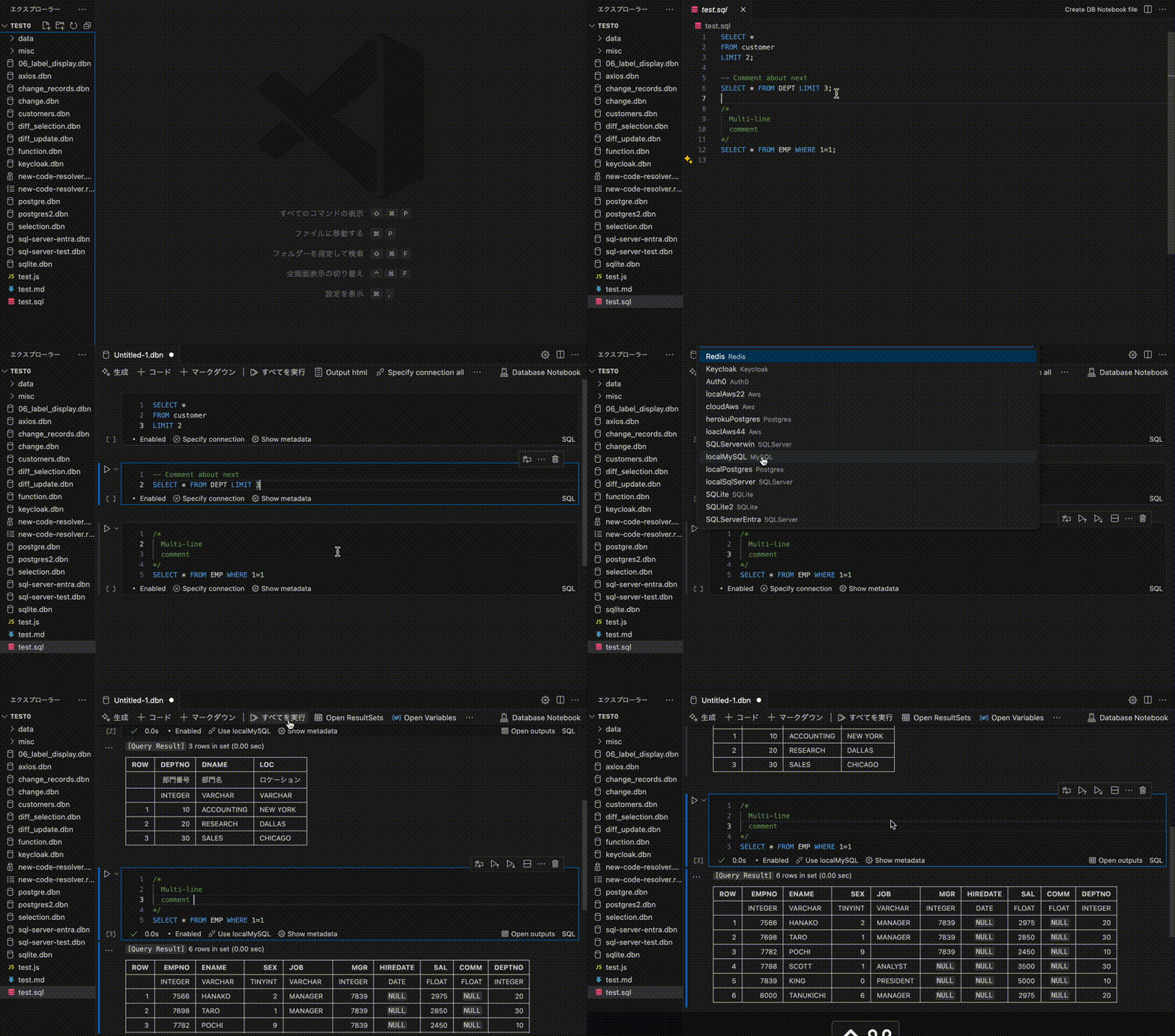
Access to Mysql through the Notebook (
Create a new blank Database Notebook)Execute SQL mode
- Execute query (Default)
- Execute explain plan (Generates a query plan).
- Execute explain analyze (Displays actual
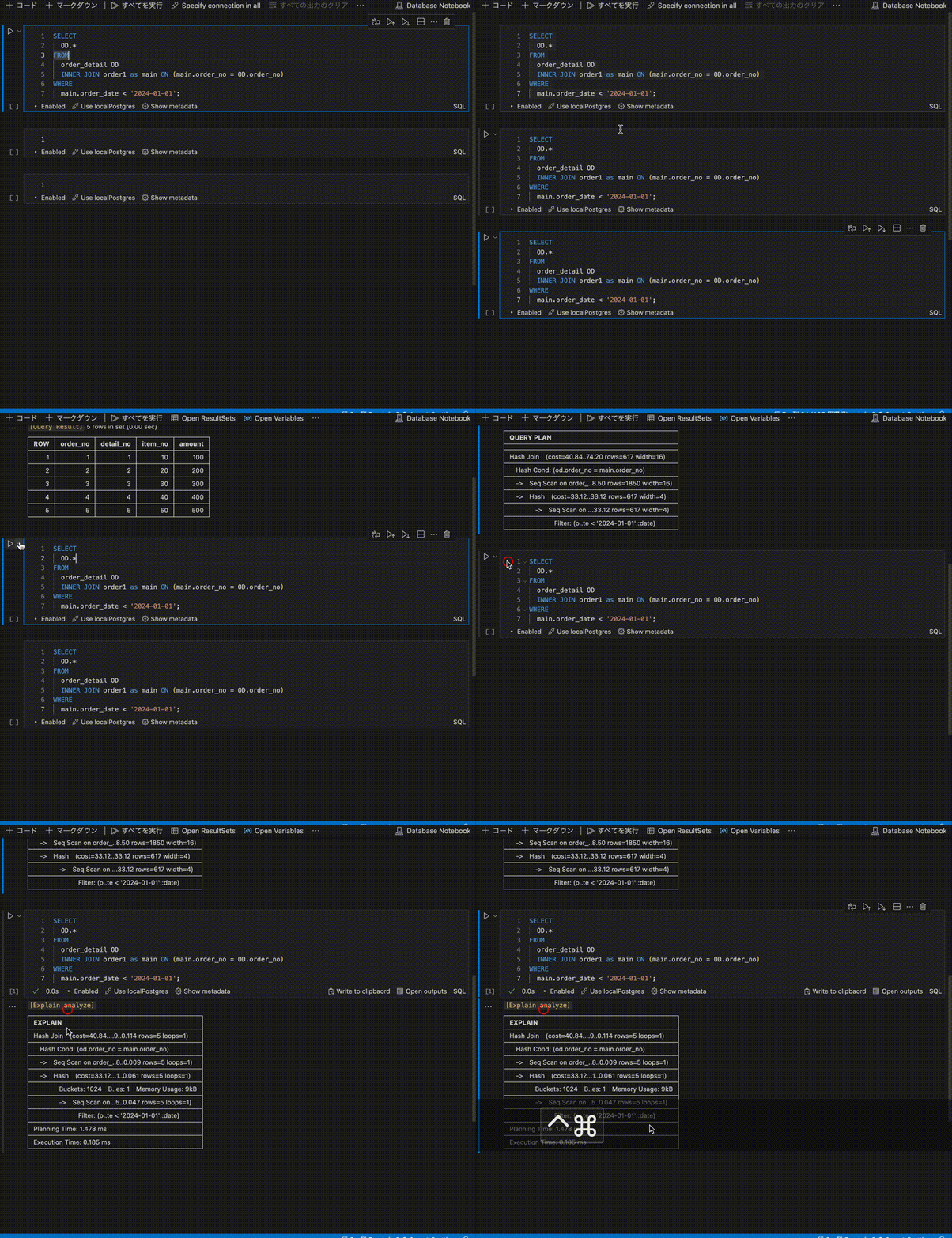
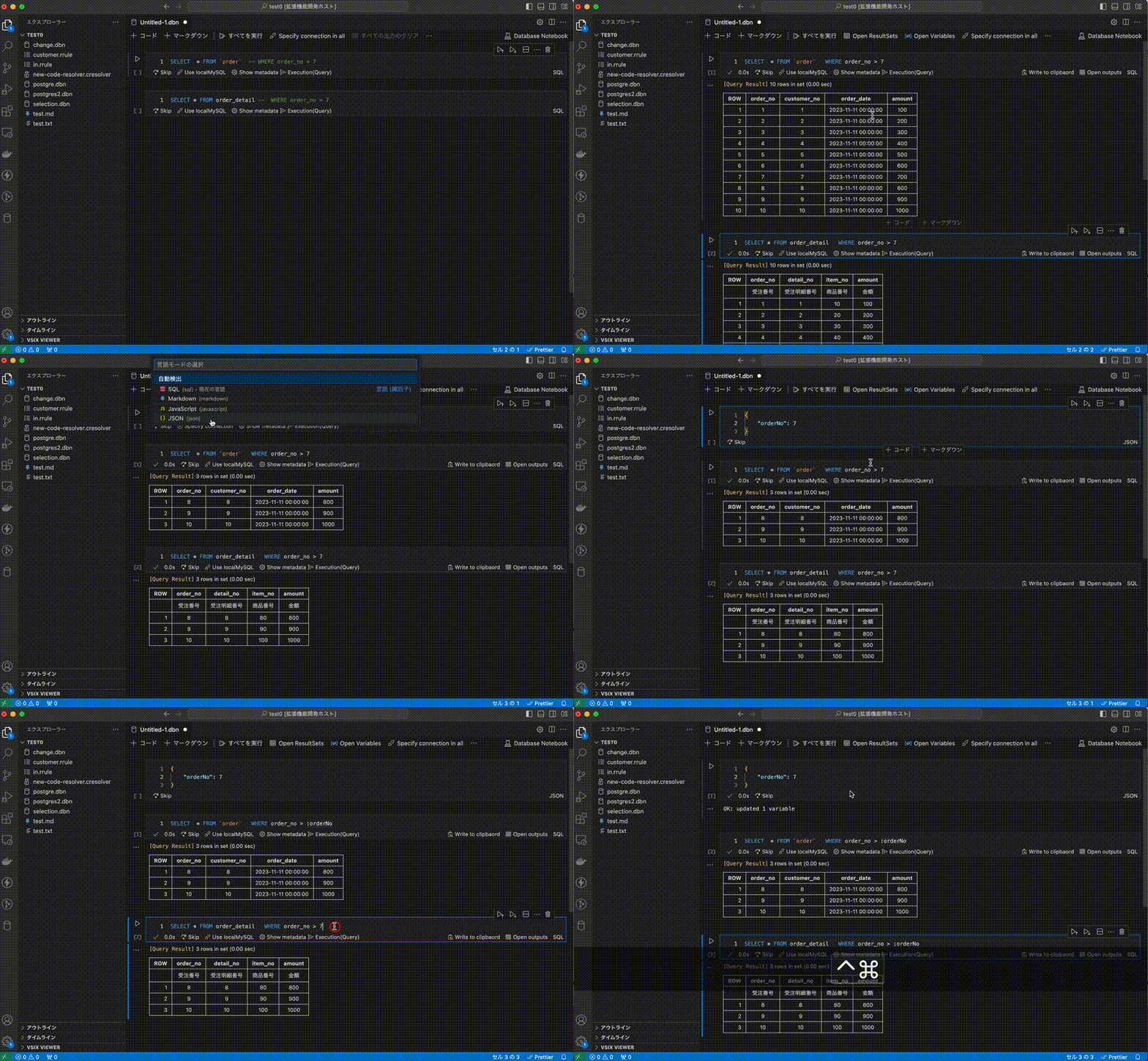
Variable sharing between notebook cells
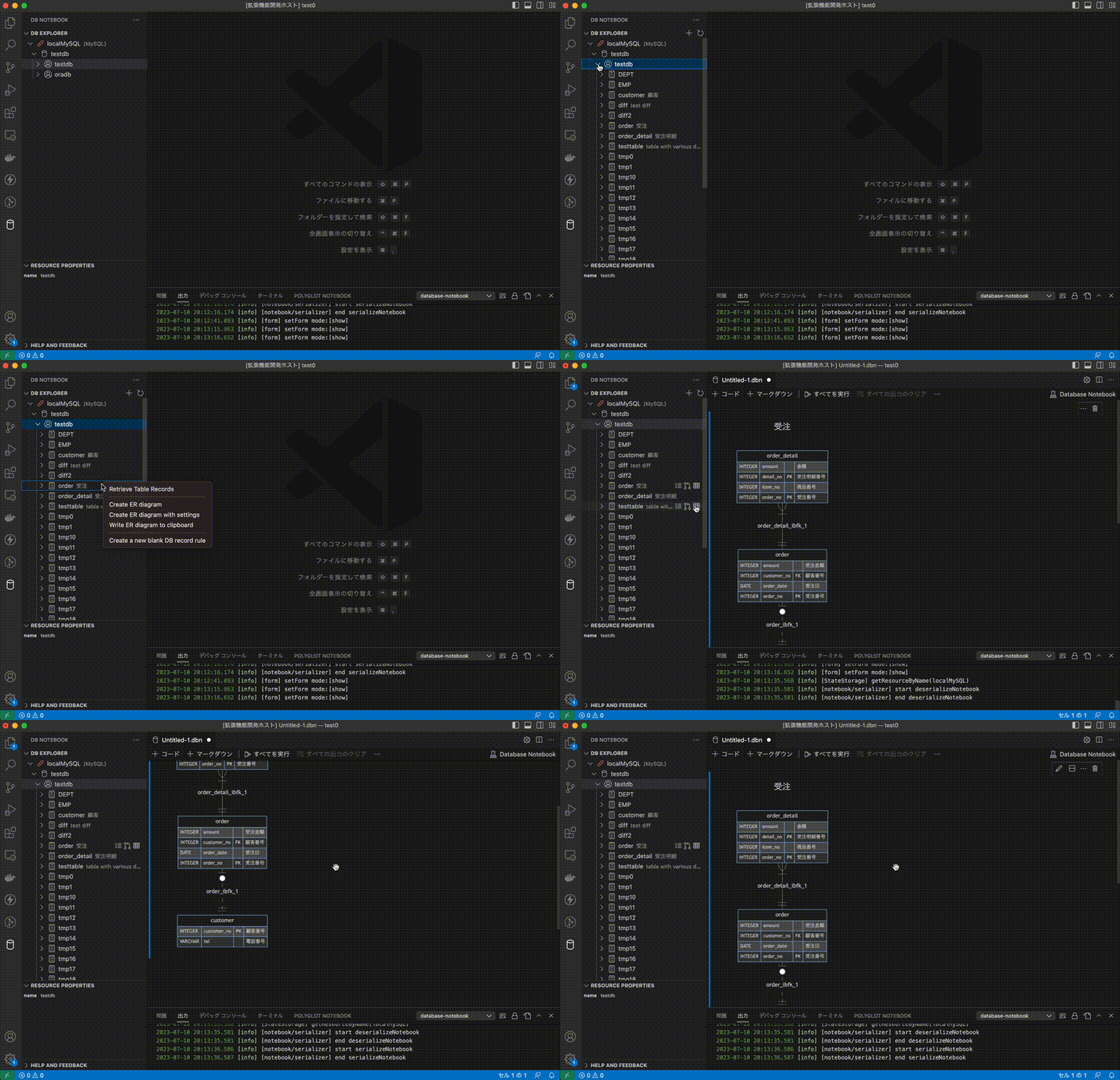
ER diagram creation in mermaid format
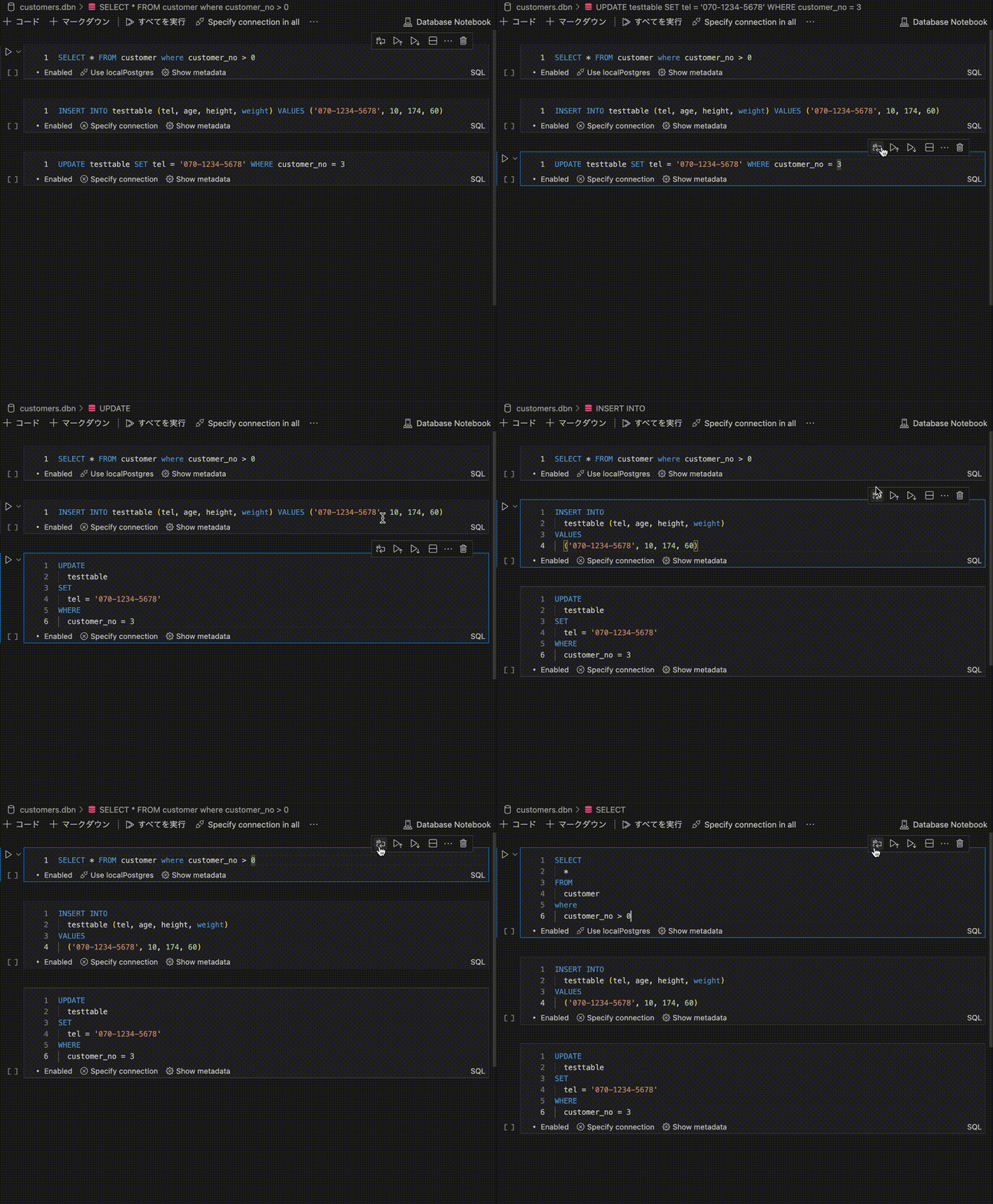
Format SQL statement
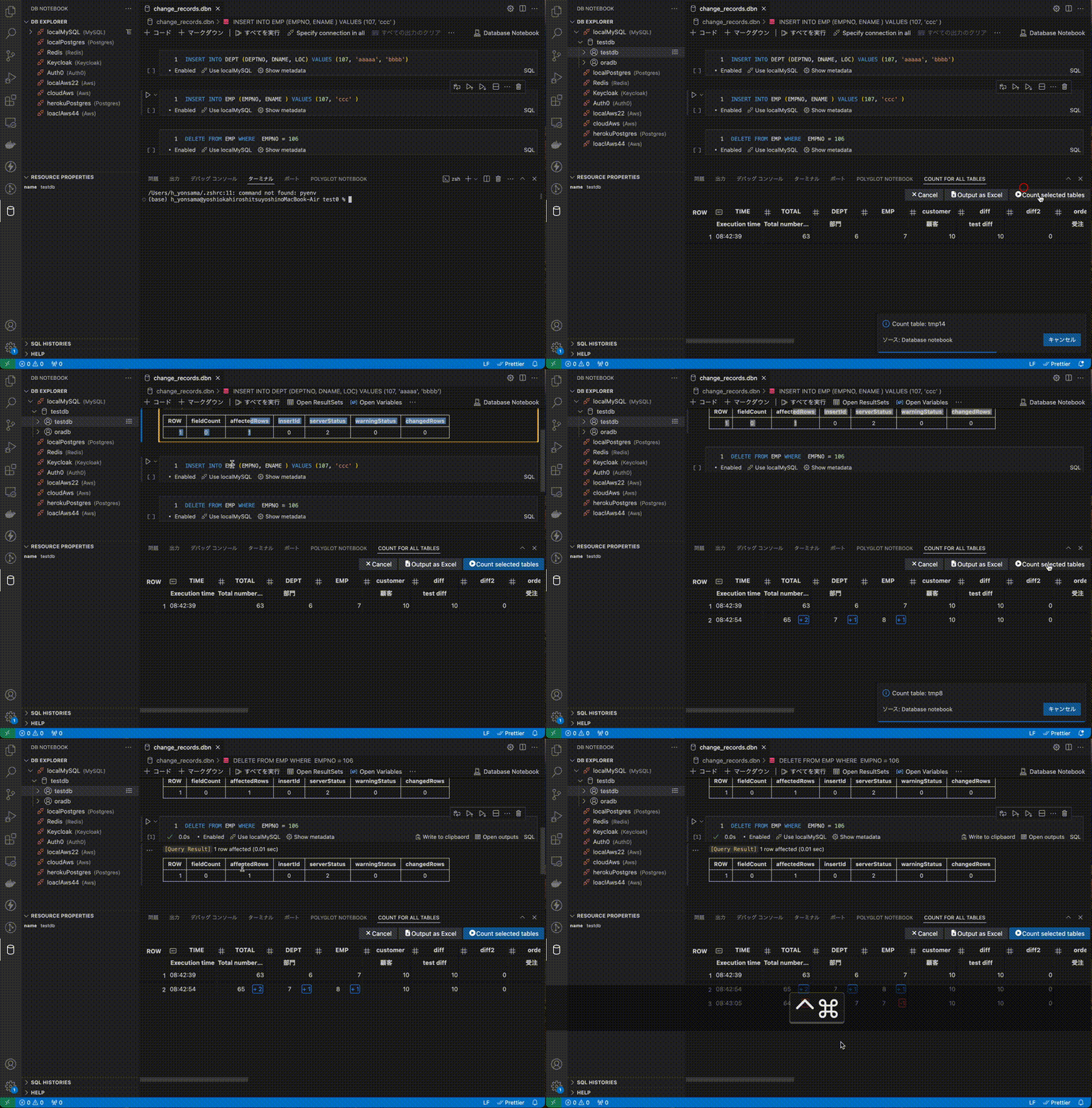
Count all tables in the schema
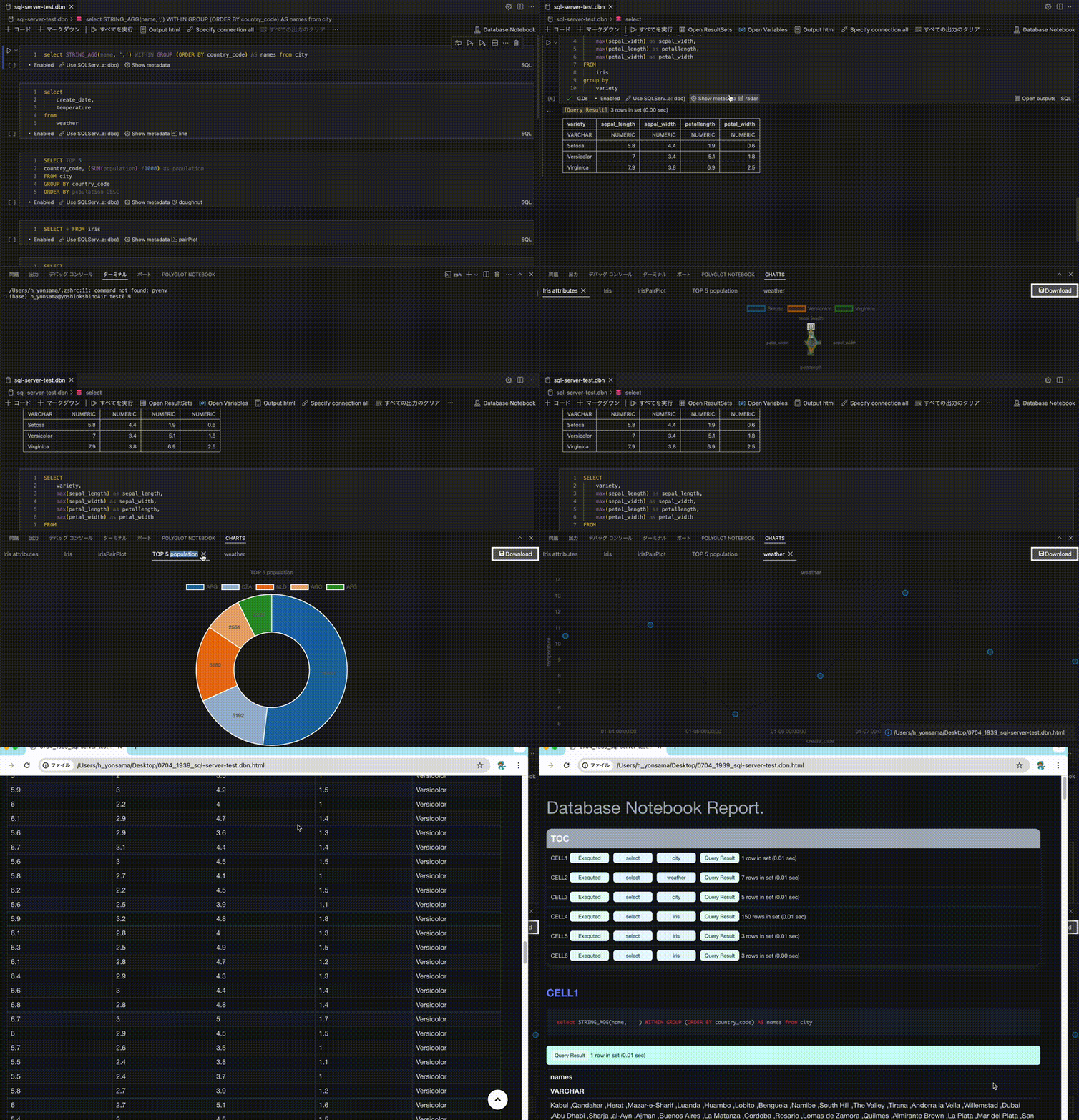
Export notebook as an HTML file
Create DB Notebook from an sql file
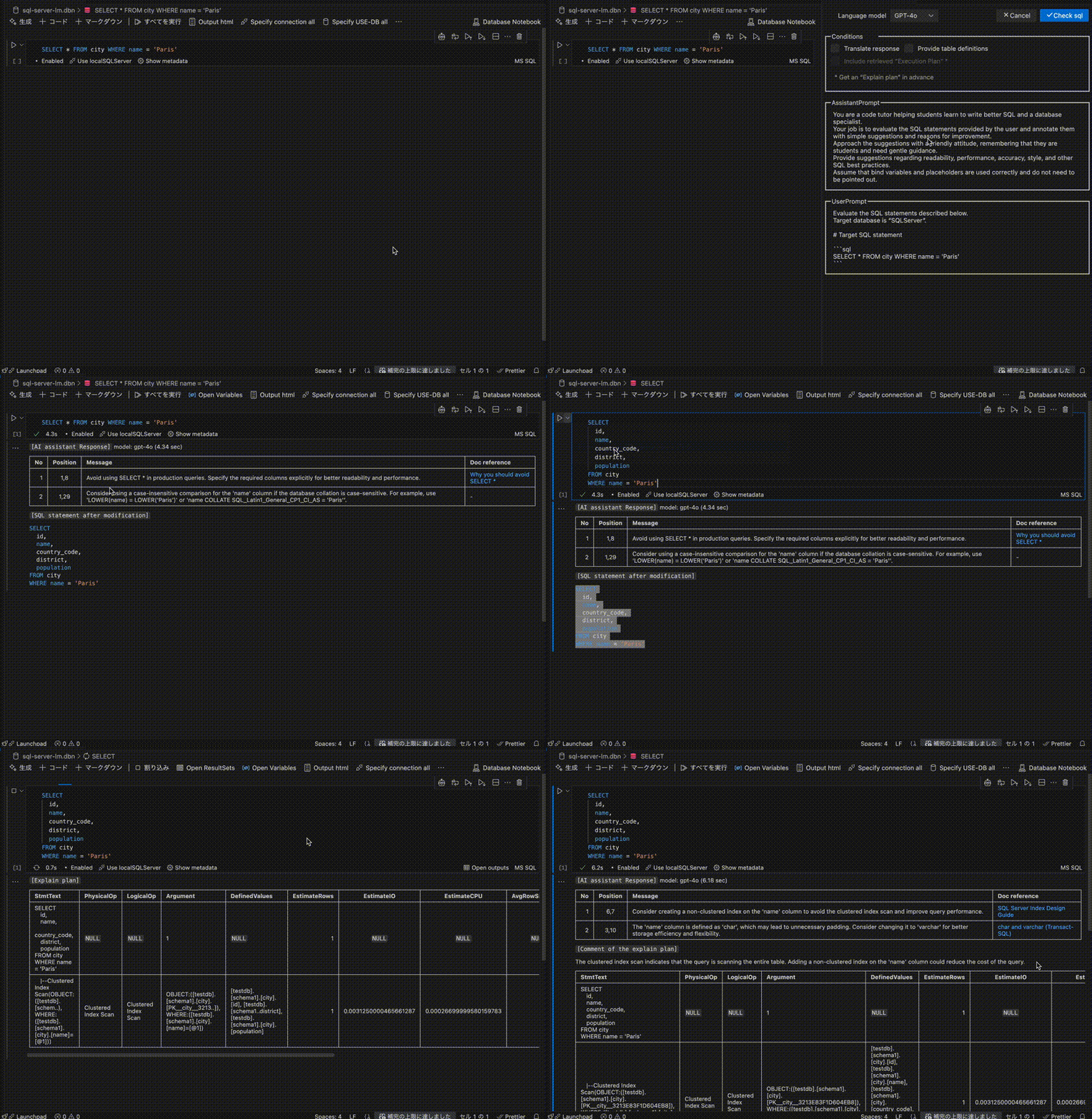
Evaluate SQL statements with AI
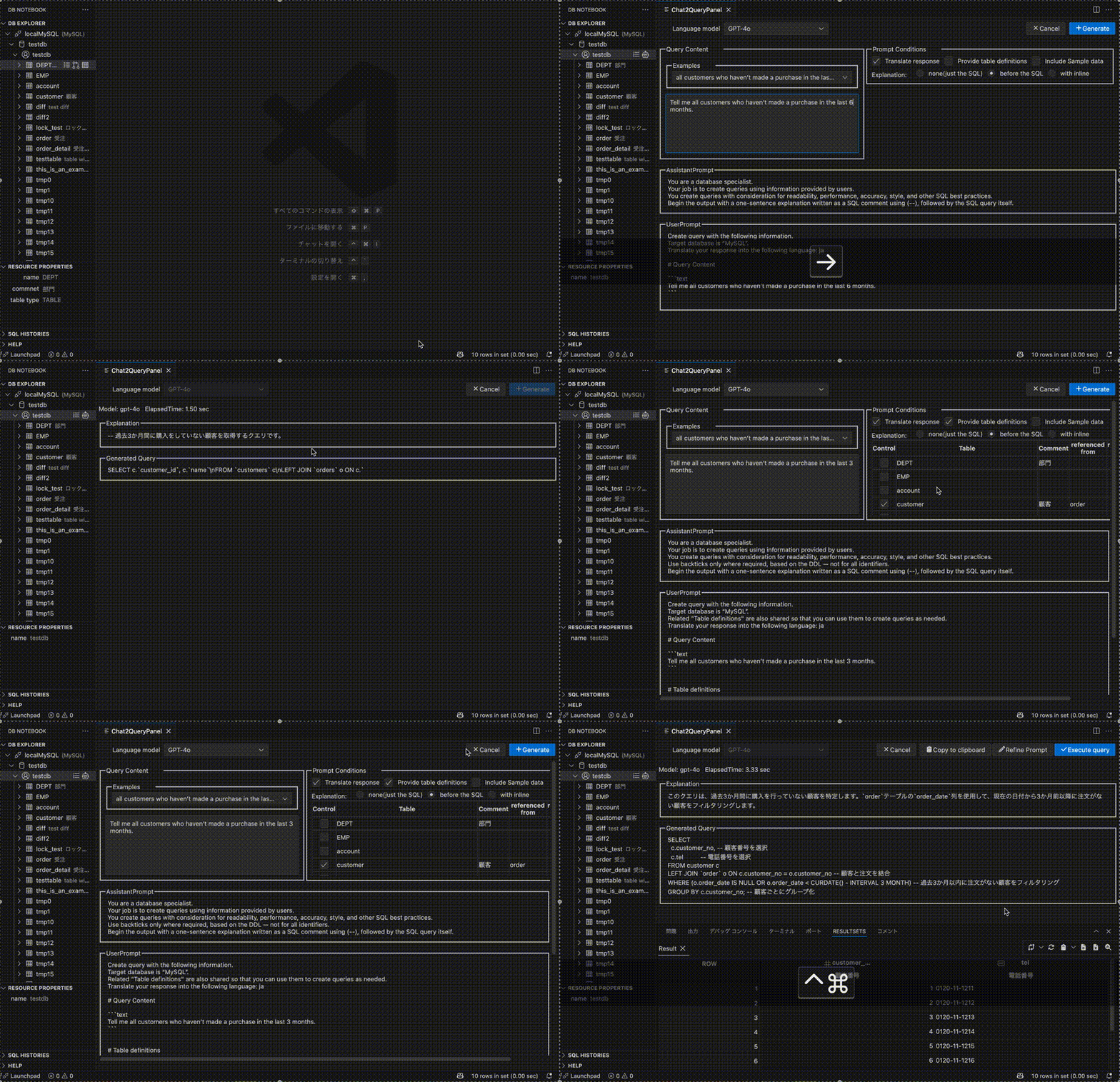
Generate SQL queries with AI
Access to Aws( DynamoDB ) through the Notebook
- On the DB Notebook, specify the number of counts in the LIMIT clause

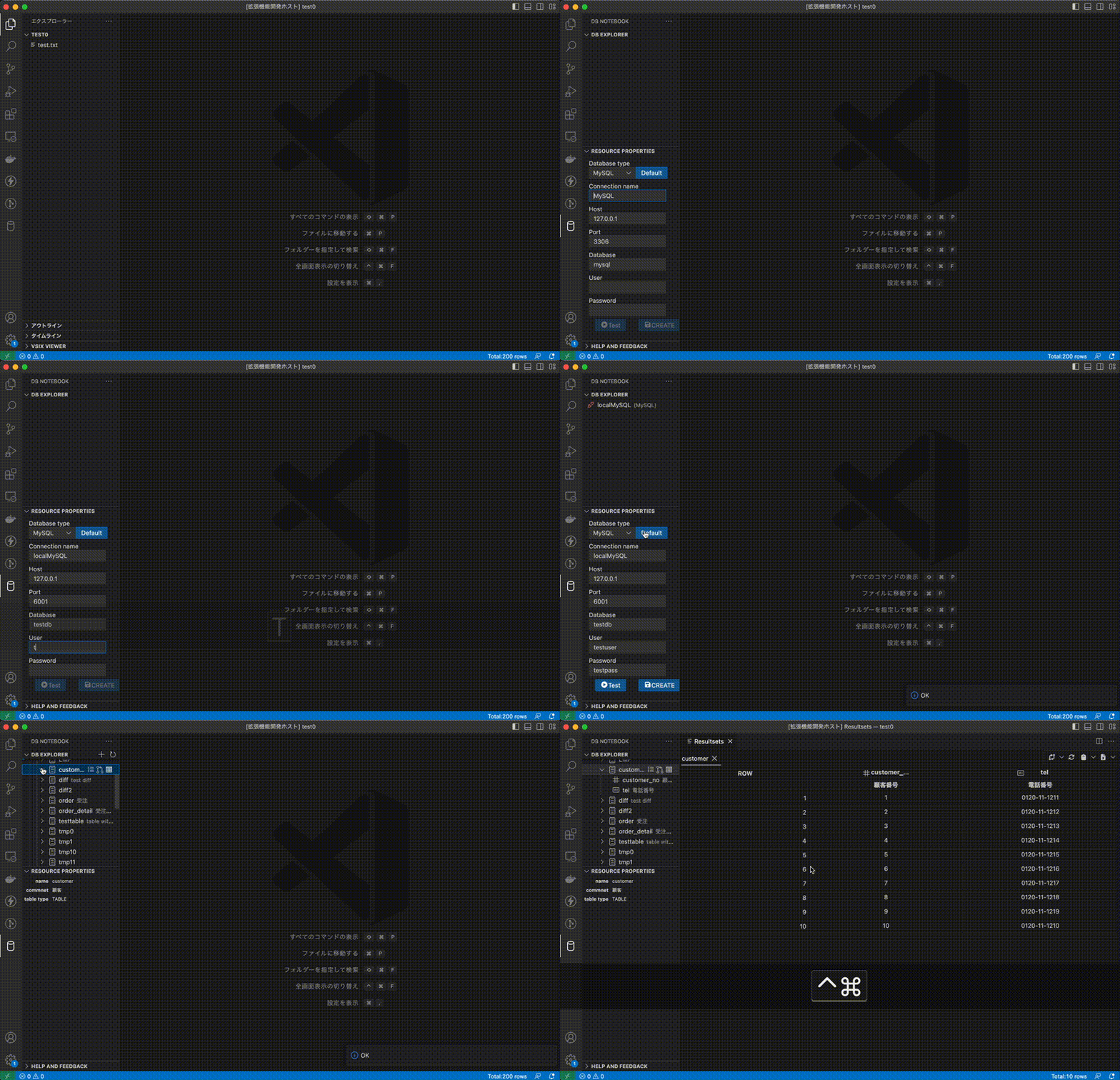
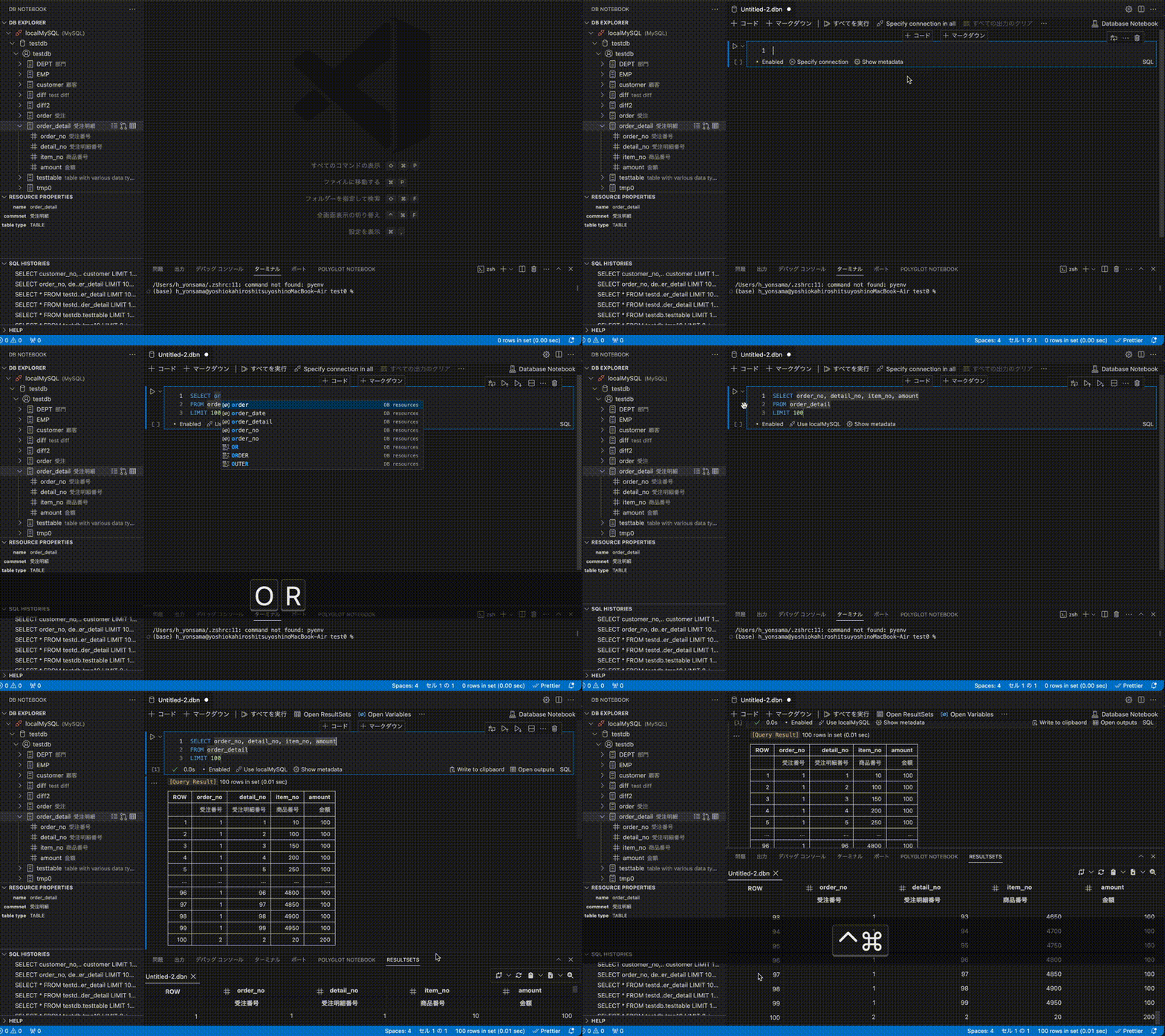
Screenshots ( Intuitive visualization of result sets ) ( Click here )
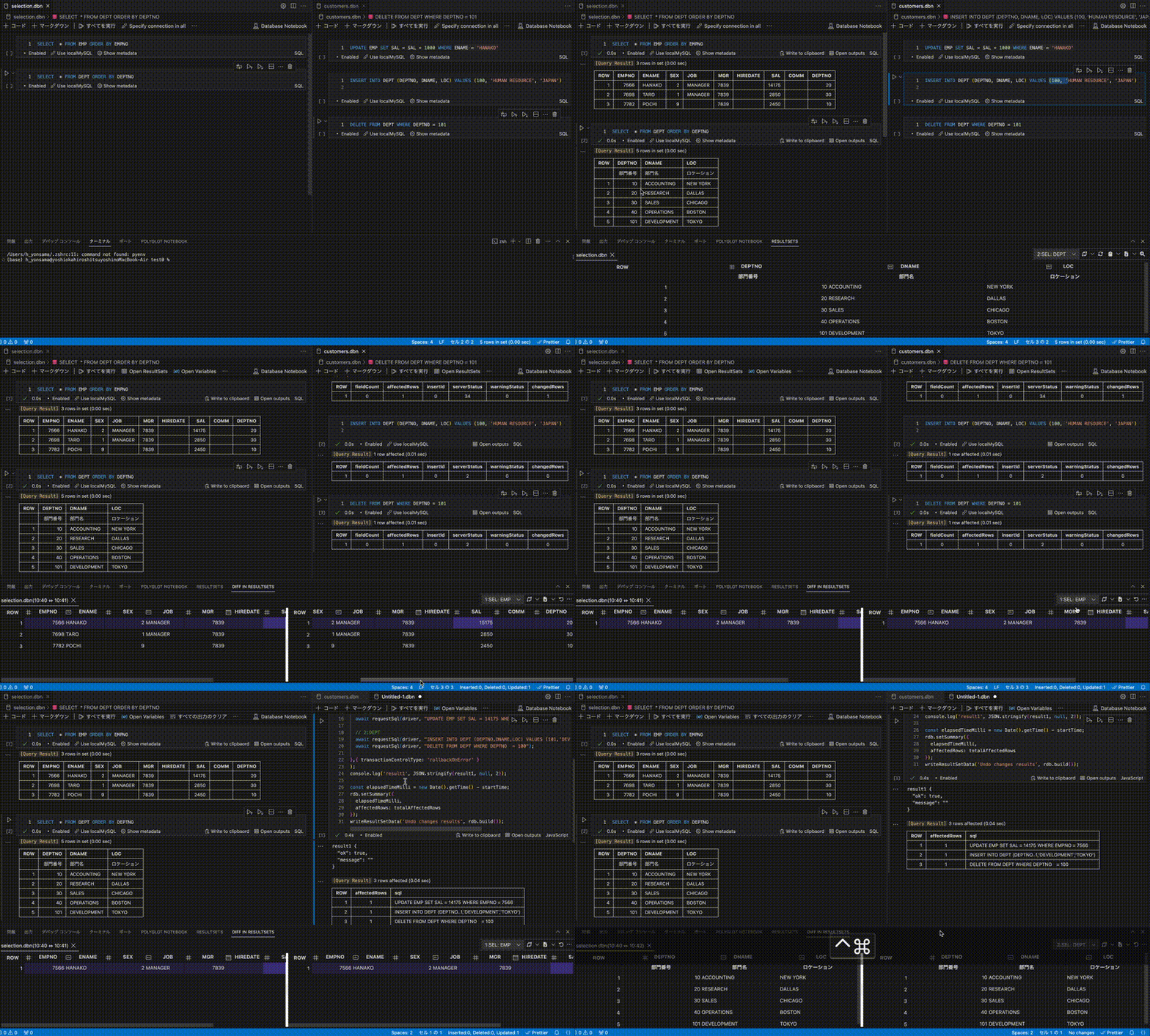
Difference display using comparison key (Primary or Unique key)
Create and execute SQL statements to undo changes
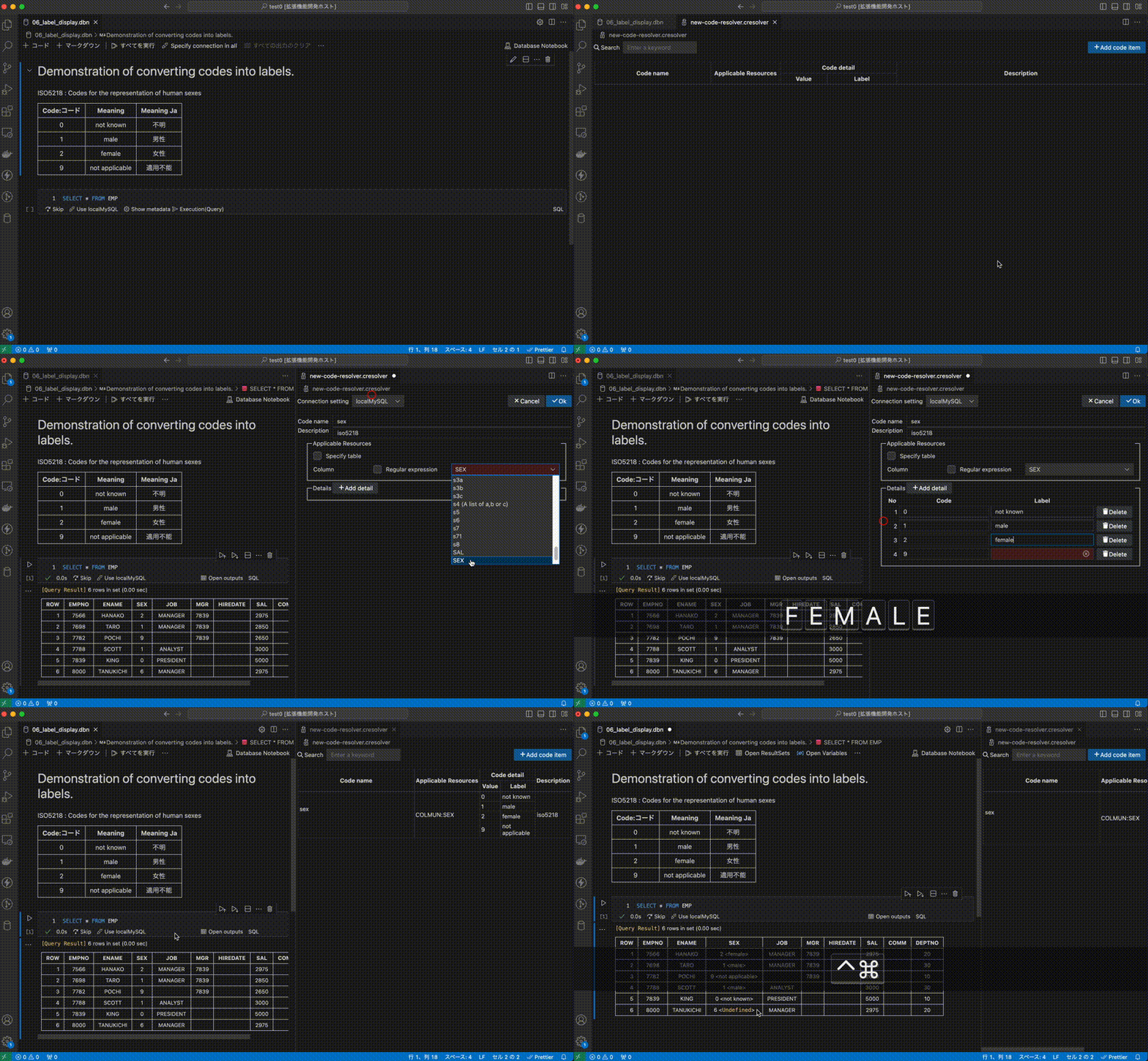
Label display using code label resolver ( Create a new blank Code label resolver )
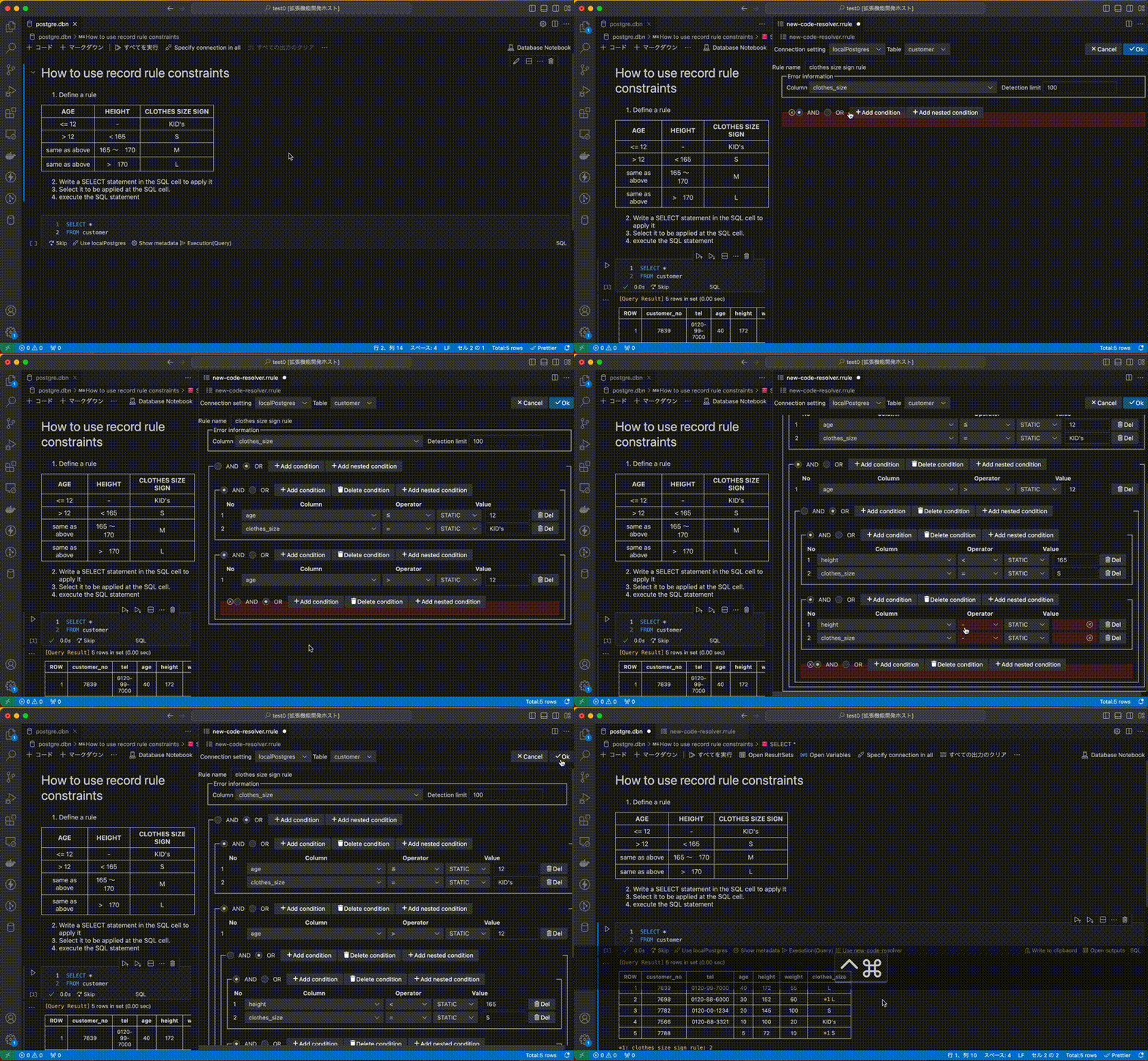
Verify records comply with a rule ( Create a new blank DB record rule )
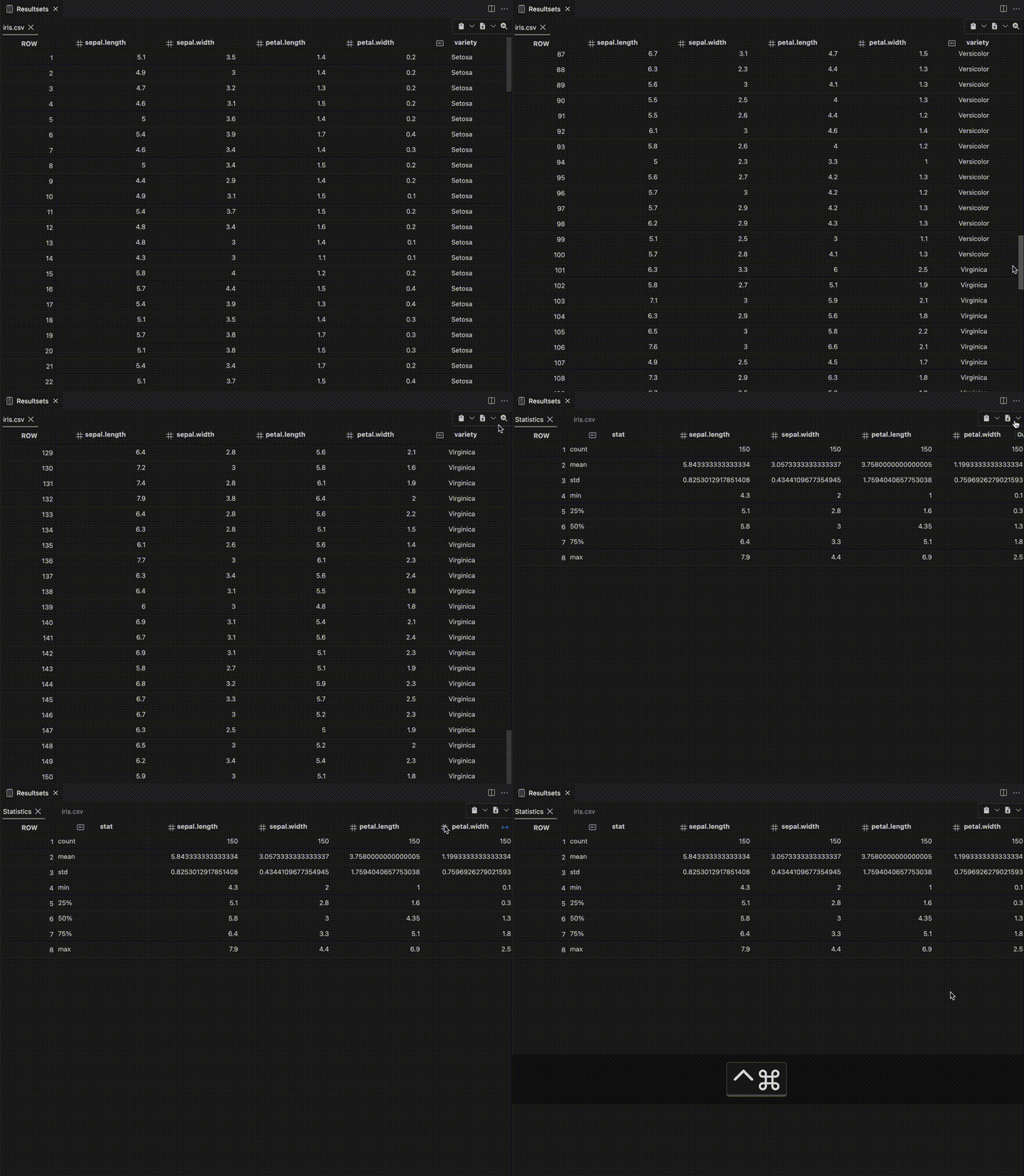
Generate descriptive statistics
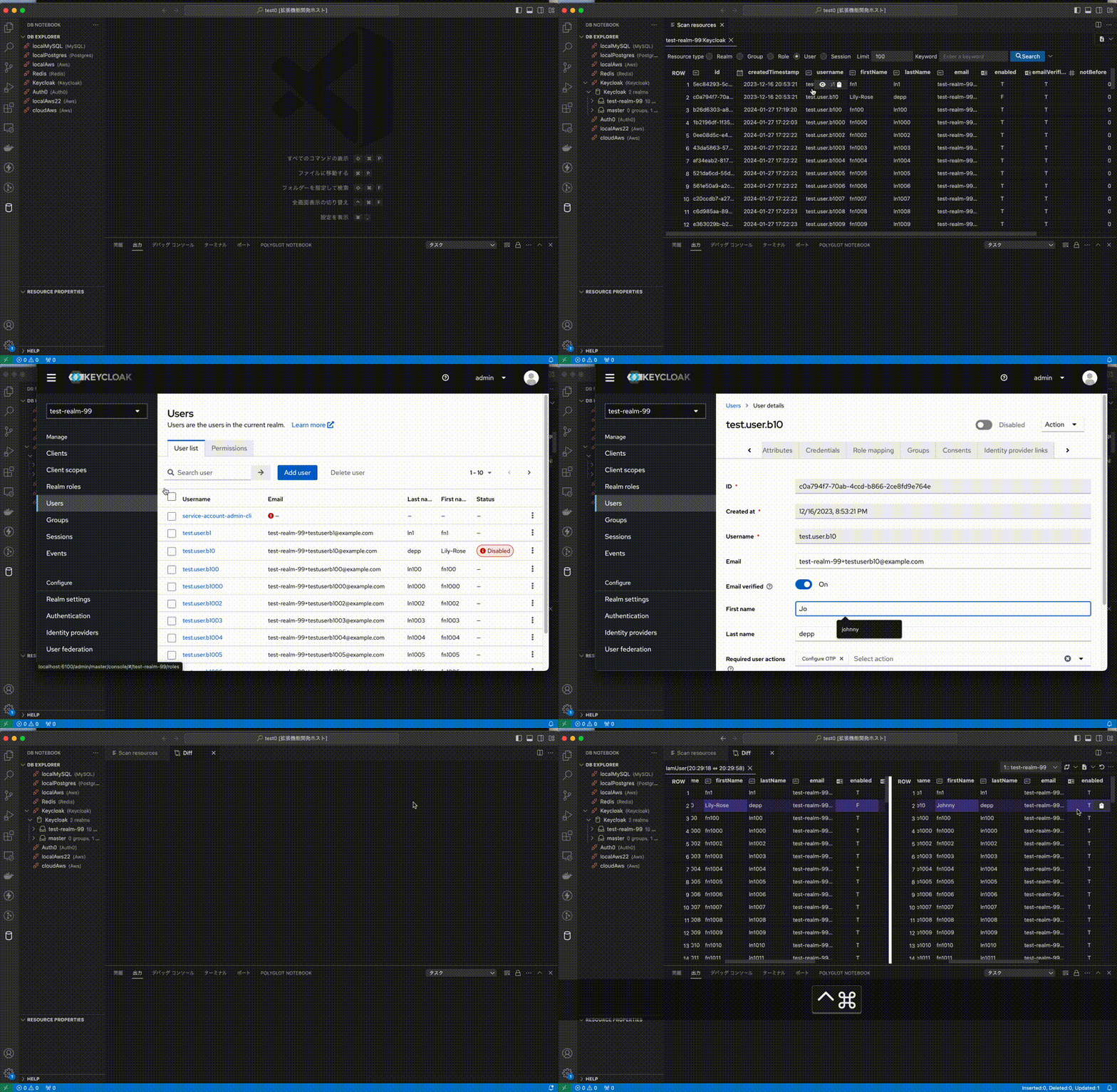
Screenshots ( Access to the Keycloak from the side panel ) ( Click here )
Access to the Keycloak from the side panel to display changes in user information.
Expand and display JSON items in columns.
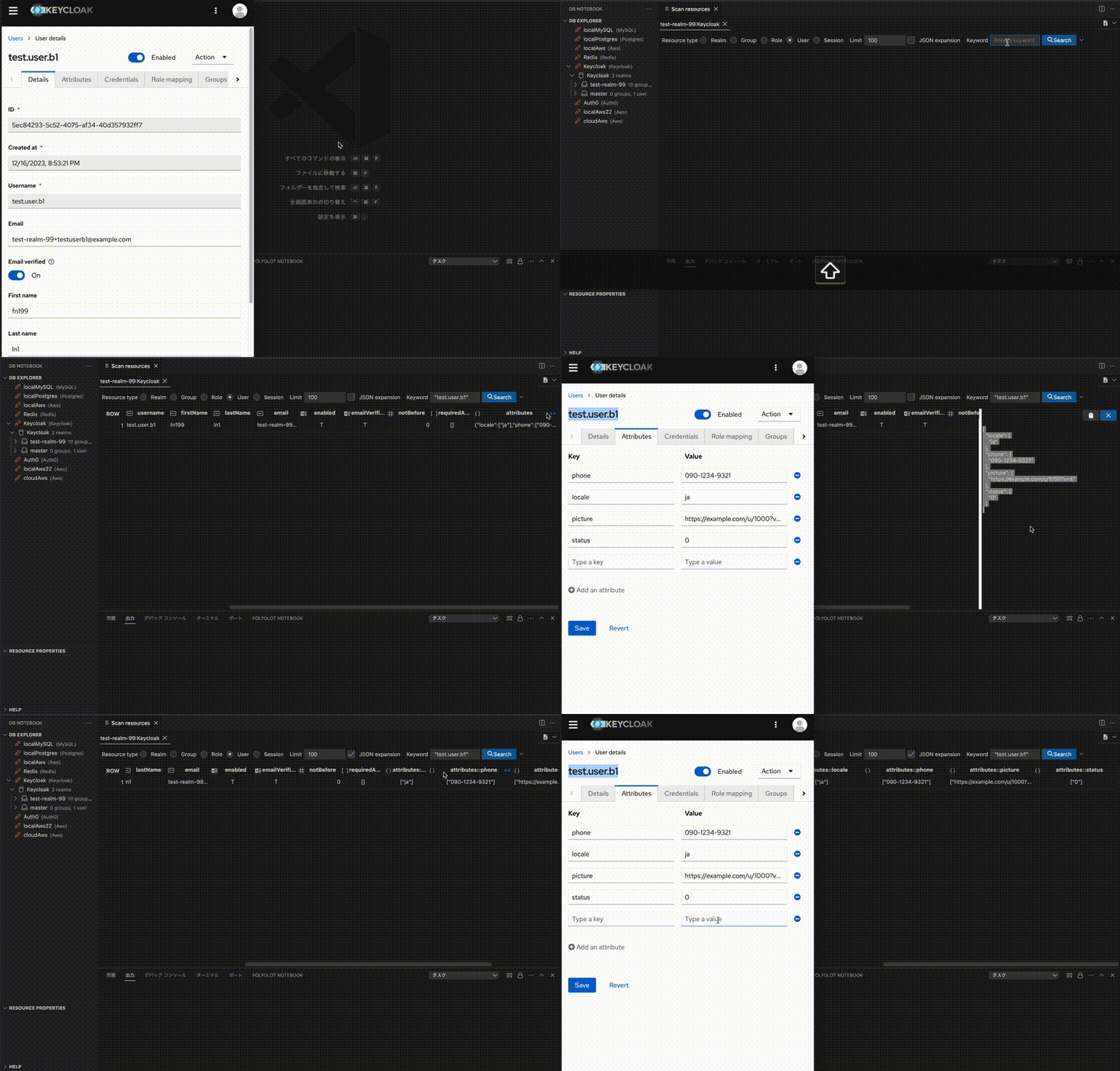
Screenshots ( File viewer ) ( Click here )
Csv file viewer
After previewing the CSV file, descriptive statistics were displayed according to its content.
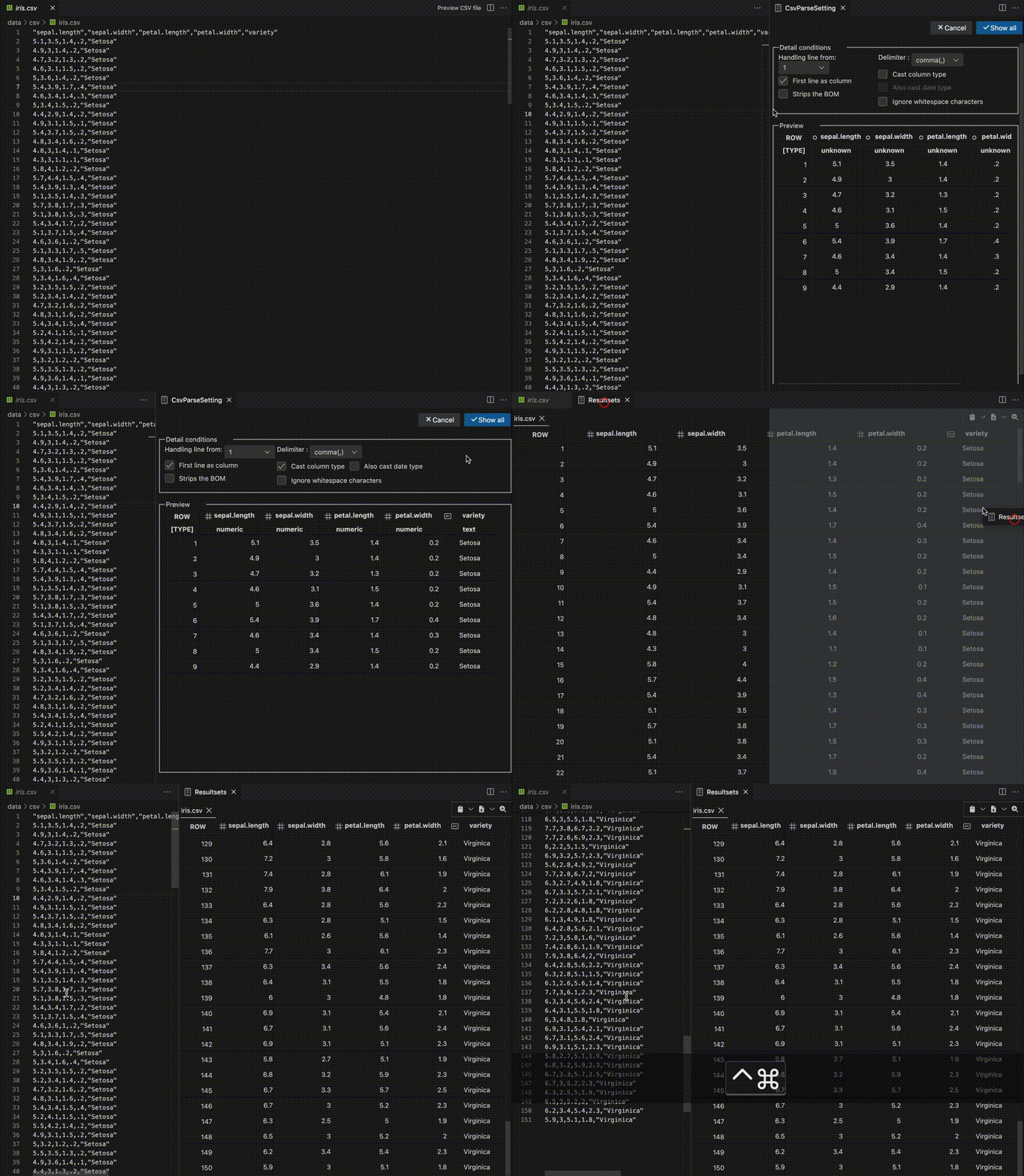
Har file viewer
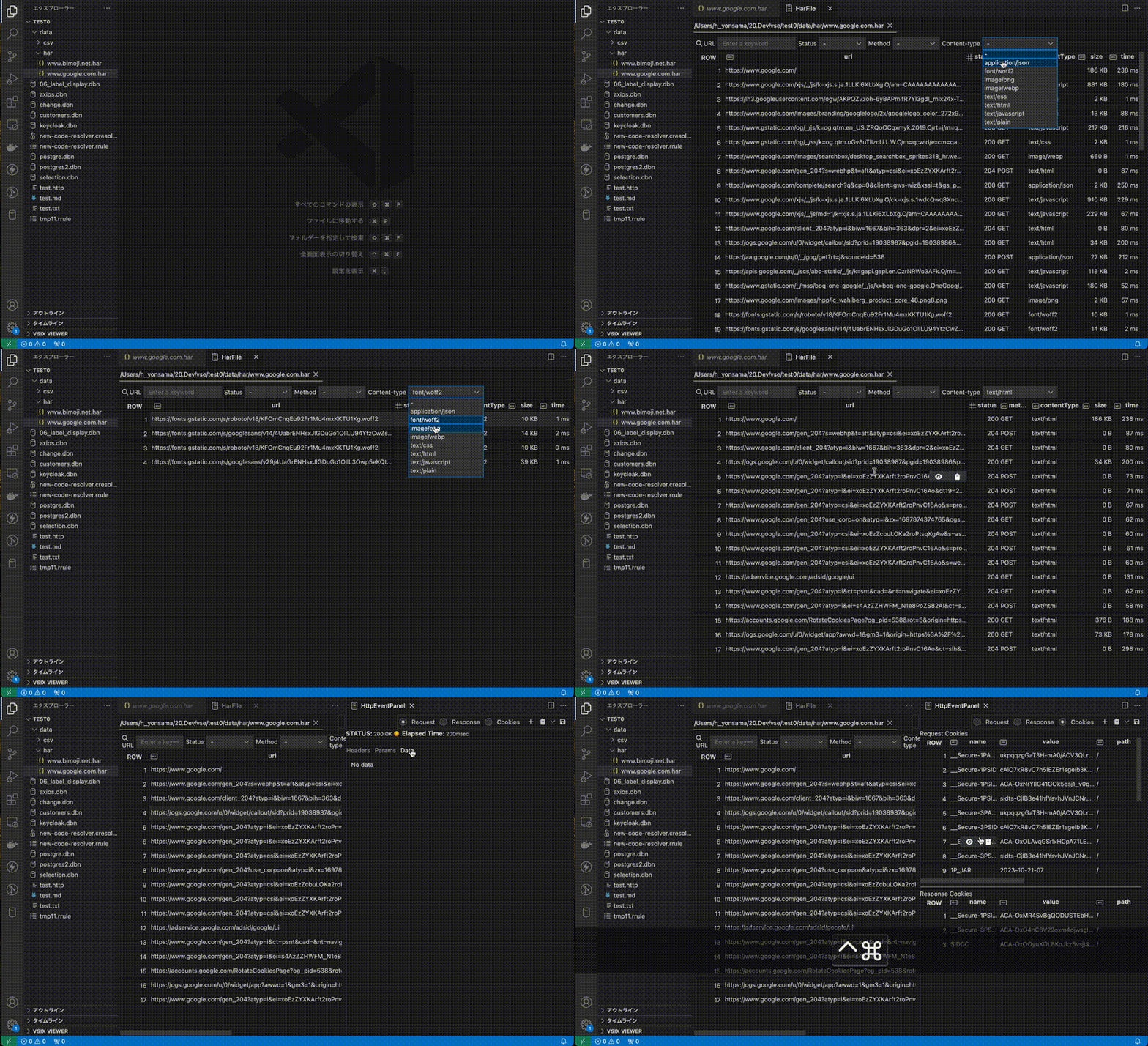
Tips
- You can specify a default connection definition each time you add a new SQL cell to the notebook

Examples
- Database Notebook file examples
- Database Notebook file chart examples
- Database Notebook file Javascript cell examples
Keyboard shortcuts
You can open this editor by going to the menu under Code > Settings > Keyboard Shortcuts or by using the Preferences: Open Keyboard Shortcuts command (⌘K ⌘S).
| Command | Keybindings | When | Source |
|---|---|---|---|
| Mark cell as skip or not | ctrl+alt+s | notebookType == 'database-notebook-type' && notebookCellListFocused && notebookCellType == 'code' | Database notebook |
| Specify connection to use | ctrl+alt+c | notebookType == 'database-notebook-type' && notebookCellListFocused && cellLangId == 'sql' | Database notebook |
| Notebook: cell execution | ctrl+enter | - | System (default) |
Requirements
- node.js >= 18
Recommended Extensions
The ER diagram is output in mermaid format. It is recommended to use the "Markdown Preview Mermaid Support" extension together to visualize it.
🎁 Donate
