

Package Exports
This package does not declare an exports field, so the exports above have been automatically detected and optimized by JSPM instead. If any package subpath is missing, it is recommended to post an issue to the original package (@nativescript/firebase-messaging-core) to support the "exports" field. If that is not possible, create a JSPM override to customize the exports field for this package.
Readme
@nativescript/firebase-messaging-core
ns plugin add @nativescript/firebase-messaging-coreWhat does it do?
Firebase Messaging Core is a lite package which enables you to use a third-party push service on Android and iOS.
On Android it will always use FCM.
Usage
iOS - Requesting permissions
iOS prevents messages containing notification (or 'alert') payloads from being displayed unless you have received explicit permission from the user.
This module provides a requestPermission method which triggers a native permission dialog requesting the user's permission:
import { MessagingCore, AuthorizationStatus } from '@nativescript/firebase-messaging-core';

async function requestUserPermission() {
    const authStatus = await MessagingCore.getInstance().requestPermission({
        ios: {
            alert: true,
        },
    });
    const enabled = authStatus === AuthorizationStatus.AUTHORIZED || authStatus === AuthorizationStatus.PROVISIONAL;

    if (enabled) {
        console.log('Authorization status:', authStatus);

        const didRegister = await MessagingCore.getInstance().registerDeviceForRemoteMessages();
    }
}
The permissions API for iOS provides much more fine-grain control over permissions and how they're handled within your application. To learn more, view the advanced iOS Permissions documentation.
On Android, you do not need to request user permission. This method can still be called on Android devices; however, and will always resolve successfully.
Foreground state messages
To listen to messages in the foreground, call the onMessage method inside of your application code. Code executed via this handler is able to interact with your application (e.g. updating the state or UI).
For example, the Alert API could be used to display a new Alert each time a message is delivered'
import { alert } from '@nativescript/core';
import { MessagingCore } from '@nativescript/firebase-messaging-core';

MessagingCore.getInstance().addOnMessage(async (remoteMessage) => {
    if(MessagingCore.inForeground){
        alert('A new Push message arrived with application inForeground!', JSON.stringify(remoteMessage));
    }else{
        alert('A new Push message arrived with application in background!', JSON.stringify(remoteMessage));
    }
});
Always show notifications when the application is in foreground
If you always want to display notifications while the application is in the foreground without sending additional parameters/data when sending the push notification, you need to set the showNotificationsWhenInForeground option to true:
import { MessagingCore } from '@nativescript/firebase-messaging-core';
MessagingCore.getInstance().showNotificationsWhenInForeground = true;
Device tokens
To send a message to a device, you must access its unique token. A token is automatically generated by the device and can be accessed using the Messaging module. The token should be saved inside your systems data-store and should be easily accessible when required.
The examples below use a NativeScript ApplicationSettings to store and manage the tokens. You can however use any datastore.
Note: If using iOS, ensure you have completed the setup & requested user permission before trying to receive messages!
Saving tokens
Once your application has started, you can call the getToken method on the Cloud Messaging module to get the unique device token (if using a different push notification provider, such as Amazon SNS, you will need to call getAPNSToken on iOS):
import { ApplicationSettings } from '@nativescript/core';
import { MessagingCore } from '@nativescript/firebase-messaging-core';

async function saveTokenToDatabase(token) {
    ApplicationSettings.setString(token);
}

// Get the device token
MessagingCore.getInstance()
    .getCurrentToken()
    .then((token) => {
        saveTokenToDatabase(token);
    });

// Listen to whether the token changes
MessagingCore.getInstance().addOnToken((token) => {
    saveTokenToDatabase(token);
});
Android Integration
Push notification icon and color
If you want to use a specific icon for the push notification, it has to be configured in the tag in the AndroidManifest.xml
<meta-data android:name="com.google.firebase.messaging.default_notification_icon"
           android:resource="@drawable/your_drawable_name" />
<meta-data android:name="com.google.firebase.messaging.default_notification_color"
           android:resource="@color/ns_primary" />
Apple Integration
Enable push support in Xcode
Open /platforms/ios/yourproject.xcworkspace (!) and go to your project's target and head over to "Capabilities" to switch this on (if it isn't already):
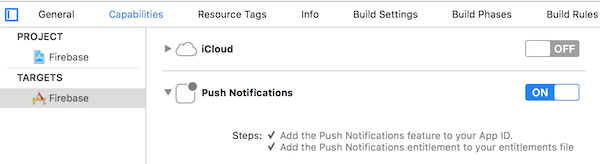
Note: Without this enabled you will receive push messages in the foreground, but NOT in the background / when the app is killed.
Copy the entitlements file
The previous step created a the file platforms/ios/YourAppName/(Resources/)YourAppName.entitlements.
Move and rename that file to app/App_Resources/iOS/app.entitlements (if it doesn't exist yet, otherwise merge its contents),
so it's not removed when you remove and re-add the iOS platform. The relevant content for background push in that file is:
<key>aps-environment</key>
<string>development</string>
Allow processing when a background push is received
Open app/App_Resources/iOS/Info.plist and add this to the bottom:
<key>UIBackgroundModes</key>
<array>
  <string>remote-notification</string>
</array>
License
Apache License Version 2.0