Package Exports
- @pipedream/woocommerce
- @pipedream/woocommerce/woocommerce.app.mjs
This package does not declare an exports field, so the exports above have been automatically detected and optimized by JSPM instead. If any package subpath is missing, it is recommended to post an issue to the original package (@pipedream/woocommerce) to support the "exports" field. If that is not possible, create a JSPM override to customize the exports field for this package.
Readme
Overview
WooCommerce is a customizable, open-source eCommerce platform built on WordPress. With the WooCommerce API, you can tap into the heart of your eCommerce store to read, create, update, and delete products, orders, and customers. On Pipedream, you can harness this API to automate routine tasks, sync data across platforms, and enhance customer experiences. By connecting WooCommerce to a wide array of apps and services, you can streamline operations, trigger personalized marketing, and analyze your sales data with greater ease.
Example Use Cases
Sync New Orders to Google Sheets: When a new order is placed on your WooCommerce store, automatically add its details to a Google Sheets spreadsheet. This process aids in real-time order tracking and inventory management without manually exporting data.
Automated Order Confirmation Emails: Use the WooCommerce API to monitor new orders and trigger personalized confirmation emails through a service like SendGrid. This workflow can include order details, expected delivery dates, and upsell opportunities.
Customer Support Ticket Creation: On receiving a new customer inquiry or support request via WooCommerce, instantly generate a ticket in a customer support platform like Zendesk. This ensures no customer query goes unnoticed and helps maintain high service standards.
Getting Started
To connect your WooCommerce store to Pipedream, create a REST API key.
Creating a WooCommerce REST API Key
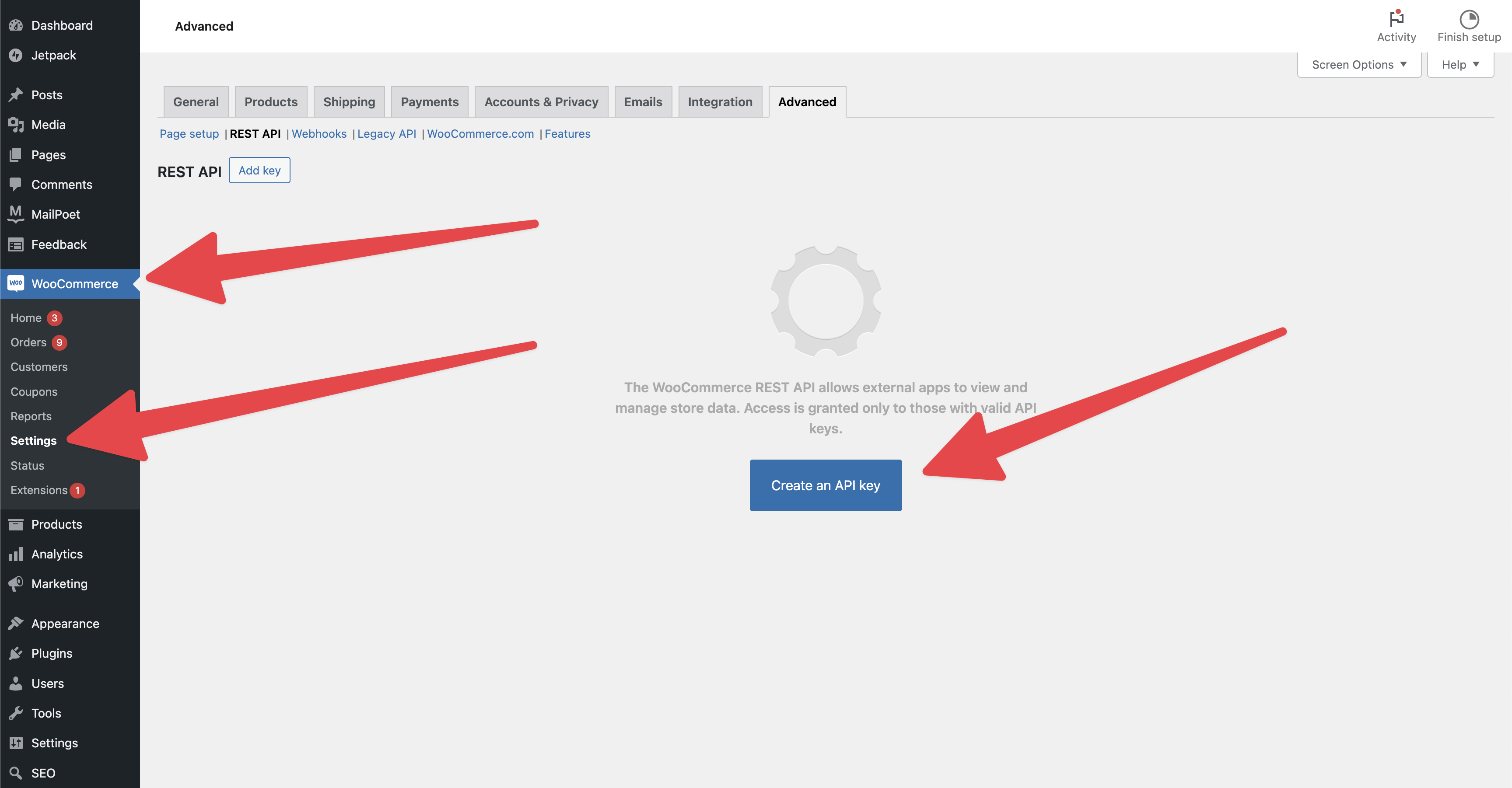
Open the WooCommerce plugin in your WordPress admin dashboard and select the Advanced tab. Navigate to the REST API section and click Create an API key.
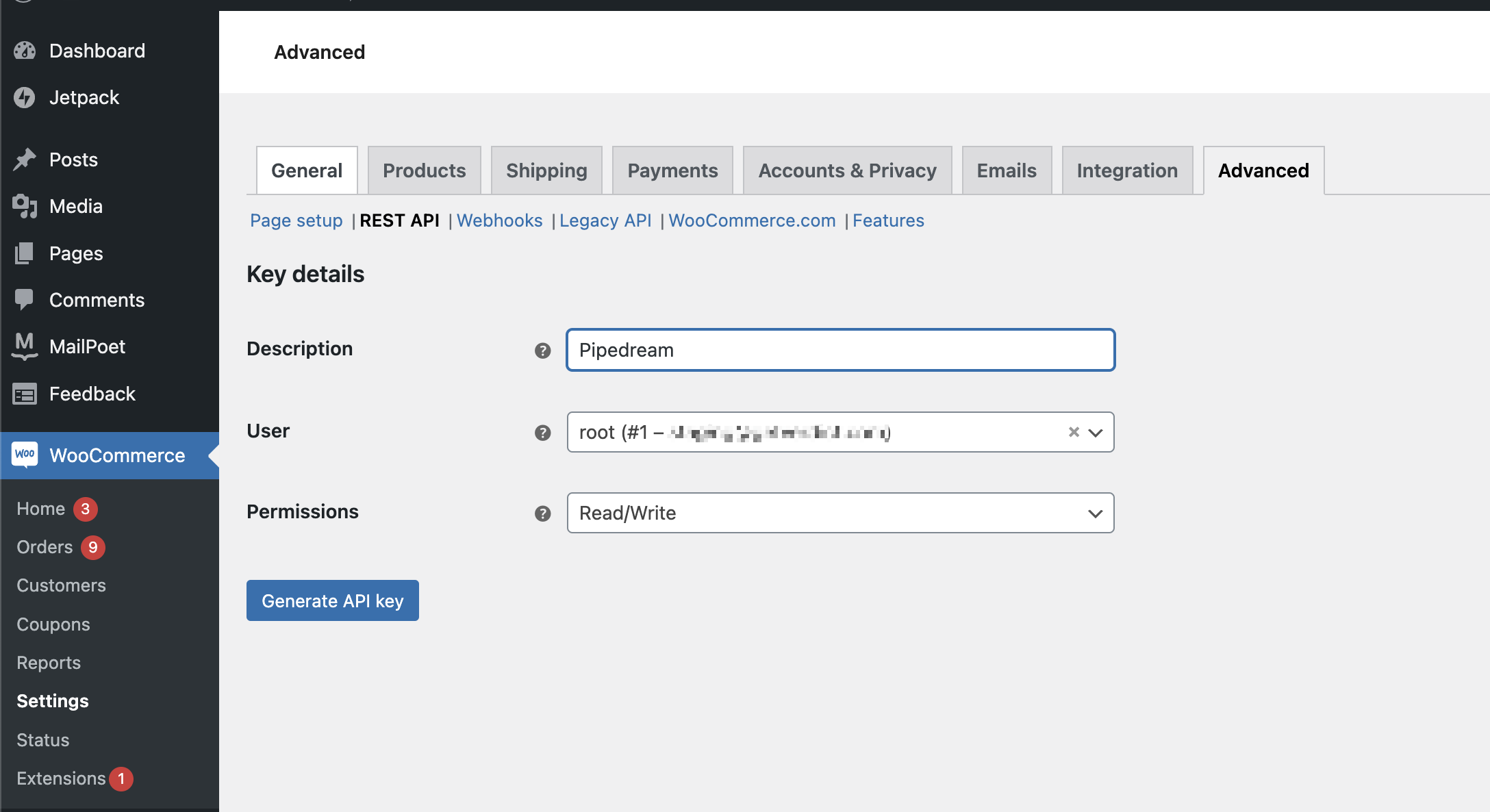
We recommend naming this API key "Pipedream" to easily remember its purpose. Select a user account that this API key should be tied to, ideally one with at least store manager access.
Next, choose the level of permission you’d like Pipedream workflows to have. You can choose between:
- Read - your Pipedream workflows can only read data, not update or insert new data.
- Write - your Pipedream workflows can update or insert data like orders and products, but cannot read them.
- Read/Write - your Pipedream workflows can both read and write data on your WooCommerce store.
After generating the API key, you’ll receive a Consumer Key and Consumer Secret. Copy these values into Pipedream under the respective Key and Secret fields.
Finally, enter your domain name. For example, for https://example-store.com, simply enter example-store.com. If your store is hosted on a subpath, like https://my-site.com/store, enter my-site.com/store.
Double-check your store’s home URL under the Settings area in WordPress.
Troubleshooting
Unable to connect to the WooCommerce REST API
Check your Permalink structure
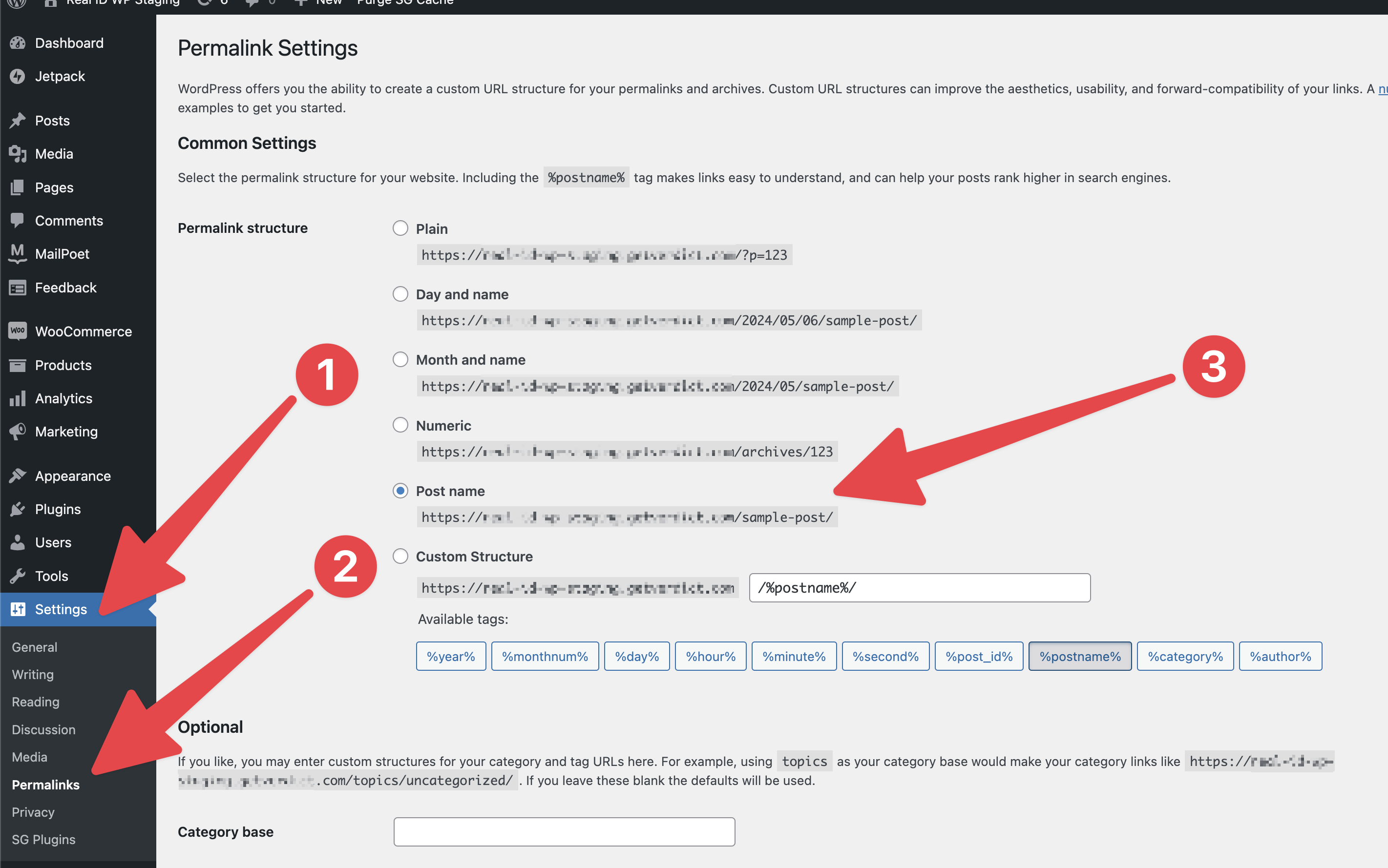
To enable Pipedream's access to your WooCommerce store’s REST API, ensure your WordPress site’s Permalink Structure is set to Post name. Open the Settings area in WordPress, navigate to the Permalink section, verify that the Permalink setting is set to Post name, and click Save to apply the change.
Check your WordPress Home URL
If you still cannot connect your WooCommerce store to Pipedream, ensure that your site’s Home URL structure is not on a subdomain or subpath. You can find your WordPress site’s Site URL under the Settings > General section.
If your site’s URL is https://example.com, then the Pipedream domain field for your WooCommerce connected account should be example.com. If your WordPress site’s home URL is under a different subdomain, such as https://store.example.com, then enter store.example.com for the domain field for your connected account.
Firewall issues
By default, Pipedream Workflows originate from dynamic IP addresses within the us-east-1 region in AWS. To allow Pipedream connections, set up a Pipedream VPC to assign a static IP address to your workflows.
Permissions issues
Ensure the user associated with your WooCommerce API key has the necessary permissions to read or write specific resources like products or orders. Additionally, double-check that your API key has read and/or write permissions.