

Package Exports
- chartjs-plugin-stacked100
- chartjs-plugin-stacked100/build/index.js
This package does not declare an exports field, so the exports above have been automatically detected and optimized by JSPM instead. If any package subpath is missing, it is recommended to post an issue to the original package (chartjs-plugin-stacked100) to support the "exports" field. If that is not possible, create a JSPM override to customize the exports field for this package.
Readme
chartjs-plugin-stacked100
This plugin for Chart.js that makes your bar chart to 100% stacked bar chart.
Requires Chart.js 3.x.
Demo: https://y-takey.github.io/chartjs-plugin-stacked100
Installation
npm
yarn add chartjs-plugin-stacked100or
npm install chartjs-plugin-stacked100 --saveimport { Chart } from "chart.js";
import ChartjsPluginStacked100 from "chartjs-plugin-stacked100";
Chart.register(ChartjsPluginStacked100);CDN
<script src="https://cdn.jsdelivr.net/npm/chart.js@3.0.0/dist/chart.min.js"></script>
<script src="https://cdn.jsdelivr.net/npm/chartjs-plugin-stacked100@1.0.0"></script>Chart.register(ChartjsPluginStacked100.default);Options
| Name | Type | Default | Description |
|---|---|---|---|
| enable | boolean | - | |
| replaceTooltipLabel | boolean | true | replace tooltip label automatically. |
| fixNegativeScale | boolean | true | when datasets has negative value and fixNegativeScale is false, the nagative scale is variable. (the range is between -100 and -1) |
| individual | boolean | false | scale the highest bar to 100%, and the rest would be proportional to the highest bar of a stack. |
| precision | number | 1 | precision of percentage. the range is between 0 and 16 |
Usage
Basic
specify plugin options with { stacked100: { enable: true } }.
Use your tooltip label
specify plugin options with { stacked100: { enable: true, replaceTooltipLabel: false } }.
and you can pass tooltip option.
new Chart(document.getElementById("my-chart"), {
  type: "bar",
  data: {},
  options: {
    tooltips: {
      callbacks: {
        label: (tooltipItem) => {
          const data = tooltipItem.chart.data;
          const datasetIndex = tooltipItem.datasetIndex;
          const index = tooltipItem.dataIndex;
          const datasetLabel = data.datasets[datasetIndex].label || "";
          // You can use two type values.
          // `data.originalData` is raw values,
          // `data.calculatedData` is percentage values, e.g. 20.5 (The total value is 100.0)
          const originalValue = data.originalData[datasetIndex][index];
          const rateValue = data.calculatedData[datasetIndex][index];

          return `${datasetLabel}: ${rateValue}% (raw ${originalValue})`;
        },
      },
    },
    plugins: {
      stacked100: { enable: true, replaceTooltipLabel: false },
    },
  },
});
Specify the precision of the percentage value
You can pass precision option. (default value is 1 )
For example, when you pass { stacked100: { enable: true, precision: 3 } }, the result is 0.123% .
Examples
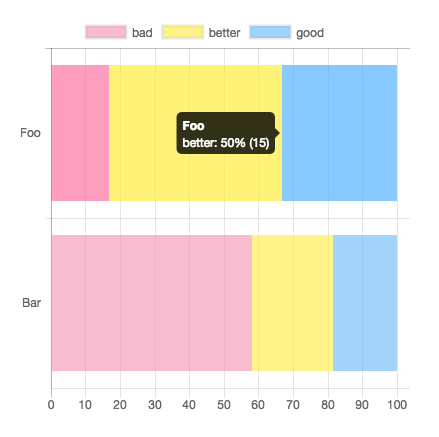
new Chart(document.getElementById("my-chart"), {
  type: "bar",
  data: {
    labels: ["Foo", "Bar"],
    datasets: [
      { label: "bad", data: [5, 25], backgroundColor: "rgba(244, 143, 177, 0.6)" },
      { label: "better", data: [15, 10], backgroundColor: "rgba(255, 235, 59, 0.6)" },
      { label: "good", data: [10, 8], backgroundColor: "rgba(100, 181, 246, 0.6)" },
    ],
  },
  options: {
    indexAxis: "y",
    plugins: {
      stacked100: { enable: true },
    },
  },
});
Datapoints can be Objects
...
// line or bar charts
datasets: [
  { data: [{ y: 5 }, { y: 25 }] },
  { data: [{ y: 15 }, { y: 10 }] },
  { data: [{ y: 10 }, { y: 8 }] }
]

// horizontalBar charts
datasets: [
  { data: [{ x: 5 }, { x: 25 }] },
  { data: [{ x: 15 }, { x: 10 }] },
  { data: [{ x: 10 }, { x: 8 }] }
]
...
How to use datalabels plugin
new Chart(document.getElementById("my-chart"), {
  type: "bar",
  data: {},
  options: {
    plugins: {
      datalabels: {
        formatter: (_value, context) => {
          const data = context.chart.data;
          const { datasetIndex, dataIndex } = context;
          return `${data.calculatedData[datasetIndex][dataIndex]}% (${data.originalData[datasetIndex][dataIndex]})`;
        },
      },
      stacked100: { enable: true },
    },
  },
});
Use with React
npx create-react-app demo-react
cd demo-react
npm install react-chartjs-2 chartjs-plugin-stacked100 --save
Then use it:
import { Chart, Bar } from "react-chartjs-2";
import ChartjsPluginStacked100 from "chartjs-plugin-stacked100";

Chart.register(ChartjsPluginStacked100);

const ChartData = (props: any) => {
  return (
    <>
      {
        <div>
          <Bar
            data={{
              labels: ["Foo", "Bar"],
              datasets: [
                { label: "bad", data: [5, 25], backgroundColor: "rgba(244, 143, 177, 0.6)" },
                { label: "better", data: [15, 10], backgroundColor: "rgba(255, 235, 59, 0.6)" },
                { label: "good", data: [10, 8], backgroundColor: "rgba(100, 181, 246, 0.6)" },
              ],
            }}
            options={{
              //@ts-ignore
              indexAxis: "y",
              plugins: {
                stacked100: { enable: true },
              },
            }}
          />
        </div>
      }
    </>
  );
};
export default ChartData;
You can find a working example in the demo-react folder
Supported chart types
- bar
- line (via @HoJSim, thanks!)
Contributing
Pull requests and issues are always welcome.
For bugs and feature requests, please create an issue.
- Fork it!
- Create your feature branch:
git checkout -b my-new-feature - Commit your changes:
git commit -am 'Add some feature' - Push to the branch:
git push origin my-new-feature - Submit a pull request!
Development
- start dev server:
yarn start - publish the plugin:
npm version (major|minor|patch) && npm publish - check:
yarn dev - deploy to github pages:
yarn gh