
Package Exports
- hyper-init
This package does not declare an exports field, so the exports above have been automatically detected and optimized by JSPM instead. If any package subpath is missing, it is recommended to post an issue to the original package (hyper-init) to support the "exports" field. If that is not possible, create a JSPM override to customize the exports field for this package.
Readme

hyper-init
The ultimate and most complete extension to initialize commands before and after Hyper terminal starts



With hyper-init you can perform as many commands as you would like to do, before and after Hyper terminal starts, using rules that defines when your commands should run.
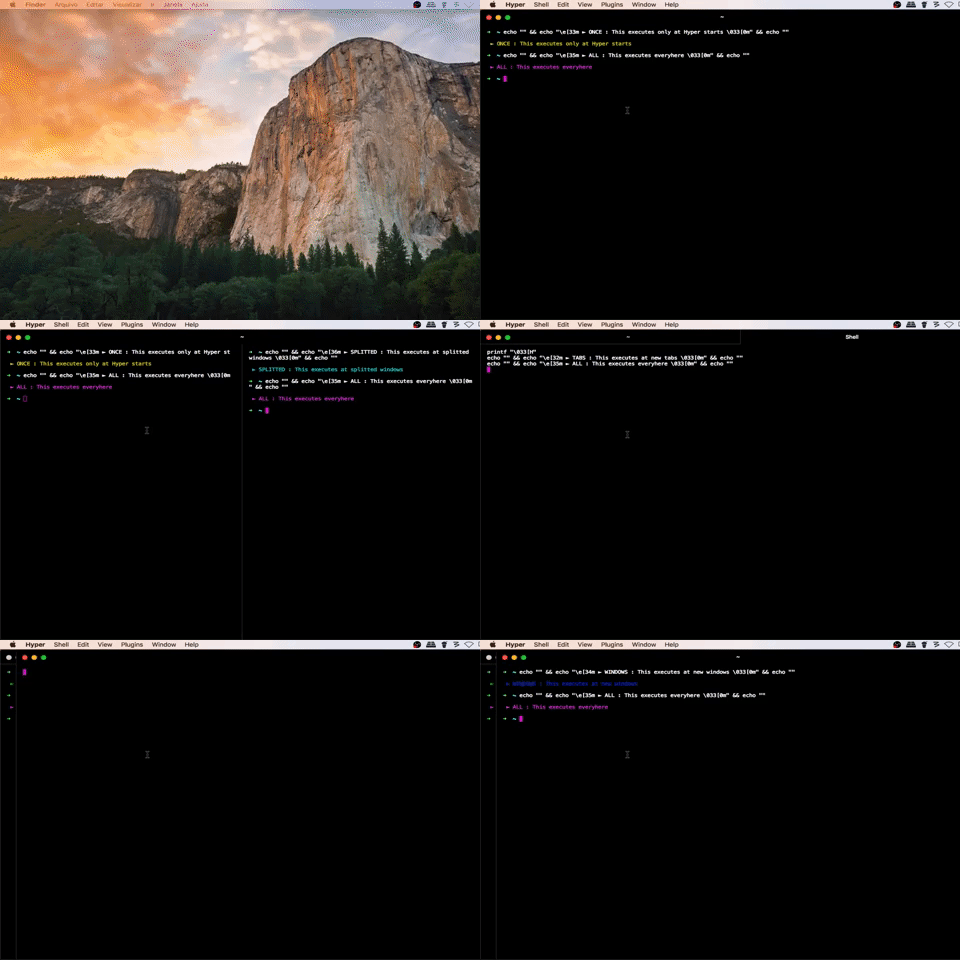
Table of Contents
Installation
If you don't have Hyper, install it from here.
So, type the following on Hyper:
hyper i hyper-initConfiguration
init
hyper-init can be configured in ~/.hyper.js configuration file within the config object.
All you have to do to get started is to create an array of objects called init.
init: [
  {
    rule: 'once',
    commands: ['cd ~/Desktop', 'ls']
  }
]
Your ~/.hyper.js configuration file should look like this:
module.exports = {
  config: {

    // add hyper-init configuration like this:
    init: [
      {
        rule: 'once',
        commands: ['cd ~/Desktop', 'ls']
      },
      {
        rule: 'windows',
        commands: ['echo This is only executed on New Windows!']
      }
    ]
  },

  plugins: ['hyper-init']

}
clearCommand
Also hyper-init clears the terminal buffer using printf "\\033[H" as the default value, but you can set it manually adding the clearCommand: '' property within the config object. For example:
module.exports = {
  config: {
    clearCommand: 'reset'
  }
}
init: Options
Rules
A string that defines when you want your commands to run.
| Rule | Description |
|---|---|
once |
executes your commands only at Hyper starts |
windows |
executes your commands only at new windows |
tabs |
executes your commands only at new tabs |
splitted |
executes your commands only at splitted windows |
all |
executes your commands with all described states previously |
Commands
An array with your shell commands to run.
You can perform as many commands as you would like to do.
Example:
commands: ['cd ~/Desktop', 'ls']