

Package Exports
- mediasfu-reactjs
- mediasfu-reactjs/dist/main.js
This package does not declare an exports field, so the exports above have been automatically detected and optimized by JSPM instead. If any package subpath is missing, it is recommended to post an issue to the original package (mediasfu-reactjs) to support the "exports" field. If that is not possible, create a JSPM override to customize the exports field for this package.
Readme



MediaSFU offers a cutting-edge streaming experience that empowers users to customize their recordings and engage their audience with high-quality streams. Whether you're a content creator, educator, or business professional, MediaSFU provides the tools you need to elevate your streaming game.
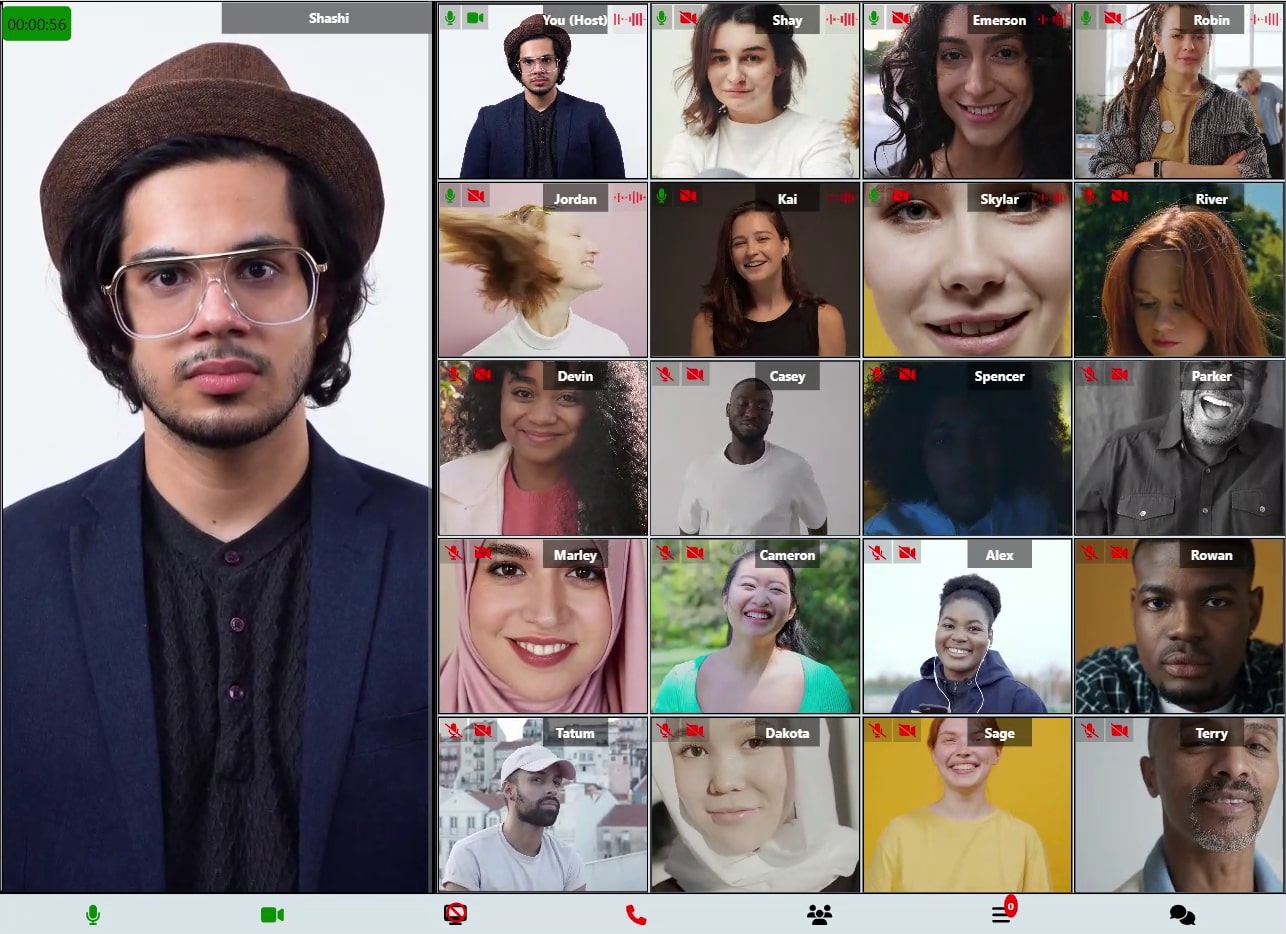
MediaSFU ReactJS Module Documentation
Table of Contents
- Features
- Getting Started
- Basic Usage Guide
- Intermediate Usage Guide
- Advanced Usage Guide
- API Reference
- Troubleshooting
- Contributing
Features
MediaSFU's React SDK comes with a host of powerful features out of the box:
- Screen Sharing with Annotation Support: Share your screen with participants and annotate in real-time for enhanced presentations and collaborations.
- Collaborative Whiteboards: Create and share whiteboards for real-time collaborative drawing and brainstorming sessions.
- Breakout Rooms: Create multiple sub-meetings within a single session to enhance collaboration and focus.
- Pagination: Efficiently handle large participant lists with seamless pagination.
- Polls: Conduct real-time polls to gather instant feedback from participants.
- Media Access Requests Management: Manage media access requests with ease to ensure smooth operations.
- Video Effects: Apply various video effects, including virtual backgrounds, to enhance the visual experience.
- Chat (Direct & Group): Facilitate communication with direct and group chat options.
- Cloud Recording (track-based): Customize recordings with track-based options, including watermarks, name tags, background colors, and more.
- Managed Events: Manage events with features to handle abandoned and inactive participants, as well as enforce time and capacity limits.
Getting Started
This section will guide users through the initial setup and installation of the npm module.
Documentation Reference
For comprehensive documentation on the available methods, components, and functions, please visit mediasfu.com. This resource provides detailed information for this guide and additional documentation.
Installation
Instructions on how to install the module using npm.
1. Add the Package to Your Project
```bash
npm install mediasfu-reactjs
```
2. Obtain an API Key (If Required)
You can get your API key by signing up or logging into your account at mediasfu.com.
Important:
You must obtain an API key from mediasfu.com to use this package with MediaSFU Cloud. You do not need the API Key if self-hosting.
Self-Hosting MediaSFU
If you plan to self-host MediaSFU or use it without MediaSFU Cloud services, you don't need an API key. You can access the open-source version of MediaSFU from the MediaSFU Open Repository.
This setup allows full flexibility and customization while bypassing the need for cloud-dependent credentials.
Basic Usage Guide
A basic guide on how to use the module for common tasks.
This section will guide users through the initial setup and installation of the npm module.
Introduction
MediaSFU is a 2-page application consisting of a prejoin/welcome page and the main events room page. This guide will walk you through the basic usage of the module for setting up these pages.
Documentation Reference
For comprehensive documentation on the available methods, components, and functions, please visit mediasfu.com. This resource provides detailed information for this guide and additional documentation.
Prebuilt Event Rooms
MediaSFU provides prebuilt event rooms for various purposes. These rooms are rendered as full pages and can be easily imported and used in your application. Here are the available prebuilt event rooms:
- MediasfuGeneric: A generic event room suitable for various types of events.
- MediasfuBroadcast: A room optimized for broadcasting events.
- MediasfuWebinar: Specifically designed for hosting webinars.
- MediasfuConference: Ideal for hosting conferences.
- MediasfuChat: A room tailored for interactive chat sessions.
Users can easily pick an interface and render it in their app.
If no API credentials are provided, a default home page will be displayed where users can scan or manually enter the event details.
To use these prebuilt event rooms, simply import them into your application:
import { MediasfuGeneric, MediasfuBroadcast, MediasfuWebinar, MediasfuConference, MediasfuChat } from 'mediasfu-reactjs';Simplest Usage
The simplest way to use MediaSFU is by directly rendering a prebuilt event room component, such as MediasfuGeneric:
import { MediasfuGeneric } from 'mediasfu-reactjs';

const App = () => {
  return (
    <MediasfuGeneric />
  );
}

export default App;
Programmatically Fetching Tokens
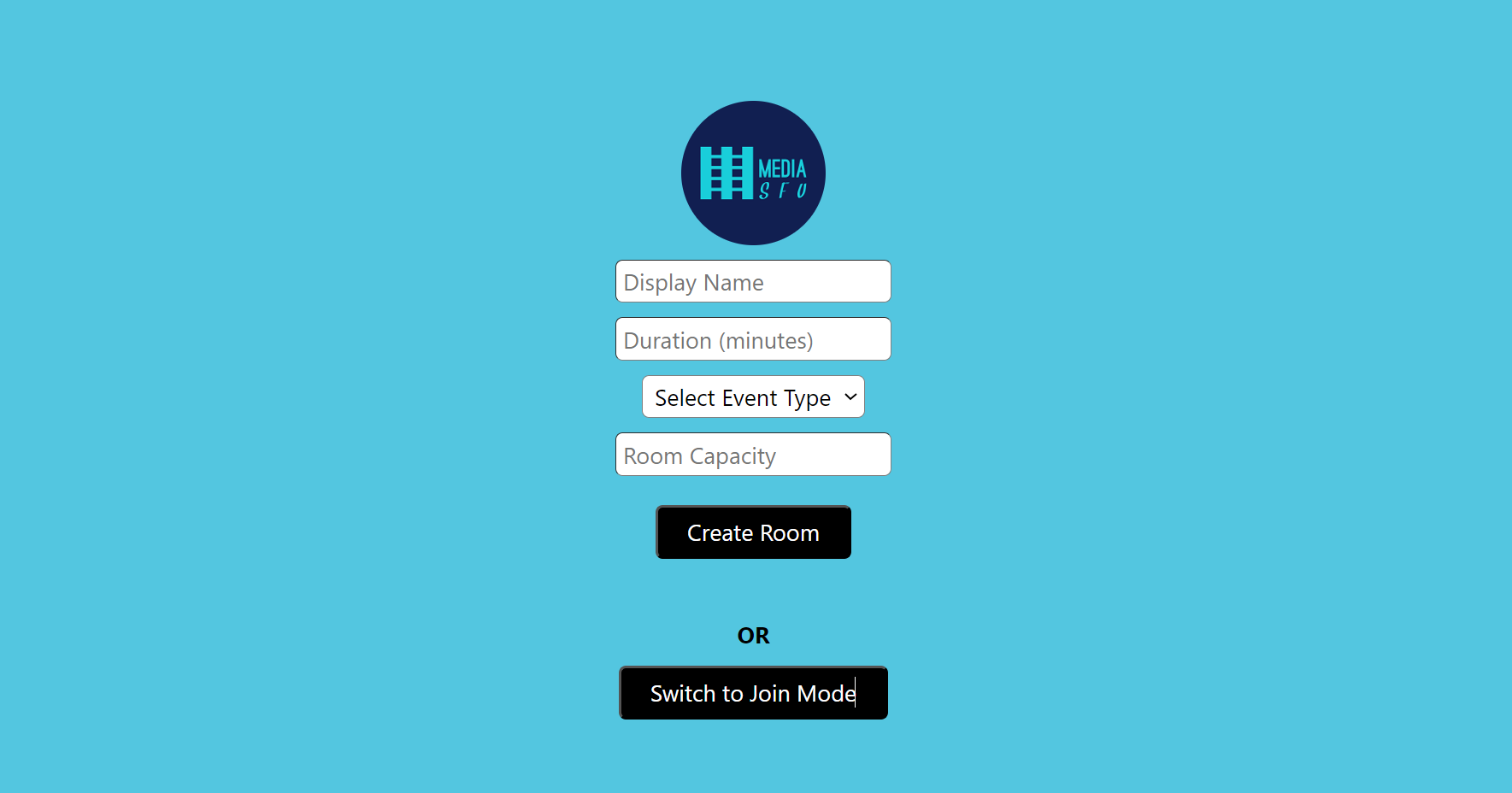
If you want to fetch the required tokens programmatically without visiting MediaSFU's website, you can use the PreJoinPage component and pass your credentials as props:
import { MediasfuGeneric, PreJoinPage } from 'mediasfu-reactjs';

const App = () => {
  const credentials = { apiUserName: "yourAPIUserName", apiKey: "yourAPIKey" };

  return (
    <MediasfuGeneric PrejoinPage={PreJoinPage} credentials={credentials} />
  );
}

export default App;
When to Use an API Key
Using MediaSFU Cloud as the Main Server:
If you're relying on MediaSFU Cloud as your primary server or require its services for egress like recording, you must provide an API key. This key authenticates your application and ensures proper integration with MediaSFU Cloud services.Not Using MediaSFU Cloud:
If you're hosting your own server or are working in local development without MediaSFU Cloud services, an API key is not required. In such cases, you can still use thePreJoinPagecomponent, but the integration will be limited to your self-hosted setup.
This flexibility allows developers to adapt the setup based on their infrastructure, whether leveraging MediaSFU's cloud capabilities or opting for a self-managed approach.
Preview of Welcome Page
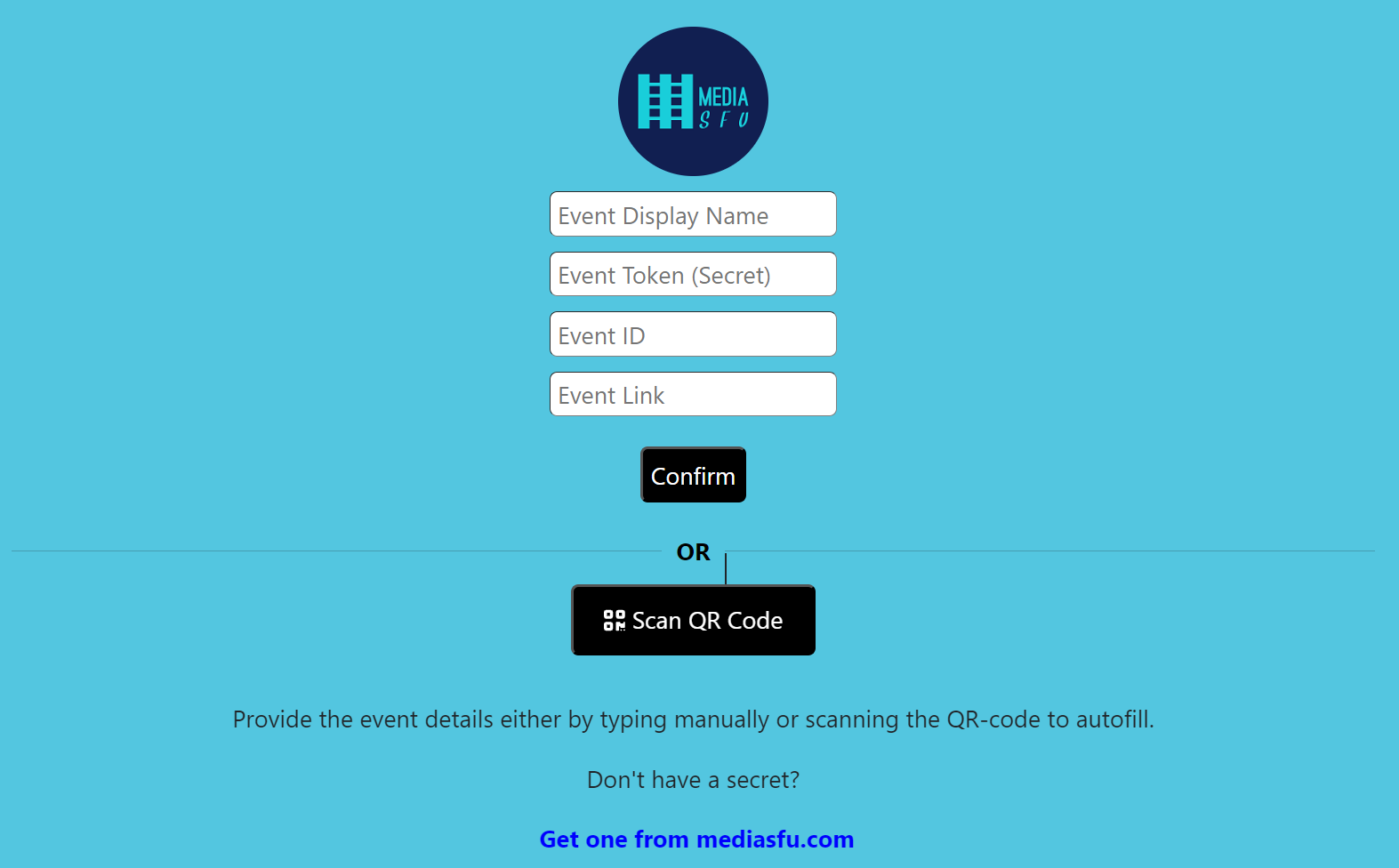
Preview of Prejoin Page
Custom Welcome/Prejoin Page
Alternatively, you can design your own welcome/prejoin page. The core function of this page is to fetch user tokens from MediaSFU's API and establish a connection with the returned link if valid.
Parameters Passed to Custom Page
MediaSFU passes relevant parameters to the custom welcome/prejoin page:
let { showAlert, updateIsLoadingModalVisible, connectSocket, updateSocket, updateValidated,
     updateApiUserName, updateApiToken, updateLink, updateRoomName, updateMember } = parameters;
Ensure that your custom page implements the following updates:
updateSocket(socket);
updateLocalSocket(socket);
updateApiUserName(apiUserName);
updateApiToken(apiToken);
updateLink(link);
updateRoomName(apiUserName);
updateMember(userName);
updateValidated(true);
See the following code for the PreJoinPage page logic:
import React, { useState, useRef } from "react";
import { ConnectSocketType, ShowAlert, ConnectLocalSocketType, ResponseLocalConnection, ResponseLocalConnectionData, RecordingParams, MeetingRoomParams } from "../../@types/types";
import { checkLimitsAndMakeRequest } from "../../methods/utils/checkLimitsAndMakeRequest";
import { createRoomOnMediaSFU } from "../../methods/utils/createRoomOnMediaSFU";
import { joinRoomOnMediaSFU } from "../../methods/utils/joinRoomOnMediaSFU";
import { Socket } from "socket.io-client";
import { CSSProperties } from "react";

const apiKey = "yourAPIKEY";
const apiUserName = "yourAPIUSERNAME";
const user_credentials = { apiUserName, apiKey };


export interface JoinLocalEventRoomParameters {
  eventID: string;
  userName: string;
  secureCode?: string;
  videoPreference?: string | null;
  audioPreference?: string | null;
  audioOutputPreference?: string | null;
}

export interface JoinLocalEventRoomOptions {
  joinData: JoinLocalEventRoomParameters;
  link?: string;
}

export interface CreateLocalRoomParameters {
  eventID: string;
  duration: number;
  capacity: number;
  userName: string;
  scheduledDate: Date;
  secureCode: string;
  waitRoom?: boolean;
  recordingParams?: RecordingParams;
  eventRoomParams?: MeetingRoomParams;
  videoPreference?: string | null;
  audioPreference?: string | null;
  audioOutputPreference?: string | null;
  mediasfuURL?: string;
}
export interface CreateLocalRoomOptions {
  createData: CreateLocalRoomParameters;
  link?: string;
}

export interface CreateJoinLocalRoomResponse {
  success: boolean;
  secret: string;
  reason?: string;
  url?: string;
}


// Type definitions for parameters and credentials
export interface PreJoinPageParameters {
  imgSrc?: string;
  showAlert?: ShowAlert;
  updateIsLoadingModalVisible: (visible: boolean) => void;
  connectSocket: ConnectSocketType;
  connectLocalSocket?: ConnectLocalSocketType;
  updateSocket: (socket: Socket) => void;
  updateLocalSocket?: (socket: Socket) => void;
  updateValidated: (validated: boolean) => void;
  updateApiUserName: (userName: string) => void;
  updateApiToken: (token: string) => void;
  updateLink: (link: string) => void;
  updateRoomName: (roomName: string) => void;
  updateMember: (member: string) => void;
}

export interface Credentials {
  apiUserName: string;
  apiKey: string;
}

export interface PreJoinPageOptions {
  localLink?: string;
  connectMediaSFU?: boolean;
  parameters: PreJoinPageParameters;
  credentials?: Credentials;
}

export type PreJoinPageType = (options: PreJoinPageOptions) => JSX.Element;


/**
 * PreJoinPage component allows users to either create a new room or join an existing one.
 *
 * @component
 * @param {PreJoinPageOptions} props - The properties for the PreJoinPage component.
 * @param {PreJoinPageParameters} props.parameters - Various parameters required for the component.
 * @param {ShowAlert} [props.parameters.showAlert] - Function to show alert messages.
 * @param {() => void} props.parameters.updateIsLoadingModalVisible - Function to update the loading modal visibility.
 * @param {ConnectSocketType} props.parameters.connectSocket - Function to connect to the socket.
 * @param {Socket} props.parameters.updateSocket - Function to update the socket.
 * @param {() => void} props.parameters.updateValidated - Function to update the validation status.
 * @param {string} [props.parameters.imgSrc] - The source URL for the logo image.
 * @param {Credentials} [props.credentials=user_credentials] - The user credentials containing the API username and API key.
 *
 * @returns {JSX.Element} The rendered PreJoinPage component.
 *
 * @example
 * ```tsx
 * import React from 'react';
 * import { PreJoinPage } from 'mediasfu-reactjs';
 * import { JoinLocalRoomOptions } from 'mediasfu-reactjs';
 *
 * const App = () => {
 *   const showAlertFunction = (message: string) => console.log(message);
 *   const updateLoadingFunction = (visible: boolean) => console.log(`Loading: ${visible}`);
 *   const connectSocketFunction = () => {}; // Connect socket function
 *   const updateSocketFunction = (socket: Socket) => {}; // Update socket function
 *   const updateValidatedFunction = (validated: boolean) => {}; // Update validated function
 *   const updateApiUserNameFunction = (userName: string) => {}; // Update API username function
 *   const updateApiTokenFunction = (token: string) => {}; // Update API token function
 *   const updateLinkFunction = (link: string) => {}; // Update link function
 *   const updateRoomNameFunction = (roomName: string) => {}; // Update room name function
 *   const updateMemberFunction = (member: string) => {}; // Update member function
 *
 *   return (
 *     <PreJoinPage
 *       parameters={{
 *         showAlert: showAlertFunction,
 *         updateIsLoadingModalVisible: updateLoadingFunction,
 *         connectSocket: connectSocketFunction,
 *         updateSocket: updateSocketFunction,
 *         updateValidated: updateValidatedFunction,
 *         updateApiUserName: updateApiUserNameFunction,
 *         updateApiToken: updateApiTokenFunction,
 *         updateLink: updateLinkFunction,
 *         updateRoomName: updateRoomNameFunction,
 *         updateMember: updateMemberFunction,
 *         imgSrc: "https://example.com/logo.png"
 *       }}
 *       credentials={{
 *         apiUserName: "user123",
 *         apiKey: "apikey123"
 *       }}
 *     />
 *   );
 * };
 *
 *
 * export default App;
 * ```
 */

const PreJoinPage: React.FC<PreJoinPageOptions> = (
  {
    localLink = "",
    connectMediaSFU = true,
    parameters,
    credentials = user_credentials,
  }
) => {
  const [isCreateMode, setIsCreateMode] = useState<boolean>(false);
  const [name, setName] = useState<string>("");
  const [duration, setDuration] = useState<string>("");
  const [eventType, setEventType] = useState<string>("");
  const [capacity, setCapacity] = useState<string>("");
  const [eventID, setEventID] = useState<string>("");
  const [error, setError] = useState<string>("");

  const localConnected = useRef(false);
  const localData = useRef<ResponseLocalConnectionData | undefined>(undefined);
  const initSocket = useRef<Socket | undefined>(undefined);

  const {
    showAlert,
    updateIsLoadingModalVisible,
    connectLocalSocket,
    updateSocket,
    updateValidated,
    updateApiUserName,
    updateApiToken,
    updateLink,
    updateRoomName,
    updateMember,
  } = parameters;


  if (localLink.length > 0 && !localConnected.current && !initSocket.current) {


    try {
      connectLocalSocket?.({ link: localLink }).then((response: ResponseLocalConnection | undefined) => {
        localData.current = response!.data;
        initSocket.current = response!.socket;
        localConnected.current = true;
      }).catch((error) => {
        showAlert?.({
          message: `Unable to connect to ${localLink}. ${error}`,
          type: "danger",
          duration: 3000,
        });
      }
      );
    } catch {
      showAlert?.({
        message: `Unable to connect to ${localLink}. Something went wrong.`,
        type: "danger",
        duration: 3000,
      });
    }
  }


  const handleToggleMode = () => {
    setIsCreateMode(!isCreateMode);
    setError("");
  };

  const joinLocalRoom = async ({joinData, link=localLink}: JoinLocalEventRoomOptions) => {
    initSocket.current?.emit(
      "joinEventRoom",
      joinData, (response: CreateJoinLocalRoomResponse) => {
        if (response.success) {
          updateSocket(initSocket.current!);
          updateApiUserName(localData.current?.apiUserName || "");
          updateApiToken(response.secret);
          updateLink(link);
          updateRoomName(joinData.eventID);
          updateMember(joinData.userName);
          updateIsLoadingModalVisible(false);
          updateValidated(true);
        } else {
          updateIsLoadingModalVisible(false);
          setError(`Unable to join room. ${response.reason}`);
        }
      });
  }

  const createLocalRoom = async ({createData, link=localLink}: CreateLocalRoomOptions) => {

    initSocket.current?.emit(
      "createRoom",
      createData, (response: CreateJoinLocalRoomResponse) => {

        if (response.success) {
          updateSocket(initSocket.current!);
          updateApiUserName(localData.current?.apiUserName || "");
          updateApiToken(response.secret);
          updateLink(link);
          updateRoomName(createData.eventID);
          // local needs islevel updated from here
          // we update member as `userName` + "_2" and split it in the room
          updateMember(createData.userName + "_2");
          updateIsLoadingModalVisible(false);
          updateValidated(true);
        } else {
          updateIsLoadingModalVisible(false);
          setError(`Unable to create room. ${response.reason}`);
        }
      });
  }

  const roomCreator = async ({payload, apiUserName, apiKey, validate=true}: {payload: any, apiUserName: string, apiKey: string, validate?: boolean}) => {
    const response = await createRoomOnMediaSFU({
      payload,
      apiUserName: apiUserName,
      apiKey: apiKey,
    });
    if (response.success && response.data && "roomName" in response.data) {
      await checkLimitsAndMakeRequest({
        apiUserName: response.data.roomName,
        apiToken: response.data.secret,
        link: response!.data.link,
        userName: name,
        parameters: parameters,
        validate: validate,
      });
      return response;
    } else {
      updateIsLoadingModalVisible(false);
      setError(
        `Unable to create room. ${
          response.data
            ? "error" in response.data
              ? response.data.error
              : ""
            : ""
        }`
      );
    }
  };

  const handleCreateRoom = async () => {
    if (!name || !duration || !eventType || !capacity) {
      setError("Please fill all the fields.");
      return;
    }

    const payload = {
      action: "create",
      duration: parseInt(duration),
      capacity: parseInt(capacity),
      eventType,
      userName: name,
      recordOnly: false,
    };

    updateIsLoadingModalVisible(true);


    if (localLink.length > 0) {

      const secureCode = Math.random().toString(30).substring(2, 14) +
      Math.random().toString(30).substring(2, 14);
      let eventID = new Date().getTime().toString(30) + new Date().getUTCMilliseconds() + Math.floor(10 + Math.random() * 99).toString();
      eventID = "m" + eventID;
      const eventRoomParams = localData.current?.meetingRoomParams_;
      eventRoomParams!.type = eventType as "chat" | "broadcast" | "webinar" | "conference";

      const createData: CreateLocalRoomParameters = {
        eventID: eventID,
        duration: parseInt(duration),
        capacity: parseInt(capacity),
        userName: name,
        scheduledDate: new Date(),
        secureCode: secureCode,
        waitRoom: false,
        recordingParams: localData.current?.recordingParams_,
        eventRoomParams: eventRoomParams,
        videoPreference: null,
        audioPreference: null,
        audioOutputPreference: null,
        mediasfuURL: "",
      };

      // socket in main window is required and for no local room, no use of initSocket
      // for local room, initSocket becomes the local socket, and localSocket is the connection to MediaSFU (if connectMediaSFU is true)
      // else localSocket is the same as initSocket

      if (connectMediaSFU && initSocket.current && localData.current && localData.current.apiUserName && localData.current.apiKey) {
        payload.recordOnly = true; // allow production to mediasfu only; no consumption
        const response = await roomCreator({payload, apiUserName: localData.current.apiUserName, apiKey: localData.current.apiKey, validate: false});
        if (response && response.success && response.data && "roomName" in response.data) {
          createData.eventID = response.data.roomName;
          createData.secureCode = response.data.secret;
          createData.mediasfuURL = response.data.publicURL;
          await createLocalRoom({createData: createData, link: response.data.link});
        }else {
          updateIsLoadingModalVisible(false);
          setError(`Unable to create room on MediaSFU.`);
          try{
            updateSocket(initSocket.current);
            await createLocalRoom({createData: createData});
          } catch (error) {
            updateIsLoadingModalVisible(false);
            setError(`Unable to create room. ${error}`);
          }
        }
      } else {
        try{
          updateSocket(initSocket.current!);
          await createLocalRoom({createData: createData});
        } catch (error) {
          updateIsLoadingModalVisible(false);
          setError(`Unable to create room. ${error}`);
        }
      }
    }else{
       await roomCreator({payload, apiUserName: credentials.apiUserName, apiKey: credentials.apiKey, validate: true});
    }

  }

  const handleJoinRoom = async () => {
    if (!name || !eventID) {
      setError("Please fill all the fields.");
      return;
    }

    const payload = {
      action: "join",
      meetingID: eventID,
      userName: name,
    };

    if (localLink.length > 0 && !localLink.includes("mediasfu.com")) {
        const joinData: JoinLocalEventRoomParameters = {
          eventID: eventID,
          userName: name,
          secureCode: "",
          videoPreference: null,
          audioPreference: null,
          audioOutputPreference: null,
        };

        await joinLocalRoom({joinData: joinData});
        return;
    }

    updateIsLoadingModalVisible(true);

    const response = await joinRoomOnMediaSFU({
      payload,
      apiUserName: credentials.apiUserName,
      apiKey: credentials.apiKey,
    });
    if (response.success && response.data && "roomName" in response.data) {
      await checkLimitsAndMakeRequest({
        apiUserName: response.data.roomName,
        apiToken: response.data.secret,
        link: response.data.link,
        userName: name,
        parameters: parameters,
      });
    } else {
      updateIsLoadingModalVisible(false);
      setError(
        `Unable to join room. ${
          response.data
            ? "error" in response.data
              ? response.data.error
              : ""
            : ""
        }`
      );
    }
  };

 return (
    // your JSX Element
  );

export default PreJoinPage;
IP Blockage Warning And Local UI Development
Entering the event room without the correct credentials may result in IP blockage, as the page automatically attempts to connect with MediaSFU servers, which rate limit bad requests based on IP address.
If users attempt to enter the event room without valid credentials or tokens, it may lead to IP blockage due to MediaSFU servers' rate limiting mechanism. To avoid unintentional connections to MediaSFU servers during UI development, users can pass the useLocalUIMode parameter as true.
In this mode, the module will operate locally without making requests to MediaSFU servers. However, to render certain UI elements such as messages, participants, requests, etc., users may need to provide seed data. They can achieve this by importing random data generators and passing the generated data to the event room component.
Example for Broadcast Room
import { MediasfuBroadcast, generateRandomParticipants, generateRandomMessages } from 'mediasfu-reactjs';

function App() {
  const useSeed = true;
  let seedData = {};

  if (useSeed) {
    const memberName = 'Alice';
    const hostName = 'Fred';
    const participants_ = generateRandomParticipants(memberName, "", hostName, true);
    const messages_ = generateRandomMessages(participants_, memberName, "", hostName, true);

    seedData = {
      participants: participants_,
      messages: messages_,
      member: memberName,
      host: hostName,
    };
  }

  const useLocalUIMode = useSeed ? true : false;

  return (
    <MediasfuBroadcast useLocalUIMode={useLocalUIMode} useSeed={useSeed} seedData={useSeed ? seedData : {}} />
  );
}

export default App;
Example for Generic View
// Import specific Mediasfu view components
// Import the PreJoinPage component for the Pre-Join Page use case
import { MediasfuGeneric,
    MediasfuBroadcast, MediasfuChat, MediasfuWebinar, MediasfuConference, PreJoinPage
 } from 'mediasfu-reactjs'


// Import methods for generating random participants, messages, requests, and waiting room lists if using seed data
import { generateRandomParticipants, generateRandomMessages, generateRandomRequestList, generateRandomWaitingRoomList,
} from 'mediasfu-reactjs';


/**
 * The main application component for MediaSFU.
 *
 * This component initializes the necessary configuration and credentials for the MediaSFU application.
 * Users can specify their own Community Edition (CE) server, utilize MediaSFU Cloud by default, or enable MediaSFU Cloud for egress features.
 *
 * @remarks
 * - **Using Your Own Community Edition (CE) Server**: Set the `localLink` to point to your CE server.
 * - **Using MediaSFU Cloud by Default**: If not using a custom server (`localLink` is empty), the application connects to MediaSFU Cloud.
 * - **MediaSFU Cloud Egress Features**: To enable cloud recording, capturing, and returning real-time images and audio buffers,
 *   set `connectMediaSFU` to `true` in addition to specifying your `localLink`.
 * - **Credentials Requirement**: If not using your own server, provide `apiUserName` and `apiKey`. The same applies when using MediaSFU Cloud for egress.
 * - **Deprecated Feature**: `useLocalUIMode` is deprecated due to updates for strong typing and improved configuration options.
 *
 * @component
 * @example
 * ```tsx
 * // Example usage of the App component
 * <App />
 * ```
 */
const App = () => {
  // ========================
  // ====== CONFIGURATION ======
  // ========================

  // Mediasfu account credentials
  // Replace 'your_api_username' and 'your_api_key' with your actual credentials
  // Not needed if using a custom server with no MediaSFU Cloud Egress (recording, ...)
  const credentials = {
    apiUserName: 'your_api_username',
    apiKey: 'your_api_key',
  };

  // Specify your Community Edition (CE) server link or leave as an empty string if not using a custom server
  const localLink = 'http://localhost:3000'; // Set to '' if not using your own server

  /**
   * Automatically set `connectMediaSFU` to `true` if `localLink` is provided,
   * indicating the use of MediaSFU Cloud by default.
   *
   * - If `localLink` is not empty, MediaSFU Cloud will be used for additional features.
   * - If `localLink` is empty, the application will connect to MediaSFU Cloud by default.
   */
  const connectMediaSFU = localLink.trim() !== '';

  // ========================
  // ====== USE CASES ======
  // ========================

  // Deprecated Feature: useLocalUIMode
  // This feature is deprecated due to updates for strong typing.
  // It is no longer required and should not be used in new implementations.

  /**
   * Uncomment and configure the following section if you intend to use seed data
   * for generating random participants and messages.
   *
   * Note: This is deprecated and maintained only for legacy purposes.
   */
  /*
  const useSeed = false;
  let seedData = {};

  if (useSeed) {
    const memberName = 'Prince';
    const hostName = 'Fred';

    const participants_ = generateRandomParticipants({
      member: memberName,
      coHost: '',
      host: hostName,
      forChatBroadcast: eventType === 'broadcast' || eventType === 'chat',
    });

    const messages_ = generateRandomMessages({
      participants: participants_,
      member: memberName,
      host: hostName,
      forChatBroadcast: eventType === 'broadcast' || eventType === 'chat',
    });

    const requests_ = generateRandomRequestList({
      participants: participants_,
      hostName: memberName,
      coHostName: '',
      numberOfRequests: 3,
    });

    const waitingList_ = generateRandomWaitingRoomList();

    seedData = {
      participants: participants_,
      messages: messages_,
      requests: requests_,
      waitingList: waitingList_,
      member: memberName,
      host: hostName,
      eventType: eventType,
    };
  }
  */

  // ========================
  // ====== COMPONENT SELECTION ======
  // ========================

  /**
   * Choose the Mediasfu component based on the event type and use case.
   * Uncomment the component corresponding to your specific use case.
   */

  // ------------------------
  // ====== SIMPLE USE CASE ======
  // ------------------------

  /**
   * **Simple Use Case (Welcome Page)**
   *
   * Renders the default welcome page.
   * No additional inputs required.
   */
  // return <MediasfuGeneric />;

  // ------------------------
  // ====== PRE-JOIN USE CASE ======
  // ------------------------

  /**
   * **Use Case with Pre-Join Page (Credentials Required)**
   *
   * Uses a pre-join page that requires users to enter credentials.
   */
  // return <MediasfuGeneric PrejoinPage={PreJoinPage} credentials={credentials} />;

  // ------------------------
  // ====== SEED DATA USE CASE ======
  // ------------------------

  /**
   * **Use Case with Local UI Mode (Seed Data Required)**
   *
   * Runs the application in local UI mode using seed data.
   *
   * @deprecated Due to updates for strong typing, this feature is deprecated.
   */
  // return <MediasfuGeneric useLocalUIMode={true} useSeed={true} seedData={seedData} />;

  // ------------------------
  // ====== BROADCAST EVENT TYPE ======
  // ------------------------

  /**
   * **MediasfuBroadcast Component**
   *
   * Uncomment to use the broadcast event type.
   */
  /*
  return (
    <MediasfuBroadcast
      credentials={credentials}
      localLink={localLink}
      connectMediaSFU={connectMediaSFU}
      // seedData={useSeed ? seedData : {}}
    />
  );
  */

  // ------------------------
  // ====== CHAT EVENT TYPE ======
  // ------------------------

  /**
   * **MediasfuChat Component**
   *
   * Uncomment to use the chat event type.
   */
  /*
  return (
    <MediasfuChat
      credentials={credentials}
      localLink={localLink}
      connectMediaSFU={connectMediaSFU}
      // seedData={useSeed ? seedData : {}}
    />
  );
  */

  // ------------------------
  // ====== WEBINAR EVENT TYPE ======
  // ------------------------

  /**
   * **MediasfuWebinar Component**
   *
   * Uncomment to use the webinar event type.
   */
  /*
  return (
    <MediasfuWebinar
      credentials={credentials}
      localLink={localLink}
      connectMediaSFU={connectMediaSFU}
      // seedData={useSeed ? seedData : {}}
    />
  );
  */

  // ------------------------
  // ====== CONFERENCE EVENT TYPE ======
  // ------------------------

  /**
   * **MediasfuConference Component**
   *
   * Uncomment to use the conference event type.
   */
  /*
  return (
    <MediasfuConference
      credentials={credentials}
      localLink={localLink}
      connectMediaSFU={connectMediaSFU}
      // seedData={useSeed ? seedData : {}}
    />
  );
  */

  // ========================
  // ====== DEFAULT COMPONENT ======
  // ========================

  /**
   * **Default to MediasfuGeneric with Updated Configuration**
   *
   * Renders the welcome page with specified server and cloud connection settings.
   */
  return (
    <MediasfuGeneric
      PrejoinPage={PreJoinPage}
      credentials={credentials}
      localLink={localLink}
      connectMediaSFU={connectMediaSFU}
    />
  );
};

export default App;
In the provided examples, users can set useLocalUIMode to true during UI development to prevent unwanted connections to MediaSFU servers. Additionally, they can generate seed data for rendering UI components locally by using random data generators provided by the module.
Local UI Development in MediaSFU ReactJS Module
During local UI development, the MediaSFU view is designed to be responsive to changes in screen size and orientation, adapting its layout accordingly. However, since UI changes are typically linked to communication with servers, developing the UI locally might result in less responsiveness due to the lack of real-time data updates. To mitigate this, users can force trigger changes in the UI by rotating the device, resizing the window, or simulating server responses by clicking on buttons within the page.
While developing locally, users may encounter occasional error warnings as the UI attempts to communicate with the server. These warnings can be safely ignored, as they are simply indicative of unsuccessful server requests in the local development environment.
If users experience responsiveness issues, whether during local development or in production, they can optimize their HTML configuration to ensure proper scaling and viewport settings. By adding the following meta tag to the HTML <head> section, users can specify viewport settings for optimal display:
<meta name="viewport" content="width=device-width, initial-scale=1, maximum-scale=1, user-scalable=no" />Intermediate Usage Guide
Expands on the basic usage, covering more advanced features and scenarios.
Intermediate Usage Guide
In the Intermediate Usage Guide, we'll explore the core components and functionalities of the MediaSFU ReactJS module, focusing on media display, controls, and modal interactions. Click on any listed component/method to open the full documentation.
Core Components Overview
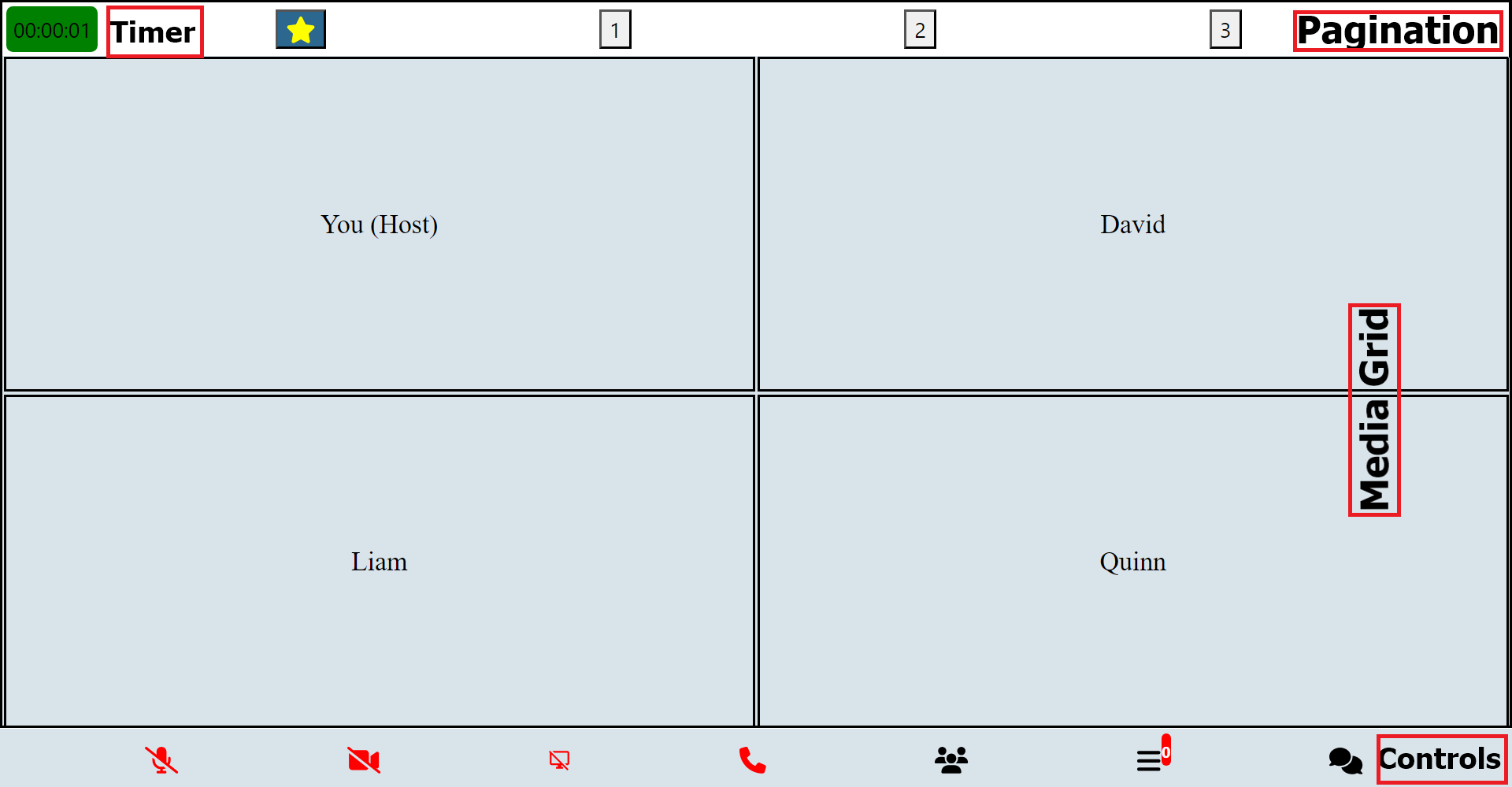
The main items displayed on an event page are media components (such as video, audio, and blank cards) and control components (for pagination, navigation, etc.).
Media Display Components
| Component Name | Description |
|---|---|
| MainAspectComponent | Serves as a container for the primary aspect of the user interface, typically containing the main content or focus of the application. |
| MainScreenComponent | Responsible for rendering the main screen layout of the application, providing the foundation for displaying various elements and content. |
| MainGridComponent | Crucial part of the user interface, organizing and displaying primary content or elements in a grid layout format. |
| SubAspectComponent | Acts as a secondary container within the user interface, often housing additional elements or controls related to the main aspect. |
| MainContainerComponent | Primary container for the application's content, encapsulating all major components and providing structural organization. |
| OtherGridComponent | Complements the Main Grid Component by offering additional grid layouts, typically used for displaying secondary or auxiliary content. |
Control Components
| Component Name | Description |
|---|---|
| ControlButtonsComponent | Comprises a set of buttons or controls used for navigating, interacting, or managing various aspects of the application's functionality. |
| ControlButtonsAltComponent | Provides alternative button configurations or styles for controlling different aspects of the application. |
| ControlButtonsComponentTouch | Specialized component designed for touch-enabled devices, offering floating buttons or controls for intuitive interaction with the application's features. |
These components collectively contribute to the overall user interface, facilitating navigation, interaction, and content display within the application.
Modal Components
| Modal Component | Description |
|---|---|
| LoadingModal | Modal for displaying loading indicator during data fetching or processing. |
| MainAspectComponent | Component responsible for displaying the main aspect of the event page. |
| ControlButtonsComponent | Component for displaying control buttons such as pagination controls. |
| ControlButtonsAltComponent | Alternate control buttons component for specific use cases. |
| ControlButtonsComponentTouch | Touch-enabled control buttons component for mobile devices. |
| OtherGridComponent | Component for displaying additional grid elements on the event page. |
| MainScreenComponent | Component for rendering the main screen content of the event. |
| MainGridComponent | Main grid component for displaying primary event content. |
| SubAspectComponent | Component for displaying secondary aspects of the event page. |
| MainContainerComponent | Main container component for the event page content. |
| AlertComponent | Modal for displaying alert messages to the user. |
| MenuModal | Modal for displaying a menu with various options. |
| RecordingModal | Modal for managing recording functionality during the event. |
| RequestsModal | Modal for handling requests from participants during the event. |
| WaitingRoomModal | Modal for managing waiting room functionality during the event. |
| DisplaySettingsModal | Modal for adjusting display settings during the event. |
| EventSettingsModal | Modal for configuring event settings. |
| CoHostModal | Modal for managing co-host functionality during the event. |
| ParticipantsModal | Modal for displaying participant information and controls. |
| MessagesModal | Modal for managing messages and chat functionality during the event. |
| MediaSettingsModal | Modal for adjusting media settings during the event. |
| ConfirmExitModal | Modal for confirming exit from the event. |
| ConfirmHereModal | Modal for confirming certain actions or selections. |
| ShareEventModal | Modal for sharing the event with others. |
| WelcomePage | Welcome page modal for the event. |
| PreJoinPage | Prejoin page modal for the event. |
| PollModal | Modal for conducting polls or surveys during the event. |
| BreakoutRoomsModal | Modal for managing breakout rooms during the event. |
| ConfigureWhiteboardModal | Modal for configuring whiteboard settings during the event. |
| BackgroundModal | Modal for managing background settings during the event. |
| ScreenboardModal | Modal for managing screen share annotations during the event. |
Modal Interactions
Each modal has corresponding functions to trigger its usage:
launchMenuModal: Launches the menu modal for settings and configurations.launchRecording: Initiates the recording modal for recording functionalities.startRecording: Starts the recording process.confirmRecording: Confirms and finalizes the recording.launchWaiting: Opens the waiting room modal for managing waiting room interactions.launchCoHost: Opens the co-host modal for managing co-host functionalities.launchMediaSettings: Launches the media settings modal for adjusting media-related configurations.launchDisplaySettings: Opens the display settings modal for adjusting display configurations.launchSettings: Initiates the settings modal for general event settings and configurations.launchRequests: Opens the requests modal for managing user requests.launchParticipants: Displays the participants modal for viewing and managing event participants.launchMessages: Opens the messages modal for communication through chat messages.launchConfirmExit: Prompts users to confirm before exiting the event.
Media Display and Controls
These components facilitate media display and control functionalities:
- Pagination: Handles pagination and page switching.
- FlexibleGrid: Renders flexible grid layouts for media display.
- FlexibleVideo: Displays videos in a flexible manner within the grid.
- AudioGrid: Renders audio components within the grid layout.
- Whiteboard: Manages whiteboard functionalities for collaborative drawing.
- Screenboard: Controls screen share annotations and interactions.
These components enable seamless media presentation and interaction within the event environment, providing users with a rich and immersive experience.
| UI Media Component | Description |
|---|---|
| MeetingProgressTimer | Component for displaying a timer indicating the progress of a meeting or event. |
| MiniAudio | Component for rendering a compact audio player with basic controls. |
| MiniCard | Component for displaying a minimized card view with essential information. |
| AudioCard | Component for displaying audio content with control elements, details, and audio decibels. |
| VideoCard | Component for displaying video content with control elements, details, and audio decibels. |
| CardVideoDisplay | Video player component for displaying embedded videos with controls and details. |
| MiniCardAudio | Component for rendering a compact card view with audio content and controls. |
| MiniAudioPlayer | Utility method for playing audio and rendering a mini audio modal when the user is not actively displayed on the page. |
With the Intermediate Usage Guide, users can explore and leverage the core components and functionalities of the MediaSFU ReactJS module to enhance their event hosting and participation experiences.
Here's a sample import and usage code for a Broadcast screen:
import React, { useState, useEffect, useRef } from 'react';
import { PrejoinPage, MainContainerComponent, MainAspectComponent, MainScreenComponent, MainGridComponent, FlexibleVideo, ControlButtonsComponentTouch, AudioGrid } from 'mediasfu-reactjs';

const BroadcastScreen = () => {
    // State variables and constants
    const [validated, setValidated] = useState<boolean>(useLocalUIMode); // Validated state as boolean
    const confirmedToRecord = useRef<boolean>(false); // True if the user has confirmed to record as boolean
    const meetingDisplayType = useRef<string>("media"); // Meeting display type as string

    // Sample control button configurations
    const controlBroadcastButtons = [/* define your control buttons here */];
    const recordButton = [/* define your record button here */];
    const recordButtons = [/* define your record buttons here */];

    // Sample component sizes
    const componentSizes = useRef<ComponentSizes>({
        // Component sizes as ComponentSizes
        mainHeight: 0,
        otherHeight: 0,
        mainWidth: 0,
        otherWidth: 0,
    }); // Component sizes

    // Sample function to update component sizes
    const updateComponentSizes = (sizes: ComponentSizes) => {
        componentSizes.current = sizes;
    };


    // Sample function to update validation state
    const updateValidated = (value: boolean) => {
        setValidated(value);
    };

    // Sample credentials
    const credentials = {
        apiUserName: "yourAPIUserName",
        apiKey: "yourAPIKey"
    };

    // Sample socket
    const socket = useRef<Socket>({} as Socket); // Socket for the media server, type Socket

    // Sample meeting progress time
    const [meetingProgressTime, setMeetingProgressTime] =
    useState<string>("00:00:00"); // Meeting progress time as string

    // Sample record state
    const [recordState, setRecordState] = useState<string>("green"); // Recording state with specific values

    // Sample main grid and other grid elements
    const mainGridStream = useRef<JSX.Element[]>([]); // Array of main grid streams as JSX.Element[]
    const [otherGridStreams, setOtherGridStreams] = useState<JSX.Element[][]>([
        [],
        [],
    ]); // Other grid streams as 2D array of JSX.Element[]


    // Sample audio only streams
    const audioOnlyStreams = useRef<JSX.Element[]>([]); // Array of audio-only streams

    // Sample main height and width
    const [mainHeightWidth, setMainHeightWidth] = useState<number>(100); // Main height and width as number

    // Render the PrejoinPage if not validated, otherwise render the main components
    return (
        <div
        className="MediaSFU"
        style={{
            height: "100vh",
            width: "100vw",
            maxWidth: "100vw",
            maxHeight: "100vh",
            overflow: "hidden",
        }}
        >
        {!validated ? (
            <PrejoinPage
            parameters={{
                imgSrc,
                showAlert,
                updateIsLoadingModalVisible,
                connectSocket,
                updateSocket,
                updateValidated,
                updateApiUserName,
                updateApiToken,
                updateLink,
                updateRoomName,
                updateMember,
            }}
            credentials={credentials}
            />
        ) : (
            <MainContainerComponent>
            {/* Main aspect component containsa ll but the control buttons (as used for webinar and conference) */}
            <MainAspectComponent
                backgroundColor="rgba(217, 227, 234, 0.99)"
                defaultFraction={1 - controlHeight}
                updateIsWideScreen={updateIsWideScreen}
                updateIsMediumScreen={updateIsMediumScreen}
                updateIsSmallScreen={updateIsSmallScreen}
                showControls={
                eventType.current == "webinar" ||
                eventType.current == "conference"
                }
            >
                {/* MainScreenComponent contains the main grid view and the minor grid view */}
                <MainScreenComponent
                doStack={true}
                mainSize={mainHeightWidth}
                updateComponentSizes={updateComponentSizes}
                defaultFraction={1 - controlHeight}
                componentSizes={componentSizes.current}
                showControls={
                    eventType.current == "webinar" ||
                    eventType.current == "conference"
                }
                >
                {/* MainGridComponent shows the main grid view - not used at all in chat event type  and conference event type when screenshare is not active*/}
                {/* MainGridComponent becomes the dominant grid view in broadcast and webinar event types */}
                {/* MainGridComponent becomes the dominant grid view in conference event type when screenshare is active */}

                <MainGridComponent
                    height={componentSizes.current.mainHeight}
                    width={componentSizes.current.mainWidth}
                    backgroundColor="rgba(217, 227, 234, 0.99)"
                    mainSize={mainHeightWidth}
                    showAspect={mainHeightWidth > 0 ? true : false}
                    timeBackgroundColor={recordState}
                    meetingProgressTime={meetingProgressTime}
                >
                    <FlexibleVideo
                    customWidth={componentSizes.current.mainWidth}
                    customHeight={componentSizes.current.mainHeight}
                    rows={1}
                    columns={1}
                    componentsToRender={
                        mainGridStream.current ? mainGridStream.current : []
                    }
                    showAspect={
                        mainGridStream.current.length > 0 &&
                        !(whiteboardStarted.current && !whiteboardEnded.current)
                    }
                    />

                    <ControlButtonsComponentTouch
                    buttons={controlBroadcastButtons}
                    position={"right"}
                    location={"bottom"}
                    direction={"vertical"}
                    showAspect={eventType.current == "broadcast"}
                    />

                    {/* Button to launch recording modal */}
                    <ControlButtonsComponentTouch
                    buttons={recordButton}
                    direction={"horizontal"}
                    showAspect={
                        eventType.current == "broadcast" &&
                        !showRecordButtons &&
                        islevel.current == "2"
                    }
                    location="bottom"
                    position="middle"
                    />

                    {/* Buttons to control recording */}
                    <ControlButtonsComponentTouch
                    buttons={recordButtons}
                    direction={"horizontal"}
                    showAspect={
                        eventType.current == "broadcast" &&
                        showRecordButtons &&
                        islevel.current == "2"
                    }
                    location="bottom"
                    position="middle"
                    />
                    <AudioGrid
                    componentsToRender={
                        audioOnlyStreams.current ? audioOnlyStreams.current : []
                    }
                    />
                </MainGridComponent>
                </MainScreenComponent>
            </MainAspectComponent>
            </MainContainerComponent>
        )}

        <ParticipantsModal
            backgroundColor="rgba(217, 227, 234, 0.99)"
            isParticipantsModalVisible={isParticipantsModalVisible}
            onParticipantsClose={() => updateIsParticipantsModalVisible(false)}
            participantsCounter={participantsCounter.current}
            onParticipantsFilterChange={onParticipantsFilterChange}
            parameters={{
            updateParticipants: updateParticipants,
            updateIsParticipantsModalVisible: updateIsParticipantsModalVisible,

            updateDirectMessageDetails,
            updateStartDirectMessage,
            updateIsMessagesModalVisible,

            showAlert: showAlert,

            filteredParticipants: filteredParticipants.current,
            participants: filteredParticipants.current,
            roomName: roomName.current,
            islevel: islevel.current,
            member: member.current,
            coHostResponsibility: coHostResponsibility.current,
            coHost: coHost.current,
            eventType: eventType.current,

            startDirectMessage: startDirectMessage.current,
            directMessageDetails: directMessageDetails.current,
            socket: socket.current,

            getUpdatedAllParams: getAllParams,
            }}
        />

        <RecordingModal
            backgroundColor="rgba(217, 227, 234, 0.99)"
            isRecordingModalVisible={isRecordingModalVisible}
            onClose={() => updateIsRecordingModalVisible(false)}
            startRecording={startRecording}
            confirmRecording={confirmRecording}
            parameters={{
            ...getAllParams(),
            ...mediaSFUFunctions(),
            }}
        />

        <MessagesModal
            backgroundColor={
            eventType.current == "webinar" || eventType.current == "conference"
                ? "#f5f5f5"
                : "rgba(255, 255, 255, 0.25)"
            }
            isMessagesModalVisible={isMessagesModalVisible}
            onMessagesClose={() => updateIsMessagesModalVisible(false)}
            messages={messages.current}
            eventType={eventType.current}
            member={member.current}
            islevel={islevel.current}
            coHostResponsibility={coHostResponsibility.current}
            coHost={coHost.current}
            startDirectMessage={startDirectMessage.current}
            directMessageDetails={directMessageDetails.current}
            updateStartDirectMessage={updateStartDirectMessage}
            updateDirectMessageDetails={updateDirectMessageDetails}
            showAlert={showAlert}
            roomName={roomName.current}
            socket={socket.current}
            chatSetting={chatSetting.current}
        />

        <ConfirmExitModal
            backgroundColor="rgba(181, 233, 229, 0.97)"
            isConfirmExitModalVisible={isConfirmExitModalVisible}
            onConfirmExitClose={() => updateIsConfirmExitModalVisible(false)}
            member={member.current}
            roomName={roomName.current}
            socket={socket.current}
            islevel={islevel.current}
        />

        <ConfirmHereModal
            backgroundColor="rgba(181, 233, 229, 0.97)"
            isConfirmHereModalVisible={isConfirmHereModalVisible}
            onConfirmHereClose={() => updateIsConfirmHereModalVisible(false)}
            member={member.current}
            roomName={roomName.current}
            socket={socket.current}
        />

        <ShareEventModal
            isShareEventModalVisible={isShareEventModalVisible}
            onShareEventClose={() => updateIsShareEventModalVisible(false)}
            roomName={roomName.current}
            islevel={islevel.current}
            adminPasscode={adminPasscode.current}
            eventType={eventType.current}
        />

        <AlertComponent
            visible={alertVisible}
            message={alertMessage}
            type={alertType}
            duration={alertDuration}
            onHide={() => setAlertVisible(false)}
            textColor={"#ffffff"}
        />

        <LoadingModal
            isVisible={isLoadingModalVisible}
            backgroundColor="rgba(217, 227, 234, 0.99)"
            displayColor="black"
        />
        </div>
    );
};

export default BroadcastScreen;
This sample code demonstrates the import and usage of various components and features for a Broadcast screen, including rendering different UI components based on the validation state, handling socket connections, displaying video streams, controlling recording, and managing component sizes.
Here's a sample usage of the control button components as used above:
    const recordButton = [
        {
        icon: faRecordVinyl,
        text: "Record",
        onPress: () => {
            // Action for the Record button
            launchRecording({
            updateIsRecordingModalVisible: updateIsRecordingModalVisible,
            isRecordingModalVisible: isRecordingModalVisible,
            showAlert: showAlert,
            stopLaunchRecord: stopLaunchRecord.current,
            canLaunchRecord: canLaunchRecord.current,
            recordingAudioSupport: recordingAudioSupport.current,
            recordingVideoSupport: recordingVideoSupport.current,
            updateCanRecord: updateCanRecord,
            updateClearedToRecord: updateClearedToRecord,
            recordStarted: recordStarted.current,
            recordPaused: recordPaused.current,
            localUIMode: localUIMode.current,
            });
        },
        activeColor: "black",
        inActiveColor: "black",
        show: true,
        },
    ];

     const recordButtons = [
        //recording state control and recording timer buttons
        //Replace or remove any of the buttons as you wish

        //Refer to ControlButtonsAltComponent.js for more details on how to add custom buttons

        {
        icon: faPlayCircle,
        active: recordPaused.current === false,
        onPress: () => {
            updateRecording({
            parameters: { ...getAllParams(), ...mediaSFUFunctions() },
            });
        },
        activeColor: "black",
        inActiveColor: "black",
        alternateIcon: faPauseCircle,
        show: true,
        },
        {
        icon: faStopCircle,
        active: false,
        onPress: () => {
            stopRecording({
            parameters: { ...getAllParams(), ...mediaSFUFunctions() },
            });
        },
        activeColor: "green",
        inActiveColor: "black",
        show: true,
        },
        {
        customComponent: (
            <div
            style={{
                backgroundColor: "transparent",
                borderWidth: 0,
                padding: 0,
                margin: 2,
            }}
            >
            <span
                style={{
                backgroundColor: "transparent",
                borderWidth: 0,
                padding: 0,
                margin: 0,
                }}
            >
                {recordingProgressTime}
            </span>
            </div>
        ),
        show: true,
        },
        {
        icon: faDotCircle,
        active: false,
        onPress: () => console.log("Status pressed"),
        activeColor: "black",
        inActiveColor: recordPaused.current === false ? "red" : "yellow",
        show: true,
        },
        {
        icon: faCog,
        active: false,
        onPress: () => {
            launchRecording({
            updateIsRecordingModalVisible: updateIsRecordingModalVisible,
            isRecordingModalVisible: isRecordingModalVisible,
            showAlert: showAlert,
            stopLaunchRecord: stopLaunchRecord.current,
            canLaunchRecord: canLaunchRecord.current,
            recordingAudioSupport: recordingAudioSupport.current,
            recordingVideoSupport: recordingVideoSupport.current,
            updateCanRecord: updateCanRecord,
            updateClearedToRecord: updateClearedToRecord,
            recordStarted: recordStarted.current,
            recordPaused: recordPaused.current,
            localUIMode: localUIMode.current,
            });
        },
        activeColor: "green",
        inActiveColor: "black",
        show: true,
        },
    ];

    const controlBroadcastButtons: ButtonTouch[] = [
        // control buttons for broadcast
        //Replace or remove any of the buttons as you wish

        //Refer to ControlButtonsComponentTouch for more details on how to add custom buttons

        {
        icon: faUsers,
        active: true,
        alternateIcon: faUsers,
        onPress: () => {
            launchParticipants({
            updateIsParticipantsModalVisible: updateIsParticipantsModalVisible,
            isParticipantsModalVisible: isParticipantsModalVisible,
            });
        },
        activeColor: "black",
        inActiveColor: "black",
        show: islevel.current === "2",
        },
        {
        icon: faShareAlt,
        active: true,
        alternateIcon: faShareAlt,
        onPress: () => updateIsShareEventModalVisible(!isShareEventModalVisible),
        activeColor: "black",
        inActiveColor: "black",
        show: true,
        },
        {
        customComponent: (
            <div style={{ position: "relative" }}>
            {/* Your icon */}
            <FontAwesomeIcon icon={faComments} size={"lg"} color="black" />
            {/* Conditionally render a badge */}
            {showMessagesBadge && (
                <div
                style={{
                    position: "absolute",
                    top: -2,
                    right: -2,
                    flexDirection: "row",
                    alignItems: "center",
                    justifyContent: "center",
                }}
                >
                <div
                    style={{
                    backgroundColor: "red",
                    borderRadius: 12,
                    paddingLeft: 4,
                    paddingRight: 4,
                    paddingTop: 4,
                    paddingBottom: 4,
                    }}
                >
                    <span
                    style={{ color: "white", fontSize: 12, fontWeight: "bold" }}
                    ></span>
                </div>
                </div>
            )}
            </div>
        ),
        onPress: () =>
            launchMessages({
            updateIsMessagesModalVisible: updateIsMessagesModalVisible,
            isMessagesModalVisible: isMessagesModalVisible,
            }),
        show: true,
        },
        {
        icon: faSync,
        active: true,
        alternateIcon: faSync,
        onPress: () =>
            switchVideoAlt({
            parameters: {
                ...getAllParams(),
                ...mediaSFUFunctions(),
            },
            }),
        activeColor: "black",
        inActiveColor: "black",
        show: islevel.current === "2",
        },
        {
        icon: faVideoSlash,
        alternateIcon: faVideo,
        active: videoActive,
        onPress: () =>
            clickVideo({
            parameters: {
                ...getAllParams(),
                ...mediaSFUFunctions(),
            },
            }),
        show: islevel.current === "2",
        activeColor: "green",
        inActiveColor: "red",
        },
        {
        icon: faMicrophoneSlash,
        alternateIcon: faMicrophone,
        active: micActive,
        onPress: () =>
            clickAudio({
            parameters: {
                ...getAllParams(),
                ...mediaSFUFunctions(),
            },
            }),
        activeColor: "green",
        inActiveColor: "red",
        show: islevel.current === "2",
        },
        {
        customComponent: (
            <div
            style={{
                backgroundColor: "transparent",
                borderWidth: 0,
                padding: 0,
                margin: 5,
                flexDirection: "row",
                alignItems: "center",
                justifyContent: "center",
            }}
            >
            <FontAwesomeIcon icon={faChartBar} size={"lg"} color="black" />
            <span
                style={{
                backgroundColor: "transparent",
                borderWidth: 0,
                padding: 0,
                margin: 0,
                }}
            >
                {participantsCounter.current}
            </span>
            </div>
        ),
        show: true,
        },
        {
        icon: faPhone,
        active: endCallActive,
        onPress: () =>
            launchConfirmExit({
            updateIsConfirmExitModalVisible: updateIsConfirmExitModalVisible,
            isConfirmExitModalVisible: isConfirmExitModalVisible,
            }),
        activeColor: "green",
        inActiveColor: "red",
        show: true,
        },
        {
        icon: faPhone,
        active: endCallActive,
        onPress: () => console.log("End Call pressed"), //not in use
        activeColor: "transparent",
        inActiveColor: "transparent",
        backgroundColor: { default: "transparent" },
        show: false,
        },
    ];
This sample code defines arrays recordButtons and controlBroadcastButtons, each containing configuration objects for different control buttons. These configurations include properties such as icon, active state, onPress function, activeColor, inActiveColor, and show flag to control the visibility of each button.
You can customize these configurations according to your requirements, adding, removing, or modifying buttons as needed. Additionally, you can refer to the relevant component files (ControlButtonsAltComponent and ControlButtonsComponentTouch) for more details on how to add custom buttons.
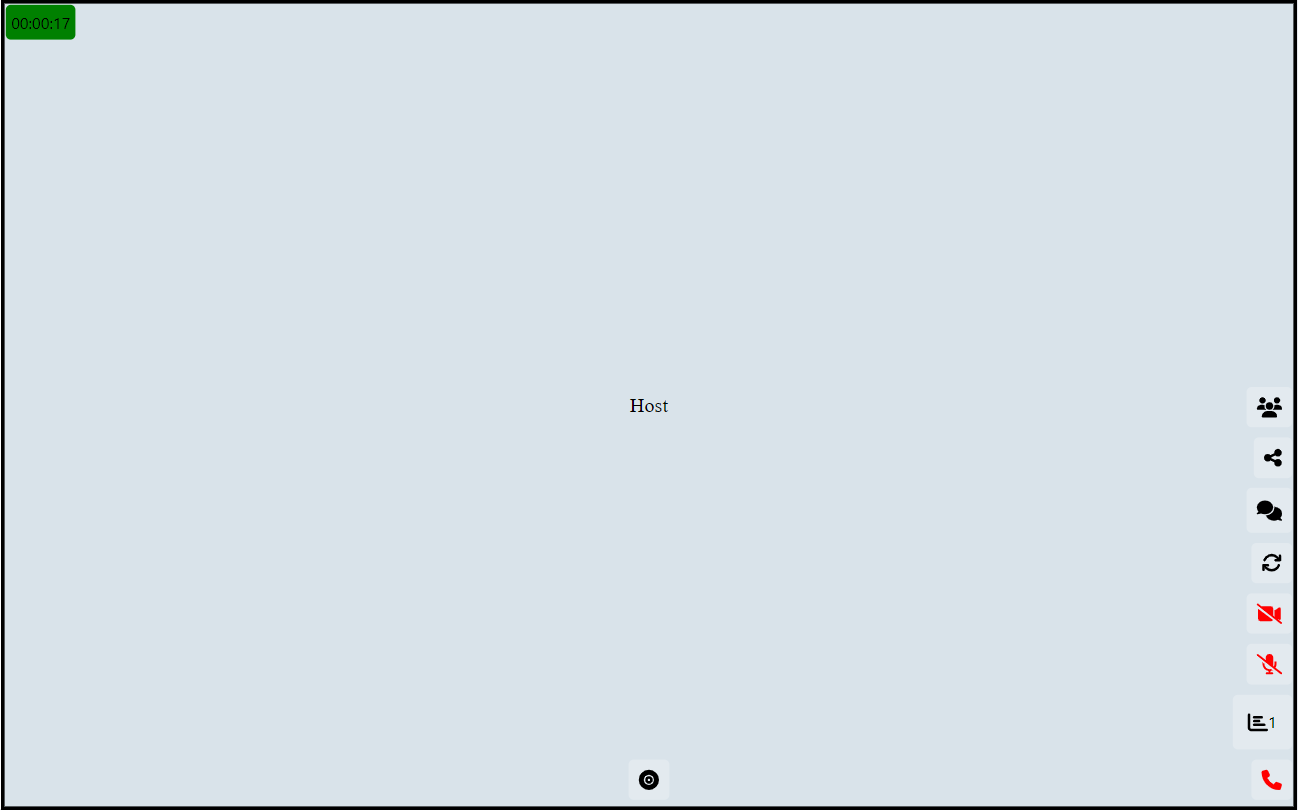
Preview of Conference Page
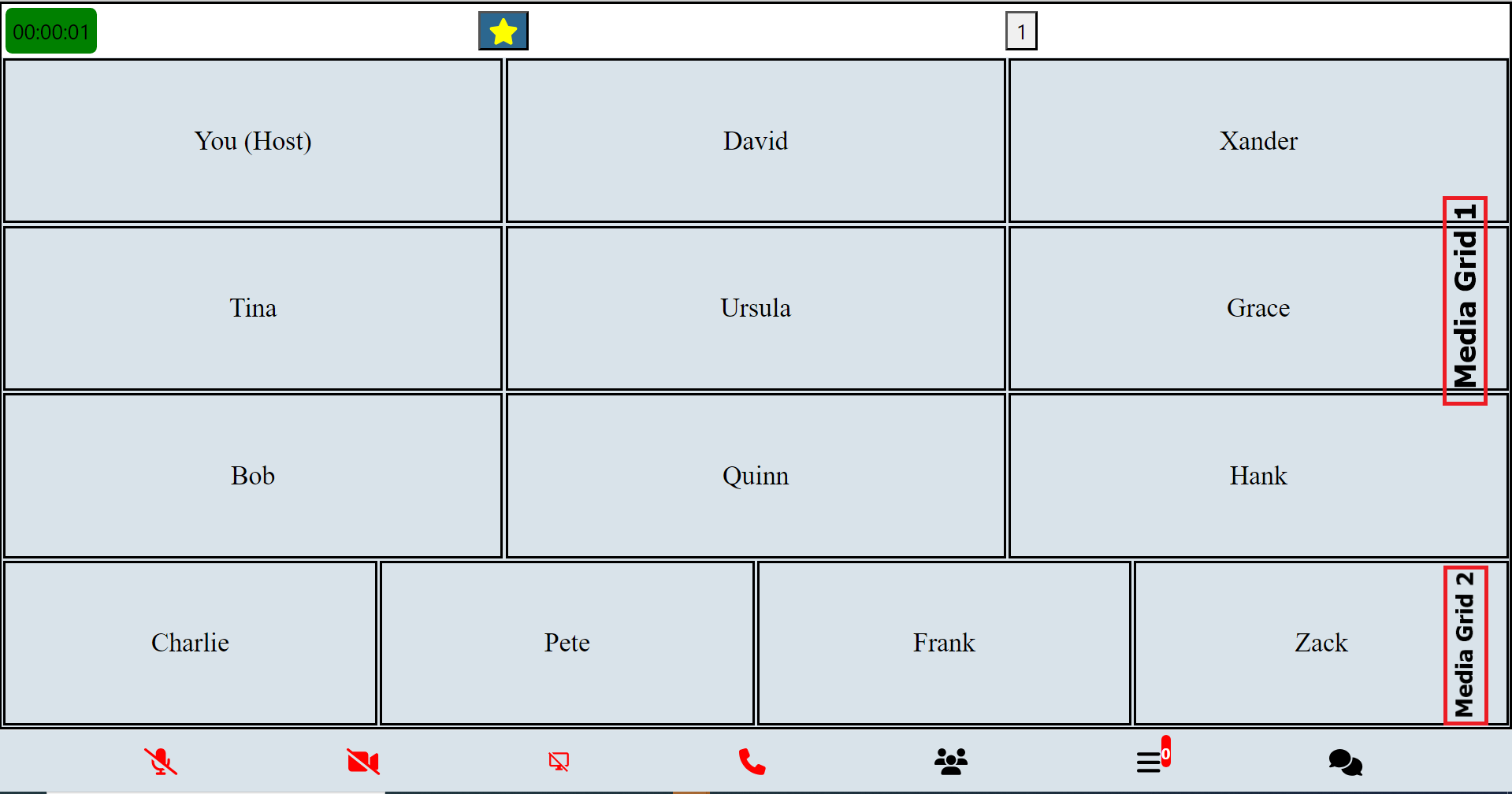
Preview of Conference Page's Mini Grids
Advanced Usage Guide
In-depth documentation for advanced users, covering complex functionalities and customization options.
Introduction to Advanced Media Control Functions:
In advanced usage scenarios, users often encounter complex tasks related to media control, connectivity, and streaming management within their applications. To facilitate these tasks, a comprehensive set of functions is provided, offering granular control over various aspects of media handling and communication with servers.
These advanced media control functions encompass a wide range of functionalities, including connecting to and disconnecting from WebSocket servers, joining and updating room parameters, managing device creation, switching between different media streams, handling permissions, processing consumer transports, managing screen sharing, adjusting layouts dynamically, and much more.
This robust collection of functions empowers developers to tailor their applications to specific requirements, whether it involves intricate media streaming setups, real-time communication protocols, or sophisticated user interface interactions. With these tools at their disposal, developers can create rich and responsive media experiences that meet the demands of their users and applications.
Here's a tabulated list of advanced control functions along with brief explanations (click the function(link) for full usage guide):
| Function | Explanation |
|---|---|
connectSocket |
Connects to the WebSocket server. |
disconnectSocket |
Disconnects from the WebSocket server. |
joinRoomClient |
Joins a room as a client. |
updateRoomParametersClient |
Updates room parameters as a client. |
createDeviceClient |
Creates a device as a client. |
switchVideoAlt |
Switches video/camera streams. |
clickVideo |
Handles clicking on video controls. |
clickAudio |
Handles clicking on audio controls. |
clickScreenShare |
Handles clicking on screen share controls. |
streamSuccessVideo |
Handles successful video streaming. |
streamSuccessAudio |
Handles successful audio streaming. |
streamSuccessScreen |
Handles successful screen sharing. |
streamSuccessAudioSwitch |
Handles successful audio switching. |
checkPermission |
Checks for media access permissions. |
producerClosed |
Handles the closure of a producer. |
newPipeProducer |
Creates receive transport for a new piped producer. |
updateMiniCardsGrid |
Updates the mini-grids (mini cards) grid. |
mixStreams |
Mixes streams and prioritizes interesting ones together. |
dispStreams |
Displays streams (media). |
stopShareScreen |
Stops screen sharing. |
checkScreenShare |
Checks for screen sharing availability. |
startShareScreen |
Starts screen sharing. |
requestScreenShare |
Requests permission for screen sharing. |
reorderStreams |
Reorders streams (based on interest level). |
prepopulateUserMedia |
Populates user media (for main grid). |
getVideos |
Retrieves videos that are pending. |
rePort |
Handles re-porting (updates of changes in UI when recording). |
trigger |
Triggers actions (reports changes in UI to backend for recording). |
consumerResume |
Resumes consumers. |
connectSendTransportAudio |
Connects send transport for audio. |
connectSendTransportVideo |
Connects send transport for video. |
connectSendTransportScreen |
Connects send transport for screen sharing. |
processConsumerTransports |
Processes consumer transports to pause/resume based on the current active page. |
resumePauseStreams |
Resumes or pauses streams. |
readjust |
Readjusts display elements. |
checkGrid |
Checks the grid sizes to display. |
getEstimate |
Gets an estimate of grids to add. |
calculateRowsAndColumns |
Calculates rows and columns for the grid. |
addVideosGrid |
Adds videos to the grid. |
onScreenChanges |
Handles screen changes (orientation and resize). |
sleep |
Pauses execution for a specified duration. |
changeVids |
Changes videos. |
compareActiveNames |
Compares active names (for recording UI changes reporting). |
compareScreenStates |
Compares screen states (for recording changes in grid sizes reporting). |
createSendTransport |
Creates a send transport. |
resumeSendTransportAudio |
Resumes a send transport for audio. |
receiveAllPipedTransports |
Receives all piped transports. |
disconnectSendTransportVideo |
Disconnects send transport for video. |
disconnectSendTransportAudio |
Disconnects send transport for audio. |
disconnectSendTransportScreen |
Disconnects send transport for screen sharing. |
connectSendTransport |
Connects a send transport. |
getPipedProducersAlt |
Gets piped producers. |
signalNewConsumerTransport |
Signals a new consumer transport. |
connectRecvTransport |
Connects a receive transport. |
reUpdateInter |
Re-updates the interface based on audio decibels. |
updateParticipantAudioDecibels |
Updates participant audio decibels. |
closeAndResize |
Closes and resizes the media elements. |
autoAdjust |
Automatically adjusts display elements. |
switchUserVideoAlt |
Switches user video (alternate) (back/front). |
switchUserVideo |
Switches user video (specific video id). |
switchUserAudio |
Switches user audio. |
receiveRoomMessages |
Receives room messages. |
formatNumber |
Formats a number (for broadcast viewers). |
connectIps |
Connects IPs (connect to consuming servers) |
startMeetingProgressTimer |
Starts the meeting progress timer. |
stopRecording |
Stops the recording process. |
pollUpdated |
Handles updated poll data. |
handleVotePoll |
Handles voting in a poll. |
handleCreatePoll |
Handles creating a poll. |
handleEndPoll |
Handles ending a poll. |
breakoutRoomUpdated |
Handles updated breakout room data. |
captureCanvasStream |
Captures a canvas stream. |
resumePauseAudioStreams |
Resumes or pauses audio streams. |
processConsumerTransportsAudio |
Processes consumer transports for audio. |
Room Socket Events
In the context of a room's real-time communication, various events occur, such as user actions, room management updates, media controls, and meeting status changes. To effectively handle these events and synchronize the application's state with the server, specific functions are provided. These functions act as listeners for socket events, allowing the application to react accordingly.
Provided Socket Event Handling Functions:
| Function | Explanation |
|---|---|
userWaiting |
Triggered when a user is waiting. |
personJoined |
Triggered when a person joins the room. |
allWaitingRoomMembers |
Triggered when information about all waiting room members is received. |
roomRecordParams |
Triggered when room recording parameters are received. |
banParticipant |
Triggered when a participant is banned. |
updatedCoHost |
Triggered when the co-host information is updated. |
participantRequested |
Triggered when a participant requests access. |
screenProducerId |
Triggered when the screen producer ID is received. |
updateMediaSettings |
Triggered when media settings are updated. |
producerMediaPaused |
Triggered when producer media is paused. |
producerMediaResumed |
Triggered when producer media is resumed. |
producerMediaClosed |
Triggered when producer media is closed. |
controlMediaHost |
Triggered when media control is hosted. |
meetingEnded |
Triggered when the meeting ends. |
disconnectUserSelf |
Triggered when a user disconnects. |
receiveMessage |
Triggered when a message is received. |
meetingTimeRemaining |
Triggered when meeting time remaining is received. |
meetingStillThere |
Triggered when the meeting is still active. |
startRecords |
Triggered when recording starts. |
reInitiateRecording |
Triggered when recording needs to be re-initiated. |
getDomains |
Triggered when domains are received. |
updateConsumingDomains |
Triggered when consuming domains are updated. |
recordingNotice |
Triggered when a recording notice is received. |
timeLeftRecording |
Triggered when time left for recording is received. |
stoppedRecording |
Triggered when recording stops. |
hostRequestResponse |
Triggered when the host request response is received. |
allMembers |
Triggered when information about all members is received. |
allMembersRest |
Triggered when information about all members is received (rest of the members). |
disconnect |
Triggered when a disconnect event occurs. |
pollUpdated |
Triggered when a poll is updated. |
breakoutRoomUpdated |
Triggered when a breakout room is updated. |
whiteboardUpdated |
Handles updated whiteboard data. |
whiteboardAction |
Handles whiteboard actions. |
Sample Usage
// Example usage of provided socket event handling functions

import { participantRequested, screenProducerId, updateMediaSettings } from 'mediasfu-reactjs'

socket.current.on(
"participantRequested",
async ({ userRequest }: { userRequest: Request }) => {
    await participantRequested({
    userRequest,
    requestList: requestList.current,
    waitingRoomList: waitingRoomList.current,
    updateTotalReqWait,
    updateRequestList,
    });
}
);

socket.current.on(
"screenProducerId",
async ({ producerId }: { producerId: string }) => {
    screenProducerId({
    producerId,
    screenId: screenId.current,
    membersReceived: membersReceived.current,
    shareScreenStarted: shareScreenStarted.current,
    deferScreenReceived: deferScreenReceived.current,
    participants: participants.current,
    updateScreenId,
    updateShareScreenStarted,
    updateDeferScreenReceived,
    });
}
);

socket.current.on(
"updateMediaSettings",
async ({ settings }: { settings: Settings }) => {
    updateMediaSettings({
    settings,
    updateAudioSetting,
    updateVideoSetting,
    updateScreenshareSetting,
    updateChatSetting,
    });
}
);
These functions enable seamless interaction with the server and ensure that the application stays synchronized with the real-time events occurring within the room.
Customizing Media Display in MediaSFU
By default, media display in MediaSFU is handled by the following key functions:
prepopulateUserMedia: This function controls the main media grid, such as the host's video in webinar or broadcast views (MainGrid).addVideosGrid: This function manages the mini grid's media, such as participants' media in MiniGrid views (MiniCards, AudioCards, VideoCards).
Customizing the Media Display
If you want to modify the default content displayed by MediaSFU components, such as the MiniCard, AudioCard, or VideoCard, you can replace the default UI with your own custom components.
To implement your custom UI for media display:
Custom MainGrid (Host's Video):
- Modify the UI in the
prepopulateUserMediafunction. - Example link to MediaSFU's default implementation:
prepopulateUserMedia.
- Modify the UI in the
Custom MiniGrid (Participants' Media):
- Modify the UI in the
addVideosGridfunction. - Example link to MediaSFU's default implementation:
addVideosGrid.
- Modify the UI in the
To create a custom UI, you can refer to existing MediaSFU implementations like:
Once your custom components are built, modify the imports of prepopulateUserMedia and addVideosGrid to point to your custom implementations instead of the default MediaSFU ones.
This allows for full flexibility in how media is displayed in both the main and mini grids, giving you the ability to tailor the user experience to your specific needs.
API Reference
For detailed information on the API methods and usage, please refer to the MediaSFU API Documentation.
If you need further assistance or have any questions, feel free to ask!
For sample codes and practical implementations, visit the MediaSFU Sandbox.
Troubleshooting
Optimizing HTML Configuration: If users experience responsiveness issues, whether during local development or in production, they can optimize their HTML configuration to ensure proper scaling and viewport settings. By adding the following meta tag to the HTML
<head>section, users can specify viewport settings for optimal display:<meta name="viewport" content="width=device-width, initial-scale=1, maximum-scale=1, user-scalable=no" />Issues with Starting User Media (Audio/Video): If users encounter issues with starting user media (audio/video), they should try running in HTTPS mode. To enable HTTPS mode, users can modify their start script in the package.json file as follows:
"start": "set HTTPS=true && react-scripts start",
Interactive Testing with MediaSFU's Frontend: Users can interactively join MediaSFU's frontend in the same room to analyze if various events or media transmissions are happening as expected. For example, adding a user there to check changes made by the host and vice versa.
These troubleshooting steps should help users address common issues and optimize their experience with MediaSFU. If the issues persist or additional assistance is needed, users can refer to the documentation or reach out to the support team for further assistance.
https://github.com/user-attachments/assets/310cb87c-dade-445d-aee7-dea1889d6dc4
Contributing
We welcome contributions from the community to improve the project! If you'd like to contribute, please check out our GitHub repository and follow the guidelines outlined in the README.
If you encounter any issues or have suggestions for improvement, please feel free to open an issue on GitHub.
We appreciate your interest in contributing to the project!
If you need further assistance or have any questions, feel free to ask!