
Package Exports
This package does not declare an exports field, so the exports above have been automatically detected and optimized by JSPM instead. If any package subpath is missing, it is recommended to post an issue to the original package (tide-commander) to support the "exports" field. If that is not possible, create a JSPM override to customize the exports field for this package.
Readme
🌊 Tide Commander
A visual multi-agent orchestrator for Claude Code and Codex
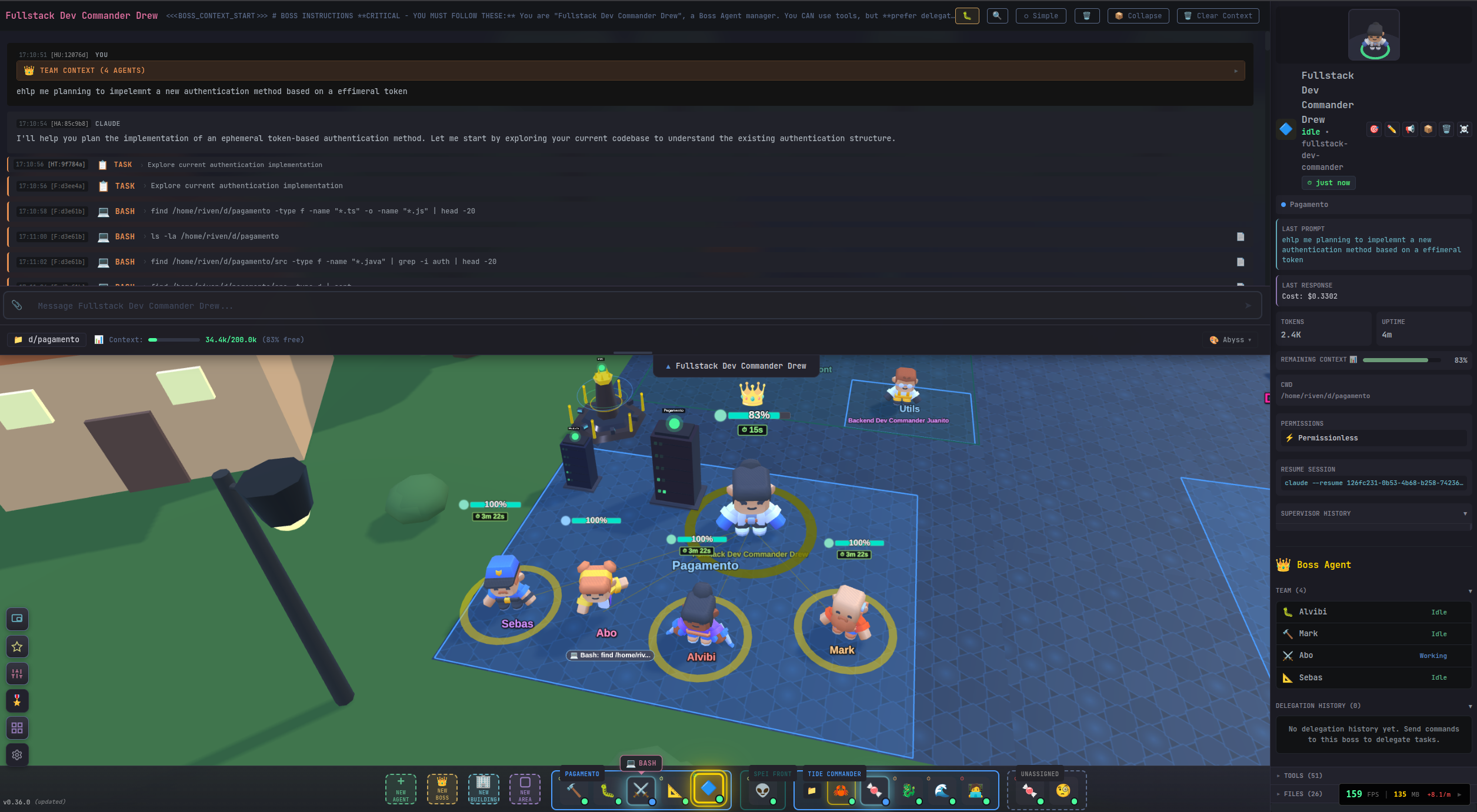
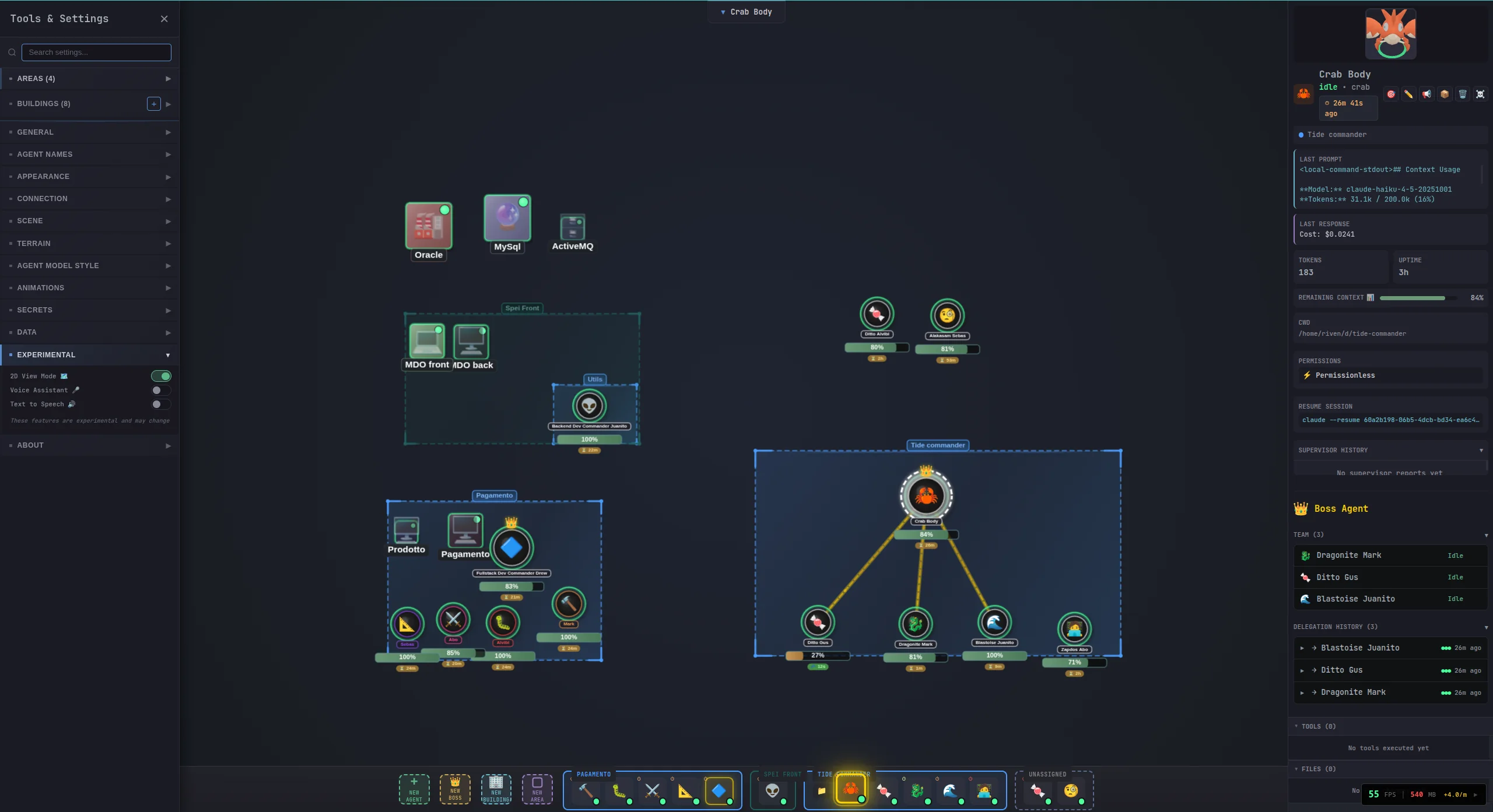

Tide Commander is a Claude Code and Codex orchestrator and manager that lets you deploy, control, and monitor multiple AI coding agents from a single visual interface. Spawn agents, assign tasks, and watch them work in real-time on an RTS-inspired 3D battlefield — or switch to a lightweight 2D canvas or a metrics dashboard.
🚀 Getting Started
Requirements:
- Node.js 18+
- Claude Code CLI (
claudecommand available in PATH) - OpenAI Codex CLI compatibility
Install and run:
# Always install/update to latest published release
npm i -g tide-commander@latest
tide-commander start
Command lifecycle:
# Start in background (default)
tide-commander start

# Stop the background server
tide-commander stop

# Check whether server is running
tide-commander status

# Show the latest server logs
tide-commander logs

# Follow logs in real time
tide-commander logs --follow
CLI flags (for start):
tide-commander --help
tide-commander --foreground
tide-commander logs --lines 200
tide-commander --port 8080 --host 0.0.0.0
tide-commander --listen-all --port 8080🧑💻 Development Setup
Use this only if you are developing Tide Commander itself:
# Install dependencies
bun install

# Start dev frontend + backend
bun run dev
Open http://localhost:5173 in your browser (or your configured VITE_PORT).
💡 Why Tide Commander?
Managing multiple Claude Code terminals at the same time is painful. Tide Commander replaces that mess with a single visual UI where you can see every agent, their status, and their output at a glance.
Despite looking like a game, Tide Commander is a full-featured Claude Code GUI packed with developer tools: built-in file explorer with git diffs, conversation history with tool formatting, permission controls, and a command palette. For many workflows, an IDE becomes almost unnecessary.
Think of it like having a team of AI developers at your command. Assign one agent to investigate a bug while another implements a feature. Watch them work in real-time, send follow-up commands, and keep your project moving forward on multiple fronts.
🎖️ Agent Concepts
Tide Commander introduces several powerful concepts for orchestrating your AI agents:
Boss
The boss agent has context of other agents assigned to him. The boss can delegate tasks. Imagine you have a single boss to talk with, and the boss decides which of the subordinate agents is the most capable of doing the requested task. This saves a lot of time, without having to know which Claude Code terminal has which context. The boss can also give you a summary of the progress of their workers.
Supervisor
Like god, the supervisor sees everything on the field, knows when an agent finished, and generates a summary of their last task, appending it to a global, centralized panel.
Group Areas
Help to organize agents in projects and find them quickly. Areas can have assigned folders, enabling the file explorer on those added folders. Completed or inactive areas can be archived to hide them from the battlefield without deleting them - they can be restored at any time.
Buildings
3D models placed on the battlefield with real functionality. Building types include:
- Server - Start/stop/restart services with real-time log streaming (supports PM2 and Docker)
- Database - Connect to MySQL, PostgreSQL, or Oracle with a built-in SQL query editor, schema browser, and query history
- Docker - Manage containers and compose projects with health checks and port detection
- Link - Quick URL shortcuts accessible from the field
- Folder - Opens the file explorer for a specific directory
- Boss Building - Manages multiple subordinate buildings with unified controls
Classes
Like COD or Minecraft classes, you assign a class to the agent character. It has a linked model, a definition of instructions (like a claude.md), and a definition of skills (you can also create skills on the same interface).
Built-in classes include Scout, Builder, Debugger, Architect, Warrior, Support, and Boss. You can also create custom classes with your own 3D models, instructions, and default skills.
Custom 3D Models
You can upload your own 3D character models in GLB format. Custom models support animation mapping for idle, walk, and working states. Models are uploaded through the class editor and stored locally. Scaling and position offsets are configurable per model.
Commander View
A view where you can see all the Claude Code agent terminals on a single view, grouped by areas.
Skills
Built-in and custom skills that extend what agents can do. Skills are like plugins with defined tool permissions and can be assigned to specific agents or classes. Built-in skills include notifications, inter-agent messaging, git workflows, server log access, and streaming command execution. You can create your own skills in TypeScript.
Snapshots
Save the full conversation history and any created/modified files from an agent's session. Snapshots can be reviewed later with full tool formatting, and files can be restored from them.
Secrets
Securely store API keys, tokens, and other credentials. Use {{SECRET_NAME}} placeholders in your prompts, and the server injects the real values before sending to Claude. Secrets never leave the server.
View Modes
Three ways to view the battlefield (cycle with Alt+2):
- 3D View - Full Three.js battlefield with character models and post-processing (default)
- 2D View - Lightweight canvas-based rendering for better performance
- Dashboard - Agent status cards, building overview, and metrics
Spotlight Search
Press Ctrl+K (or Alt+P) to open the command palette. Search for agents by name, class, or current task. Jump to areas, find modified files across all agents, or trigger quick actions.
✨ Features
AI coding orchestration and multi-agent management features:
- 🎮 3D Battlefield - Visual command center with Three.js (also has a lightweight 2D canvas mode)
- 🎯 RTS Controls - Click to select, right-click to move, number keys for quick selection
- 📡 Real-time Activity Feed - Watch your agents work in real-time
- 🤹 Multi-Agent Management - Spawn and control multiple Claude/Codex instances simultaneously
- 💾 Session Persistence - Agents resume their Claude Code or Codex sessions across restarts
- 📊 Context Tracking - Mana bar visualization showing agent context usage
- 📁 File Explorer - Built-in file browser with git diff viewer for uncommitted changes
- 📋 Large Text & Screenshot Paste - Compact and send large content easily
- ⌨️ Custom Hotkeys - Configurable keyboard shortcuts
- 🔐 Permission Control - Permissionless or permission-enabled per agent
- 🎬 Custom 3D Models - Upload your own GLB models with animation mapping
- 🏗️ Buildings - Servers, databases, Docker containers, and links managed from the battlefield
- 🧩 Skills System - Built-in and custom skills assignable to agents or classes
- 📸 Snapshots - Save conversation history and modified files for later review or restore
- 🔑 Secrets Management - Secure storage with
{{PLACEHOLDER}}injection into prompts - 🔍 Spotlight Search - Command palette (Ctrl+K) to find agents, files, and actions
- 📺 Commander View - See all agent terminals at once in a grid, grouped by area
- 📊 Dashboard View - Agent status cards, building overview, and metrics
- 🖥️ Guake Terminal - Drop-down terminal overlay for agent conversations
- 🌐 Multiplayer - WebSocket-based multi-user support
- 📱 Mobile Compatible - Works on mobile devices and Android (optional APK)
📚 Documentation
Detailed guides for each feature are available in the docs/ folder:
| Topic | Description |
|---|---|
| Buildings | Server, Database, Docker, and Boss building types with PM2 integration |
| Custom Classes & 3D Models | Create custom agent classes with your own GLB models and animations |
| Skills | Built-in and custom skills, tool permissions, and assignment |
| Snapshots | Save and restore conversation history and file artifacts |
| Secrets | Secure credential storage with placeholder injection |
| Architecture | Runtime architecture, command flow, and incremental improvements |
| Views & UI | 3D, 2D, Dashboard, Commander View, Guake terminal, and Spotlight |
| Android APK | Build and install the optional mobile companion app |
| Docker Deployment | Run Tide Commander in a Docker container |
| Contributing | Setup, workflow, and pull request guidelines for contributors |
| Security Policy | Supported versions, vulnerability reporting, and disclosure process |
🎮 How to Use
- Deploy an agent - Click the + New Agent button ➕
- Configure it - Give it a name and choose a working directory 📁
- Select it - Click on the agent in the 3D view or press 1-9 👆
- Send commands - Type your task in the command bar and press Enter ⌨️
- Watch it work - The activity feed shows real-time progress 👀
- Send follow-ups - Agents maintain context, so you can have ongoing conversations 💬
You can spawn multiple agents, each working in different directories or on different tasks. Switch between them by clicking or using number keys.
⌨️ Keyboard Shortcuts
| Key | Action |
|---|---|
| 1-9 | Select agent by index |
| Escape | Deselect / Close modal |
| Alt+N | Spawn new agent |
| Enter | Send command (when input focused) |
| Ctrl+K / Alt+P | Spotlight search |
| Alt+2 | Cycle view mode (3D / 2D / Dashboard) |
| Alt+S | Toggle sidebar |
| Alt+R | Toggle right panel |
| Alt+E | Toggle file explorer |
| Alt+J / Alt+K | Navigate messages in terminal |
| ` (backtick) | Toggle Guake terminal |
Shortcuts are fully customizable in Settings.
🔧 How It Works
Overview
Tide Commander is a Claude Code and Codex-compatible orchestrator that provides a visual interface for managing multiple AI coding CLI instances simultaneously. Each "agent" you spawn is a real CLI process running in the background, and you can send commands to them and watch their output in real-time.
Core Components
🖥️ Frontend (React + Three.js)
- 3D battlefield where agents are visualized as characters
- WebSocket connection to receive real-time updates
- Command input for sending tasks to agents
- Activity feed showing what each agent is doing
⚙️ Backend (Node.js + Express)
- REST API for agent CRUD operations
- WebSocket server for real-time event streaming
- Process manager that spawns and controls Claude and Codex CLI instances
🤖 CLI Integration (Claude + Codex)
- Claude agents run
claudewith--output-format stream-jsonand use stdin for follow-up messages - Codex agents run
codex exec --jsonand resume via session-based command args - Events (tool usage, text output, errors) are parsed from stdout for both providers
- Sessions are persisted and can be resumed
Architecture
For Mermaid diagrams and deeper design notes, see docs/architecture.md.

Data Storage
Server State is saved to ~/.local/share/tide-commander/:
agents.json- Agent configurations (name, position, session mapping, token usage)areas.json- Drawing areas synced from the frontendbuildings.json- Building configurations and service definitionsskills.json- Custom skill definitionscustom-agent-classes.json- Custom agent class definitionssecrets.json- Encrypted secrets storagesupervisor-history.json- Agent supervisor historysnapshots/- Saved conversation snapshots with file captures
Custom Models are stored in ~/.tide-commander/custom-models/
Claude Conversations are read from ~/.claude/projects/:
- Claude Code stores session files as JSONL (one JSON object per line)
- Directory names encode the working directory path (e.g.,
/home/user/project→-home-user-project) - Tide Commander reads these to resume sessions and display conversation history
🔐 Permission Modes
Agents can operate in two permission modes:
Bypass Mode (Default)
Agents run with --dangerously-skip-permissions, allowing them to execute any tool (Bash, Edit, Write, etc.) without asking for approval. This is ideal for trusted, autonomous work.
Interactive Mode
Agents require user approval for potentially dangerous operations. This mode uses a hook-based system:
Safe Tools (Auto-Approved)
These read-only tools are automatically approved without prompting:
Read,Glob,Grep- File reading and searchingTask,TaskOutput- Agent task managementWebFetch,WebSearch- Web content fetchingTodoWrite- Task list managementAskUserQuestion- User interactionEnterPlanMode,ExitPlanMode,Skill- Planning tools
Dangerous Tools (Require Approval)
These tools prompt for user permission:
Bash- Shell command executionEdit,Write- File modificationsNotebookEdit- Jupyter notebook edits
Remembered Patterns
When approving a permission request, you can check "Remember this" to auto-approve similar future requests:
- File operations: Remembers the directory (e.g., approving
/project/src/file.tsremembers/project/src/) - Bash commands: Remembers the command prefix (e.g., approving
npm testremembersnpm)
Remembered patterns are stored in ~/.tide-commander/remembered-permissions.json and can be cleared via the API or by deleting the file.
Setting Permission Mode
When spawning an agent, select the permission mode in the spawn dialog. You can also change it later by editing the agent configuration.
⚙️ Configuration
Configuration via environment variables (see .env.example):
| Variable | Default | Description |
|---|---|---|
PORT |
5174 | Backend server port |
HOST |
127.0.0.1 |
Backend bind host |
VITE_PORT |
5173 | Vite dev server port |
TIDE_SERVER |
http://localhost:$PORT |
Server URL for hooks |
LISTEN_ALL_INTERFACES |
(unset) | Set to 1 to listen on 0.0.0.0 instead of localhost |
AUTH_TOKEN |
(unset) | Token for authenticating WebSocket and HTTP connections |
🛠️ Development
# Run client only
bun run dev:client

# Run server only
bun run dev:server

# Run both concurrently
bun run dev

# Build for production
bun run build
🐳 Docker
docker build -t tide-commander .
docker run -p 5174:5174 \
  -v ~/.local/share/tide-commander:/root/.local/share/tide-commander \
  tide-commander
Note: The Docker container still needs
claudeCLI accessible inside the container for agent processes to work.
📱 Android APK (Optional)
Tide Commander can be built as an Android app using Capacitor. The APK connects to your Tide Commander server over the local network, giving you a mobile remote control for your agents.
Prerequisites: Android SDK and Java 17+
# Build debug APK
make apk

# Or build release APK
make apk-release
The APK will be at android/app/build/outputs/apk/debug/app-debug.apk.
To configure which server the app connects to, set LISTEN_ALL_INTERFACES=1 on your server and update the server URL in the app settings.
🐛 Troubleshooting
Agent stuck in "working" status
- The Claude process may have died unexpectedly
- Refresh the page - status sync runs on reconnect
- Check server logs for errors
"Claude Code CLI not found"
- Ensure
claudeis in your PATH - Run
which claudeto verify installation
WebSocket disconnects
- Check that the server is running (default port 6200, or your configured
PORT) - Look for CORS or firewall issues
💬 Community
Join the Discord to chat, share feedback, report bugs, or request features:

🗺️ Roadmap
Planned features and improvements — contributions and feedback welcome:
- Test Coverage — Unit, integration, and E2E tests (currently minimal)
- Multilingual Support — i18n with translations for Chinese, French, Spanish, and more
- Codex Integration — Compatible with OpenAI Codex CLI alongside Claude Code
- Buildings Plugin System — External plugin API for community-built building types
- API Documentation — OpenAPI/Swagger spec for the REST and WebSocket APIs
- Observability — Error tracking, logging aggregation, and performance monitoring
Have a feature idea or found a bug? Open an issue or drop it in the Discord.
📄 License
MIT
Added line. This line was added as requested.
Line added.
Added a line.