
Package Exports
- @data-ui/xy-chart
This package does not declare an exports field, so the exports above have been automatically detected and optimized by JSPM instead. If any package subpath is missing, it is recommended to post an issue to the original package (@data-ui/xy-chart) to support the "exports" field. If that is not possible, create a JSPM override to customize the exports field for this package.
Readme
@data-ui/xy-chart
A package of charts with standard x- and y- axes.


See it live at williaster.github.io/data-ui.
Example usage
The React <XYChart /> container coordinates scales across its children and is composable. You can pass it <XAxis />, <YAxis />, one or more <*Series /> components, and <defs>-based components such as <LinearGradients />s and <PatternLines />.
Note that the order of children passed to <XYChart /> determines their rendering order, for example the a <LineSeries /> passed after a <BarSeries /> will overlay the line on the bars. The same applies to axes.
import { XYPlot, BarSeries, CrossHair, XAxis, YAxis, LinearGradient } from '@data-ui/xy-chart';

/// ...
  <XYChart
    ariaLabel="Bar chart showing ..."
    width={width}
    height={height}
    margin={{ top, right, bottom, left }}
    xScale={{ type: 'time' }}
    yScale={{ type: 'linear' }}
    renderTooltip={({ event, datum, data, color }) => (
      <div>
        <strong style={{ color }}>{datum.label}</strong>
        <div><strong>x </strong>{datum.x}</div>
        <div><strong>y </strong>{datum.y}</div>
      </div>
    )}
  >
    <LinearGradient
      id="my_fancy_gradient"
      from={startColor}
      to={endColor}
    />
    <XAxis label="X-axis Label" />
    <YAxis label="Y-axis Label" />
    <BarSeries
      data={timeSeriesData}
      fill="url('#my_fancy_gradient')"
    />
    <CrossHair showHorizontalLine={false} fullHeight stroke="pink" />
  </XYChart>
Components
Check out the example source code and PropTable tabs in the Storybook williaster.github.io/data-ui for more!
<XYChart />
The XYChart renders an <svg /> and coordinates scales across all of it's child series and axes. It takes the following props
| Name | Type | Default | Description |
|---|---|---|---|
| ariaLabel | PropTypes.string.isRequired | - | Required aria-label for accessibility. |
| children | PropTypes.node | - | Any node; axes, crosshair, and series children are cloned with additional props such as scales. |
| width | PropTypes.number.isRequired | - | Required width of the chart (including margin). Check out withParentSize in the examples for responsive charts. |
| height | PropTypes.number.isRequired | - | Required height of the chart (including margin). Check out withParentSize in the examples for responsive charts. |
| margin | PropTypes.shape({ top: PropTypes.number, right: PropTypes.number, bottom: PropTypes.number, left: PropTypes.number }) | { top: 64, right: 64, bottom: 64, left: 64 } | chart margin, leave room for axes and labels! note 0 may clip LineSeries and PointSeries. |
| renderTooltip | PropTypes.func | - | ({ data, datum, event, color }) => node, should return the inner tooltip contents on trigger. |
| onMouseMove | PropTypes.func | - | func({ data, datum, event, color }), passed to all child series (or voronoi). only needed if you are rolling your own tooltips (see below) |
| onMouseLeave | PropTypes.func | - | func(), passed to all child series (or voronoi). only needed if you are rolling your own tooltips (see below) |
| xScale | scaleShape.isRequired | - | scale config, see below. |
| yScale | scaleShape.isRequired | - | scale config, see below. |
| showXGrid | PropTypes.bool | false | whether to show vertical gridlines |
| showYGrid | PropTypes.bool | false | whether to show vertical gridlines |
| theme | themeShape | false | theme shape, see below |
| useVoronoi | PropTypes.bool | false | whether to compute and use a voronoi for all datapoints (with x, y values) / mouse interactions |
| showVoronoi | PropTypes.bool | false | convenience prop for debugging to view the underlying voronoi if used |
Scale config
X and y-scales are configured using xScale and yScale config props which essentially configure d3/vx scales:
const scaleConfigShape = PropTypes.shape({
  type: PropTypes.oneOf([
    'time',
    'linear',
    'band',
  ]).isRequired,
  includeZero: PropTypes.bool,

  // these would override any computation done by xyplot, allowing specific ranges or colors
  // see storybook for more examples
  range: PropTypes.arrayOf(PropTypes.oneOfType([PropTypes.number, PropTypes.string])),
  rangeRound: PropTypes.arrayOf(PropTypes.oneOfType([PropTypes.number, PropTypes.string])),
  domain: PropTypes.arrayOf(PropTypes.oneOfType([PropTypes.number, PropTypes.string])),
});
Theme
A theme object with the following shape can be passed to <XYChart /> to style the chart, axes, and series.
See @data-ui/theme for an example.
export const themeShape = PropTypes.shape({
  gridStyles: PropTypes.shape({
    stroke: PropTypes.string,
    strokeWidth: PropTypes.number,
  }),
  xAxisStyles: PropTypes.shape({
    stroke: PropTypes.string,
    strokeWidth: PropTypes.number,
    label: PropTypes.shape({
      bottom: PropTypes.object,
      top: PropTypes.object,
    }),
  }),
  yAxisStyles: PropTypes.shape({
    stroke: PropTypes.string,
    strokeWidth: PropTypes.number,
    label: PropTypes.shape({
      left: PropTypes.object,
      right: PropTypes.object,
    }),
  })
  xTickStyles: PropTypes.shape({
    stroke: PropTypes.string,
    tickLength: PropTypes.number,
    label: PropTypes.shape({
      bottom: PropTypes.object,
      top: PropTypes.object,
    }),
  }),
  yTickStyles: PropTypes.shape({
    stroke: PropTypes.string,
    tickLength: PropTypes.number,
    label: PropTypes.shape({
      left: PropTypes.object,
      right: PropTypes.object,
    }),
  }),
});
<XAxis /> and <YAxis />
| Name | Type | Default | Description |
|---|---|---|---|
| axisStyles | axisStylesShape | {} |
config object for axis and axis label styles, see theme above. |
| label | PropTypes.oneOfType( [PropTypes.string, PropTypes.element] ) | <text {...axisStyles.label[ orientation ]} /> |
string or component for axis labels |
| numTicks | PropTypes.number | null | approximate number of ticks (actual number depends on the data and d3's algorithm) |
| orientation | PropTypes.oneOf(['top', 'right', 'bottom', 'left']) | bottom (XAxis), right (YAxis) | orientation of axis |
| tickStyles | tickStylesShape | {} |
config object for styling ticks and tick labels, see theme above. |
| tickLabelComponent | PropTypes.element | <text {...tickStyles.label[ orientation ]} /> |
component to use for tick labels |
| tickFormat | PropTypes.func | null | (tick, tickIndex) => formatted tick |
| tickValues | PropTypes.arrayOf( PropTypes.oneOfType([ PropTypes.number, PropTypes.string ]) ) | null | custom tick values |
Series
Several types of series types are exported by the package, and can be used in combination. See the storybook source for more proptables for your series of interest. Here is an overview of scale support and data shapes:
| Series | supported x scale type | supported y scale types | data shape | voronoi compatible for tooltips? |
|---|---|---|---|---|
<AreaSeries/> |
time, linear | linear | { x, y [, y0, y1, fill, stroke] }* |
yes* |
<BarSeries/> |
time, linear, band | linear | { x, y [, fill, stroke] } |
no |
<LineSeries/> |
time, linear | linear | { x, y [, stroke] } |
yes |
<PointSeries/> |
time, linear | time, linear | { x, y [size, fill, stroke, label] } |
yes |
<StackedBarSeries/> |
band | linear | { x, y } (colors controlled with stackFills & stackKeys) |
no |
<GroupedBarSeries/> |
band | linear | { x, y } (colors controlled with groupFills & groupKeys) |
no |
<CirclePackSeries/> |
time, linear | y is computed | { x [, size] } |
no |
<IntervalSeries/> |
time, linear | linear | { x0, x1 [, fill, stroke] } |
no |
* The y boundaries of the <AreaSeries/> may be specified by either
- defined
y0andy1values or - a single
yvalue, in which case its lower bound is set to 0 (a "closed" area series)
It is worth noting that voronoi overlays require a defined y attribute, so use of voronoi with only y0 and y1 values will not work.
CirclePackSeries

This series implements the Circle packing algorithm described by Wang et al. Visualization of large hierarchical data by circle packing, but attempts to preserve datum x values (although they may be modified slightly). It is useful for visualizing e.g., atomic events where x values may partially overlap, and provides an alternative to an atomic histogram without a requirement for binning x values.
Note that only x values are needed for CirclePackSeries, y values are computed based on x and size (if specified). Similar to PointSeries, size, fill, and fillOpacity may be set on datum themseleves or passed as props to the CirclePackSeries component.
Tooltips
Tooltips are supported for all series types, but how you configure them will likely depend on which series combinations you're using and how much customization you need. The easiest way to use tooltips out of the box is by passing a renderTooltip function to <XYChart /> as shown in the above example. This function takes an object with the shape { event, datum, data, color } as input and should return the inner contents of the tooltip (not the tooltip container!) as shown above.
Under the covers this will wrap the <XYChart /> component in the exported <WithTooltip /> HOC, which wraps the <svg /> in a <div /> and handles the positioning and rendering of an HTML-based tooltip with the contents returned by renderTooltip(). This tooltip is aware of the bounds of its container and should position itself "smartly".
If you'd like more customizability over tooltip rendering you can do either of the following:
Roll your own tooltip positioning logic and pass
onMouseMoveandonMouseLeavefunctions toXYChart. These functions are passed to series-type children and are called with the signatureonMouseMove({ data, datum, event, color })andonMouseLeave()upon appropriate trigger. Note that you must also passtooltipDatatoXYChartif you are using theCrossHaircomponent, which has an expected shape of{ datum }containing the datum to emphasize.Wrap
<XYChart />with<WithTooltip />yourself, which accepts props for additional customization:
| Name | Type | Default | Description |
|---|---|---|---|
| children | PropTypes.func or PropTypes.object | - | Child function (to call) or element (to clone) with onMouseMove, onMouseLeave, and tooltipData props/keys |
| className | PropTypes.string | - | Class name to add to the <div> container wrapper |
| renderTooltip | PropTypes.func.isRequired | - | Renders the contents of the tooltip, signature of ({ event, data, datum, color }) => node |
| styles | PropTypes.object | {} | Styles to add to the <div> container wrapper |
| TooltipComponent | PropTypes.func or PropTypes.object | @vx's TooltipWithBounds |
Component (not instance) to use as the tooltip container component. It is passed top and left numbers for positioning |
| tooltipTimeout | PropTypes.number | 200 | Timeout in ms for the tooltip to hide upon calling onMouseLeave |
<Voronoi />

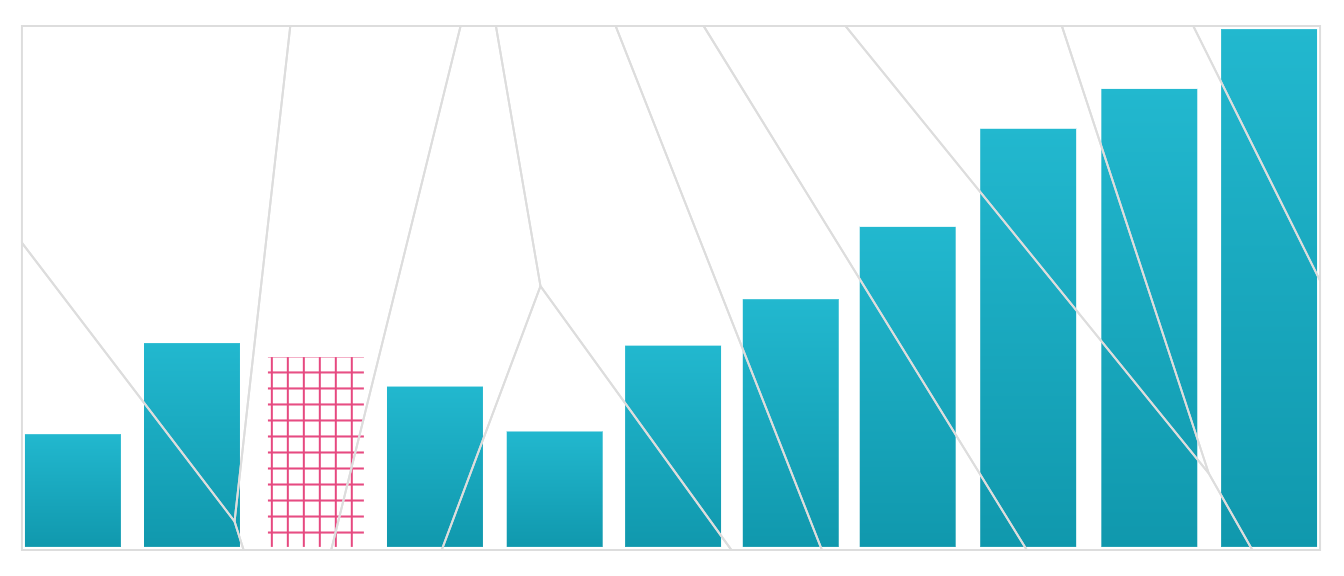
For series components that have "small" mouse areas, such as PointSeries and LineSeries, you may opt to use an invisible Voronoi overlay on top of the visualization to increase the target area of interaction sites and improve user experience. To enable this simply set useVoronoi to true on the <XYChart /> component and optionally use the convenience prop showVoronoi to view or debug it. Note that this will compute a voronoi layout for all data points (with defined x and y datum values!) across all series.
Note ‼️
Because of the polygonal shapes generated by the voronoi layout, you probably don't want to use this option if you are e.g., only rendering a BarSeries because the bar points represent the tops of the bars and thus polygons for one bar may overlap the rect of another bar (again, you may use showVoronoi to debug this).
<CrossHair />
The <CrossHair /> component may be used in combination with tooltips for additional visual feedback (see the storybook for many examples!). Simply pass the component as a child of <XYChart /> and it will automatically position itself upon tooltip trigger. Compared to a tooltip, this component snaps to actual data points for improved precision. It accepts the following props:
| Name | Type | Default | Description |
|---|---|---|---|
| fullHeight | PropTypes.bool | false | whether the vertical line should span the entire height of the chart |
| fullWidth | PropTypes.bool | false | whether the horizontal line should span the entire width of the chart |
| circleSize | PropTypes.number | 4 | the radius of the circle |
| circleFill | PropTypes.string | data-ui/theme.colors.grays[7] | the fill of the circle |
| circleStroke | PropTypes.string | white | the stroke of the circle |
| circleStyles | PropTypes.object | { pointerEvents: 'none' } | styles passed to the circle |
| lineStyles | PropTypes.object | { pointerEvents: 'none' } | styles passed to both horizontal and vertical lines |
| showCircle | PropTypes.bool | true | whether to show the circle |
| showHorizontalLine | PropTypes.bool | true | whether to show the horizontal crosshair line |
| showVerticalLine | PropTypes.bool | true | whether to show the vertical crosshair line |
| stroke | PropTypes.oneOfType([PropTypes.func, PropTypes.string]) | data-ui/theme.colors.grays[7] | the stroke of both horizontal and vertical lines |
| strokeDasharray | PropTypes.oneOfType([PropTypes.func, PropTypes.string]) | 3, 3 |
The stroke-dash-array of both horizontal and vertical lines |
| strokeWidth | PropTypes.oneOfType([PropTypes.func, PropTypes.number]) | 1 | The strokeWidth of both horizontal and vertical lines |
More on the way.
Other
These vx gradients and patterns are exported in @data-ui/xy-chart to customize the style of series. These components create <def> elements in the chart SVG with ids that you can reference in another component. See the storybook for example usage!
Development
npm install
npm run dev # or 'build'
@data-ui packages
- @data-ui/xy-chart
- @data-ui/histogram

- @data-ui/radial-chart

- @data-ui/data-table

- @data-ui/theme

- @data-ui/demo