
Package Exports
This package does not declare an exports field, so the exports above have been automatically detected and optimized by JSPM instead. If any package subpath is missing, it is recommended to post an issue to the original package (chapa-cli) to support the "exports" field. If that is not possible, create a JSPM override to customize the exports field for this package.
Readme
chapa-cli


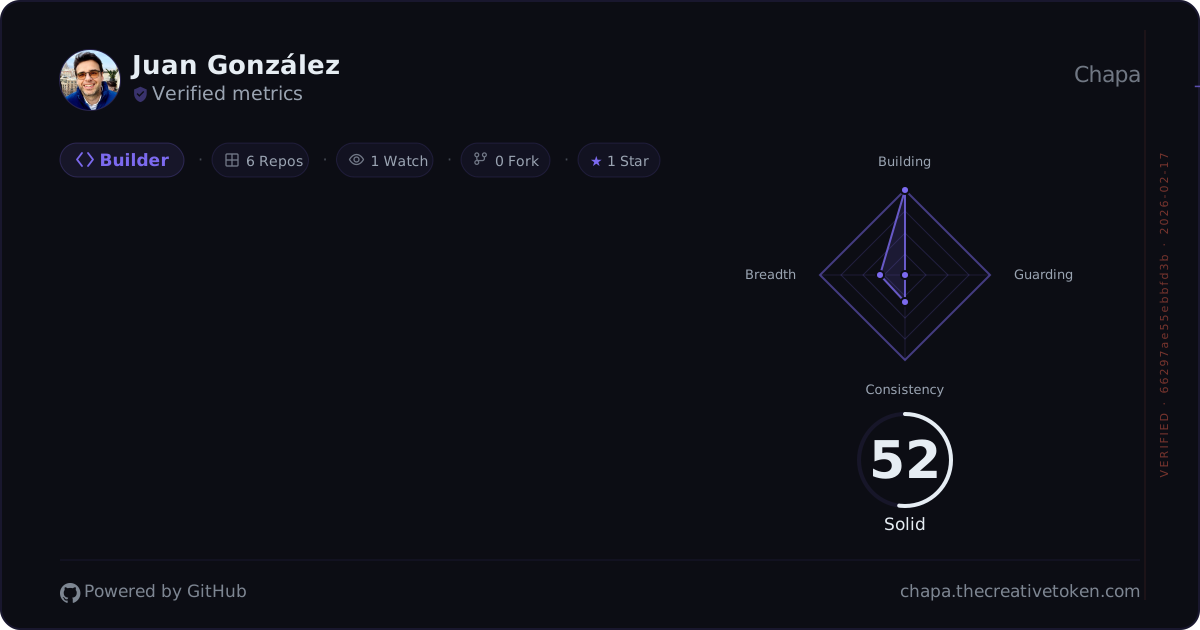
Merge GitHub Enterprise Managed User (EMU) contributions into your Chapa developer impact badge.
Why?
If you use a GitHub EMU account at work, your contributions live on a separate identity from your personal GitHub. Chapa badges only see your personal account. This CLI bridges the gap by fetching your EMU stats and merging them into your Chapa badge.
Install
npm install -g chapa-cliRequires Node.js 20+.
Quick start
# 1. Log in with your personal GitHub (opens browser)
chapa login

# 2. Create an EMU token with scopes: repo, read:user, read:org, read:discussion
#    Settings > Developer settings > Personal access tokens (on your EMU account)
#    If your org uses SAML SSO, also authorize the token for your org (see below)

# 3. Merge your EMU contributions
chapa merge --emu-handle your-emu-handle --emu-token ghp_your_emu_token
Commands
chapa login
Authenticate with the Chapa server. Opens a browser window where you approve the CLI with your personal GitHub account.
chapa login
chapa login --server http://localhost:3001  # local dev
chapa login --insecure                       # corporate TLS interception
chapa login --verbose                        # debug polling
chapa logout
Clear stored credentials from ~/.chapa/credentials.json.
chapa logoutchapa insights
Upload a Claude Code insights HTML report to your Chapa badge.
chapa insights --file ~/Downloads/claude-code-insights.html
chapa insights --file report.html --json     # structured output
chapa insights --file report.html --verbose  # debug output
chapa merge
Fetch stats from your EMU account and upload them to Chapa.
chapa merge --emu-handle your-emu-handleThe EMU token can be provided via --emu-token flag or GITHUB_EMU_TOKEN environment variable.
Required token scopes: repo, read:user, read:org, read:discussion
Without
reposcope, only the contribution calendar works — PRs, lines, repos contributed, and stars will all show as zero.
See EMU token setup for step-by-step instructions.
Options
| Flag | Description |
|---|---|
--emu-handle <handle> |
Your EMU GitHub handle (required for merge) |
--emu-token <token> |
EMU GitHub token (or set GITHUB_EMU_TOKEN) |
--handle <handle> |
Override personal handle (auto-detected from login) |
--token <token> |
Override auth token (auto-detected from login) |
--file <path> |
Path to Claude Code insights HTML file (required for insights) |
--server <url> |
Chapa server URL (default: production) |
--verbose |
Show debug output, timings, and server responses |
--json |
Output merge result as structured JSON (for scripting/CI) |
--insecure |
Skip TLS certificate verification |
--version, -v |
Show version number |
--help, -h |
Show help message |
Corporate networks
Many corporate networks use TLS interception (MITM proxies). If you see errors like:
UNABLE_TO_VERIFY_LEAF_SIGNATURESELF_SIGNED_CERT_IN_CHAINself-signed certificate in certificate chain
Use the --insecure flag:
chapa login --insecure
chapa merge --emu-handle your-emu --insecure
This disables TLS certificate verification for the CLI session only.
EMU token setup
Your EMU token is a GitHub personal access token created on your EMU (work) account — not your personal account.
Step 1: Create the token
- Log into GitHub with your EMU account
- Go to Settings → Developer settings → Personal access tokens → Tokens (classic)
- Click Generate new token (classic)
- Give it a descriptive name (e.g.
chapa-cli) - Select these scopes:
| Scope | Why |
|---|---|
repo |
Access repository data, PR details, lines changed, commit history |
read:user |
Contribution calendar, profile info |
read:org |
Repos in your enterprise org |
read:discussion |
Discussion contributions (future-proofing) |
- Click Generate token and copy it
Step 2: Authorize for SAML SSO (if applicable)
Most enterprise GitHub organizations enforce SAML single sign-on. If yours does, the token must be explicitly authorized for the org — otherwise PR details and repo data will be blocked.
- Go to Settings → Developer settings → Personal access tokens
- Find the token you just created
- Click Configure SSO
- Click Authorize next to your enterprise organization
How to tell if SAML is blocking you: Run
chapa merge --verbose. If you seesaml_failurein the error output, your token needs SSO authorization. Commits and active days will work, but PRs, lines, and reviews will show as zero.
Step 3: Store the token
Either pass it directly:
chapa merge --emu-handle your-emu-handle --emu-token ghp_your_tokenOr set it as an environment variable (recommended):
export GITHUB_EMU_TOKEN=ghp_your_token
chapa merge --emu-handle your-emu-handle
Troubleshooting
| Symptom | Cause | Fix |
|---|---|---|
| All metrics zero except commits | Token missing repo scope |
Regenerate token with repo scope |
| PRs/lines/reviews zero, commits work | SAML SSO not authorized | Authorize token for your org (see above) |
fetch failed → ENOTFOUND |
DNS/network issue | Check internet connection or proxy settings |
fetch failed → ECONNREFUSED |
GitHub API unreachable | Corporate firewall may be blocking api.github.com |
| TLS certificate errors | Corporate TLS interception | Use --insecure flag |
GraphQL HTTP 401 |
Token expired or invalid | Regenerate the EMU token |
Run with --verbose for detailed debug output including timing, server responses, and error details.
How it works
Login: The CLI generates a session ID, displays an authorization URL, and polls the Chapa server until you approve in the browser. Credentials are saved to
~/.chapa/credentials.json.Merge: The CLI fetches your EMU account's contribution data via GitHub's GraphQL API (using your EMU token), then uploads the aggregated stats to the Chapa server. Your badge will reflect the combined data on next refresh.
Insights: The CLI parses a Claude Code insights HTML report (exported from your browser), extracts session metrics, tool usage, and language data, then uploads it to the Chapa server to compute your Craft Score.
Metrics collected
The merge command fetches the following data from your EMU account via GitHub's GraphQL API, covering a rolling 365-day window.
Contribution metrics
| Metric | Description |
|---|---|
| Total commits | All contributions recorded in GitHub's contribution calendar |
| Active days | Number of days with at least one contribution |
| Merged PRs (count) | Pull requests that were merged |
| Merged PRs (weight) | Complexity-weighted score based on lines changed and files touched |
| Reviews submitted | Pull request reviews authored |
| Issues closed | Issues contributed to |
| Lines added | Sum of additions across merged PRs |
| Lines deleted | Sum of deletions across merged PRs |
Repository metrics
| Metric | Description |
|---|---|
| Repos contributed to | Repositories with at least one commit in the period (top 20 by last push) |
| Top repo share | Ratio of commits in your most-active repo vs. total — measures focus/spread |
| Total stars | Stargazers across your owned repositories |
| Total forks | Forks across your owned repositories |
| Total watchers | Watchers across your owned repositories |
Activity data
| Metric | Description |
|---|---|
| Heatmap | Daily contribution count for every day in the 365-day window |
All metrics are aggregated client-side and uploaded to the Chapa server in a single request. The EMU token is used only to query GitHub's API and is never stored or sent to Chapa.
Contributing
Contributions are welcome! See CONTRIBUTING.md for development setup and guidelines.
License
MIT