
Package Exports
- check-outdated
This package does not declare an exports field, so the exports above have been automatically detected and optimized by JSPM instead. If any package subpath is missing, it is recommended to post an issue to the original package (check-outdated) to support the "exports" field. If that is not possible, create a JSPM override to customize the exports field for this package.
Readme





check-outdated
Ensures that your dependencies are up-to-date, otherwise the process is terminated with status code 1.
This is an improved version of npm outdated, which can be used in build-pipelines, pre-publish scripts (npm) or pre-commit hook (Git) to make sure all the used dependencies are up-to-date.
- Zero dependencies
- Optionally ignore pre-releases (e.g. "2.1.0-alpha", "2.1.0-beta", "2.1.0-rc.1")
- Optionally ignore dev dependencies
- Optionally ignore specific packages
- Optionally check globally installed packages
- Optionally set depth for checking dependency tree
- Show link to changelogs
- Configure visible columns
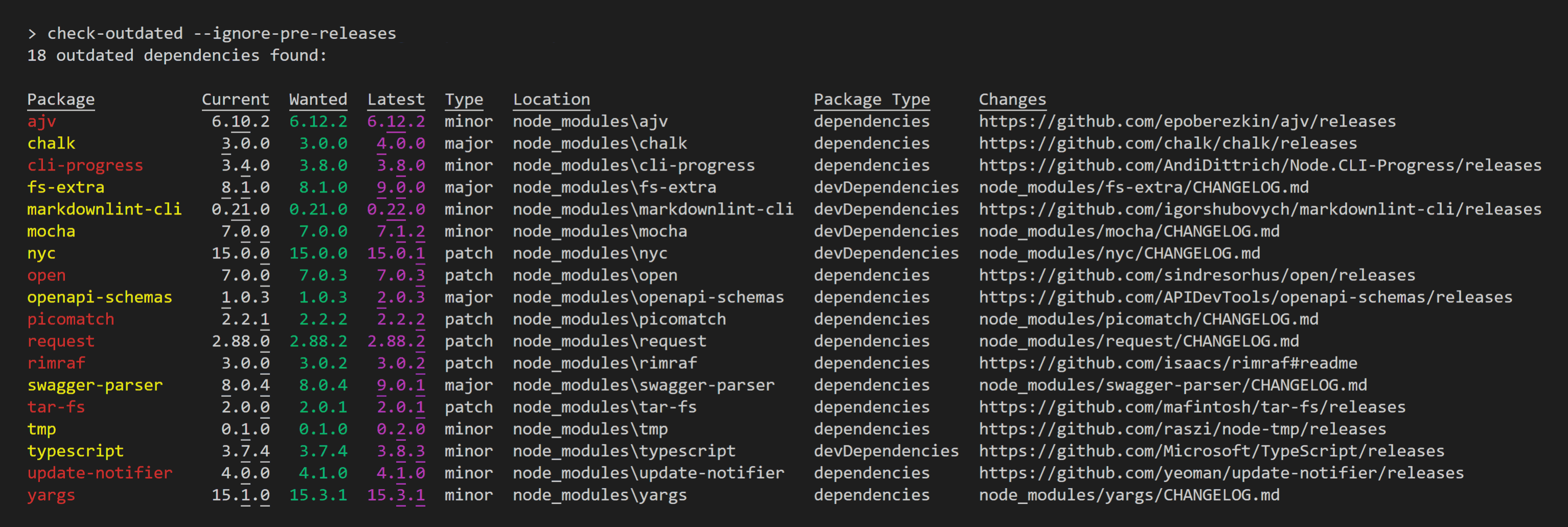
Example Screenshot
Install
npm install check-outdated --save-devUsage
On command-line you can run the command like this:
node_modules/.bin/check-outdated --ignore-pre-releases --ignore-dev-dependencies --ignore-packages package1,package2 --columns name,type,current,latest,changesOr put it into your package.json:
{
  "scripts": {
    "check-outdated": "check-outdated --ignore-pre-releases --ignore-dev-dependencies --ignore-packages package1,package2 --columns name,type,current,latest,changes",
    "preversion": "npm run lint && npm run test && npm run check-outdated"
  }
}| Argument | Description |
|---|---|
| --help, -h | Show the help |
| --ignore-pre-releases | Don't recommend to update to the latest version, if it contains a hyphen (e.g. "2.1.0-alpha", "2.1.0-beta", "2.1.0-rc.1") |
| --ignore-dev-dependencies | Do not warn if devDependencies are outdated. |
| --ignore-packages <comma-separated-list-of-package-names> | Ignore the listed packages, even if they are outdated |
| --columns <comma-separated-list-of-columns> | Defines which columns should be shown in which order. (See Available Columns below) |
| --global | Check packages in the global install prefix instead of in the current project (equal to the npm outdated-option) |
| --depth <number> | Max depth for checking dependency tree (equal to the npm outdated-option) |
Available Columns
By default, the following columns are shown:name, current, wanted, latest, type, location, packageType, changes
You are able to overwrite the default by using the --columns argument.
| Caption | --columns value | Description | Example |
|---|---|---|---|
| Package | name |
The name of the package. Red means there's a newer version matching your semver requirements, so you should update now. Yellow indicates that there's a newer version above your semver requirements (usually new major, or new 0.x minor) so proceed with caution. |
typescript |
| Current | current |
The currently installed version of the package. | 3.7.2 |
| Wanted | wanted |
The maximum version of the package that satisfies the semver range specified in package.json. If there's no available semver range (i.e. you're using the --global argument, or the package isn't included in package.json), then wanted shows the currently-installed version.This column is always colored in green. |
3.7.2 |
| Latest | latest |
The version of the package tagged as latest in the npm registry. This column is always colored in magenta. |
3.8.3 |
| Type | type |
Shows if the difference between Current and Latest is a major, minor or patch update, in Semantic Versioning. |
minor |
| Location | location |
Shows where in the dependency tree the package is located. Note that check-outdated defaults to a depth of 0, so unless you override that, you'll always be seeing only top-level dependencies that are outdated. | node_modules/typescript |
| Package Type | packageType |
Tells you whether this package is a dependency or a devDependency. Packages not included in package.json are always marked dependencies. |
devDependencies |
| Changes | changes |
check-outdated tries to find a direct link to changelog of the package. The following places are considered in the given order: 1. CHANGELOG.md 2. package/package.json > "repository" * 3. package/package.json > "homepage" 4. https://www.npmjs.com/package/{name}* GitHub-repository URLs are adjusted, so that they directly link to the Releases section. |
https://github.com/Microsoft/TypeScript/releases |
| Homepage | homepage |
An URL with additional information to the package. The following places are considered in the given order: 1. package/package.json > "homepage" 2. package/package.json > "repository" 3. package/package.json > "author" 4. https://www.npmjs.com/package/{name} |
https://www.typescriptlang.org/ |
| npmjs.com | npmjs |
A link to the package on the npmjs.com website. | https://www.npmjs.com/package/typescript |