

Package Exports
- git-coco
- git-coco/dist/index.esm.mjs
- git-coco/dist/index.js
This package does not declare an exports field, so the exports above have been automatically detected and optimized by JSPM instead. If any package subpath is missing, it is recommended to post an issue to the original package (git-coco) to support the "exports" field. If that is not possible, create a JSPM override to customize the exports field for this package.
Readme
coco 🤖 🦍





coco, the Commit Copilot, transcends being merely a robotic scribe for crafting git commit messages. Leveraging the capabilities of LangChain🦜🔗 and LLMs, coco is committed to providing a suite of insightful tools aimed at enhancing and streamlining your git workflow!
Commands
commit: generates commit messages based on staged changes.changelog: create changelogs for the current branch or a range of commits.recap: summarize changes from working-tree, or yesterday, or in the last month, or since the last tag!init: step by step wizard to set upcocoglobally or for a project.
Getting Started
coco init is the first step to getting started with coco. It will guide you through the installation process, including setting up your OpenAI API key and configuring coco to your preferences.
# For local project use
npx git-coco@latest init -l project

# For global use
npx git-coco@latest init -l global
Usage
coco commit
Generates commit messages based on staged changes.
coco

# or

coco commit
Useful options
# --append
# Add content to the end of the generated commit
coco --append "Resolves #128"

# --append-ticket
# Automatically append Jira/Linear ticket ID from the branch name to the commit message
coco --append-ticket

# --additional
# Add extra context before generating the commit
coco --additional "Resolves UX bug with sign up button"
coco changelog
Creates changelogs.
# For the current branch
coco changelog

# For a specific range
coco changelog -r HEAD~5:HEAD

# For a target branch
coco changelog -b other-branch
coco recap
Summarize the working-tree, or other configured ranges
# Summarize all working directory changes
coco recap

# Or these available ranges
coco recap --yesterday | --last-week | --last-month | --last-tag
Stdout vs. Interactive Mode
coco offers two modes of operation: stdout and interactive, defaulting to stdout. You can specify your preferred mode in your config file or via command line flags.
# Stdout mode
git commit -m $(coco)

# Interactive mode
coco -i
Generate and commit all in one
coco can generate and commit your changes in one command.
coco -sConfiguration
The .coco.config documentation has moved to our wiki. Here, you'll find detailed information on setting up and customizing your experience.
Ignoring Files
You can specify files to be ignored when generating commit messages by adding them to your config file or via command line flags. Read more about ignoring files & extensions in the wiki.
Contribution
We welcome contributions! Check out our CONTRIBUTING.md for more information.
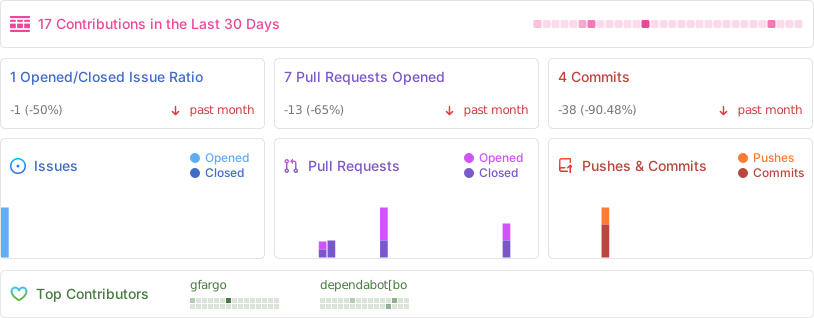
Project Stats
License
MIT © gfargo