

Package Exports
- upload-js
- upload-js/dist/main.js
This package does not declare an exports field, so the exports above have been automatically detected and optimized by JSPM instead. If any package subpath is missing, it is recommended to post an issue to the original package (upload-js) to support the "exports" field. If that is not possible, create a JSPM override to customize the exports field for this package.
Readme
Migrated to: @bytescale/sdk
JavaScript File Upload Library
(With Integrated Cloud Storage)






Get Started — Try on CodePen
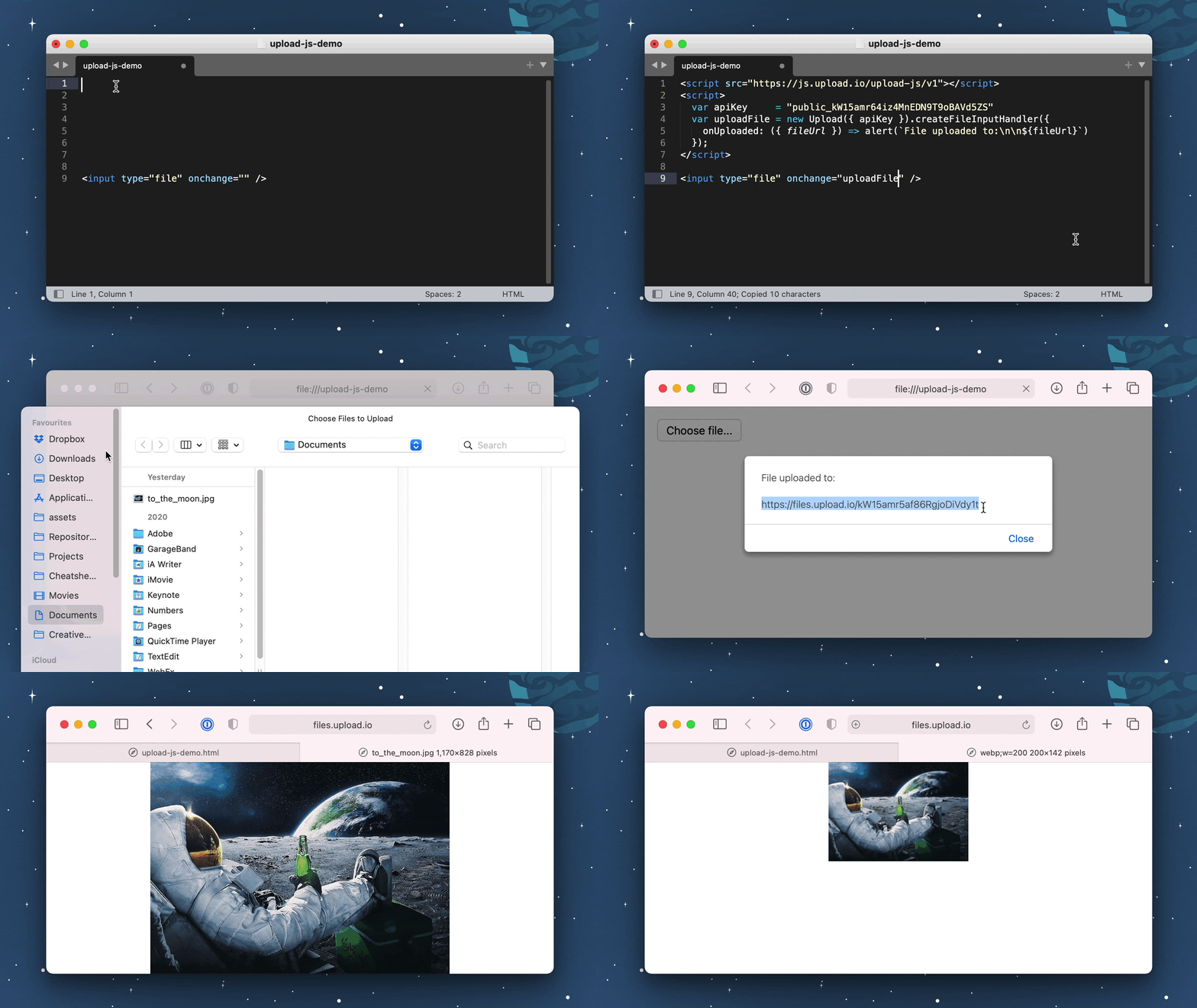
100% Serverless File Upload Library
Powered by Bytescale
DMCA Compliant • GDPR Compliant • 99.9% Uptime SLA
Supports: Rate Limiting, Volume Limiting, File Size & Type Limiting, JWT Auth, and more...
Installation
Install via NPM:
npm install upload-jsOr via YARN:
yarn add upload-jsOr via a <script> tag:
<script src="https://js.bytescale.com/upload-js/v2"></script>Usage — Try on CodePen
To upload a file from the browser:
//
// <input type="file" onchange="onFileSelected(event)" />
//

import { Upload } from "upload-js";

const upload = Upload({ apiKey: "free" }); // Get production API keys from Bytescale

const onFileSelected = async (event) => {
  const [ file ]    = event.target.files;
  const { fileUrl } = await upload.uploadFile(file, { onProgress });
  console.log(`File uploaded: ${fileUrl}`);
}

const onProgress = ({ progress }) => {
  console.log(`File uploading: ${progress}% complete.`)
}
Full Working Example (Copy & Paste)
Try on CodePen / Copy to IDE & Run:
<html>
  <head>
    <script src="https://js.bytescale.com/upload-js/v2"></script>
    <script>
      const upload = Upload({
        // Get production API keys from Bytescale
        apiKey: "free"
      });

      const onFileSelected = async (event) => {
        try {
          const { fileUrl } = await upload.uploadFile(
            event.target.files[0],
            { onProgress: ({ progress }) => console.log(`${progress}% complete`) }
          );
          alert(`File uploaded!\n${fileUrl}`);
        } catch (e) {
          alert(`Error!\n${e.message}`);
        }
      }
    </script>
  </head>
  <body>
    <input type="file" onchange="onFileSelected(event)" />
  </body>
</html>
Examples with Popular Frameworks
Upload Files with React — Try on CodePen
const { Upload } = require("upload-js");
const upload = Upload({ apiKey: "free" });

const MyUploadButton = () => {
  const onFileSelected = async (event) => {
    try {
      const { fileUrl } = await upload.uploadFile(
        event.target.files[0],
        { onProgress: ({ progress }) => console.log(`${progress}% complete`) }
      );
      alert(`File uploaded!\n${fileUrl}`);
    } catch (e) {
      alert(`Error!\n${e.message}`);
    }
  }

  return <input type="file" onChange={onFileSelected} />;
};
Upload Files with Angular — Try on CodePen
const { Upload } = require("upload-js");
const upload = Upload({ apiKey: "free" });
angular
  .module("exampleApp", [])
  .controller("exampleController", $scope => {
    $scope.uploadFile = async (event) => {
      try {
        const { fileUrl } = await upload.uploadFile(
          event.target.files[0],
          { onProgress: ({ progress }) => console.log(`${progress}% complete`) }
        );
        alert(`File uploaded!\n${fileUrl}`);
      } catch (e) {
        alert(`Error!\n${e.message}`);
      }
    }
  })
  .directive("onChange", () => ({
    link: (scope, element, attrs) => {
      element.on("change", scope.$eval(attrs.onChange));
    }
  }));
Upload Files with Vue.js — Try on CodePen
const { Upload } = require("upload-js");
const upload = Upload({ apiKey: "free" });
const uploadFile = async (event) => {
  try {
    const { fileUrl } = await upload.uploadFile(
      event.target.files[0],
      { onProgress: ({ progress }) => console.log(`${progress}% complete`) }
    );
    alert(`File uploaded!\n${fileUrl}`);
  } catch (e) {
    alert(`Error!\n${e.message}`);
  }
}
const vueApp = new Vue({
  el: "#example",
  methods: { uploadFile }
});
Upload Files with jQuery — Try on CodePen
<html>
  <head>
    <script src="https://code.jquery.com/jquery-3.6.0.min.js"></script>
    <script src="https://js.bytescale.com/upload-js/v2"></script>
    <script>
      const upload = Upload({
        // Get production API keys from Bytescale
        apiKey: "free"
      });

      $(() => {
        $("#file-input").change(async (event) => {
          $("#file-input").hide()

          try {
            const { fileUrl } = await upload.uploadFile(
              event.target.files[0], {
              onProgress: ({ progress }) => $("#title").html(`File uploading... ${progress}%`)
            });

            $("#title").html(`
              File uploaded:
              <br/>
              <br/>
              <a href="${fileUrl}" target="_blank">${fileUrl}</a>`
            )
          } catch (e) {
            $("#title").html(`Error:<br/><br/>${e.message}`)
          }

        })
      })
    </script>
  </head>
  <body>
    <h1 id="title">Please select a file...</h1>
    <input type="file" id="file-input" />
  </body>
</html>
Upload Multiple Files with jQuery — Try on CodePen
Please refer to the CodePen example (link above).
Overview of the code:
- Call
Uploadonce at the start of your app. - Call
uploadFilefrom your<input onchange="...">handlers. - Use
onProgressto display the upload progress for each input element. - When
onUploadedfires, record thefileUrlfrom the callback's argument to a local variable. - When
onUploadedhas fired for all files, the form is ready to be submitted.
Note: file uploads will safely run in parallel, despite using the same Upload instance.
🌐 API Support
🌐 File Management API
Bytescale provides an Upload API, which supports the following:
- File uploading.
- File listing.
- File deleting.
- And more...
Uploading a "Hello World" text file is as simple as:
curl --data "Hello World" \
     -u apikey:free \
     -X POST "https://api.bytescale.com/v1/files/basic"
Note: Remember to set -H "Content-Type: mime/type" when uploading other file types!
🌐 Image Processing API (Resize, Crop, etc.)
Bytescale also provides an Image Processing API, which supports the following:
- Image Resizing
- Image Cropping
- Image Compression
- Image Conversion
- Image Manipulation (blur, sharpen, brightness, etc.)
- Layering (e.g for text & image watermarks)
- and more...
Read the Image Processing API docs »
Manually Cropping Images — Try on CodePen
To embed crop dimensions into an image:
<html>
  <head>
    <script src="https://js.bytescale.com/upload-js/v2"></script>
    <script>
      const upload = Upload({
        // Get production API keys from Bytescale
        apiKey: "free"
      });

      // Step 1: Upload the original file.
      const onOriginalImageUploaded = async (originalImage) => {

        // Step 2: Configure crop geometry.
        const crop = {
          // Type Def: https://github.com/bytescale/upload-image-plugin/blob/main/src/types/ParamsFromFile.ts
          inputPath: originalImage.filePath,
          pipeline: {
            steps: [
              {
                geometry: {
                  // Prompt your user for these dimensions...
                  offset: {
                    x: 20,
                    y: 40
                  },
                  size: {
                    // ...and these too...
                    width: 200,
                    height: 100,
                    type: "widthxheight!"
                  }
                },
                type: "crop"
              }
            ]
          }
        }

        // Step 3: Upload the crop geometry.
        const blob = new Blob([JSON.stringify(crop)], {type: "application/json"});
        const croppedImage = await upload.uploadFile(blob);

        // Step 4: Done! Here's the cropped image:
        return croppedImage;
      };

      const onFileSelected = async (event) => {
        const [ file ]      = event.target.files;
        const originalImage = await upload.uploadFile(file);
        const croppedImage  = await onOriginalImageUploaded(originalImage)

        alert(`Cropped image:\n${croppedImage.fileUrl.replace("/raw/", "/image/")}`)
      }
    </script>
  </head>
  <body>
    <input type="file" onchange="onFileSelected(event)" />
  </body>
</html>
Full Documentation
Upload.js Full Documentation »
Need a File Upload Widget?
See our File Upload Widget. (Built with Upload.js. Supports: image cropping, cancellation, progress, etc).

👋 Create your Bytescale Account
Upload.js is the JS client library for Bytescale: the best way to serve images, videos, and audio for web apps.
Can I use my own storage?
Yes: Bytescale supports AWS S3, Cloudflare R2, Google Storage, and DigitalOcean Spaces.
To configure a custom storage backend, please see:
https://www.bytescale.com/docs/storage/sources