

Package Exports
- upload-js
- upload-js/dist/main.js
This package does not declare an exports field, so the exports above have been automatically detected and optimized by JSPM instead. If any package subpath is missing, it is recommended to post an issue to the original package (upload-js) to support the "exports" field. If that is not possible, create a JSPM override to customize the exports field for this package.
Readme

The fastest way to upload & transform files.


⚙️ Prerequisites
Create an Upload account (it only takes a few seconds).
Install Upload.js:
npm install upload-js
Or:
<script src="https://js.upload.io/upload-js/v1"></script>
🎯 Features
Upload.js is a small file upload library (7KB) for a powerful file processing platform (upload.io).
You can use them together to:
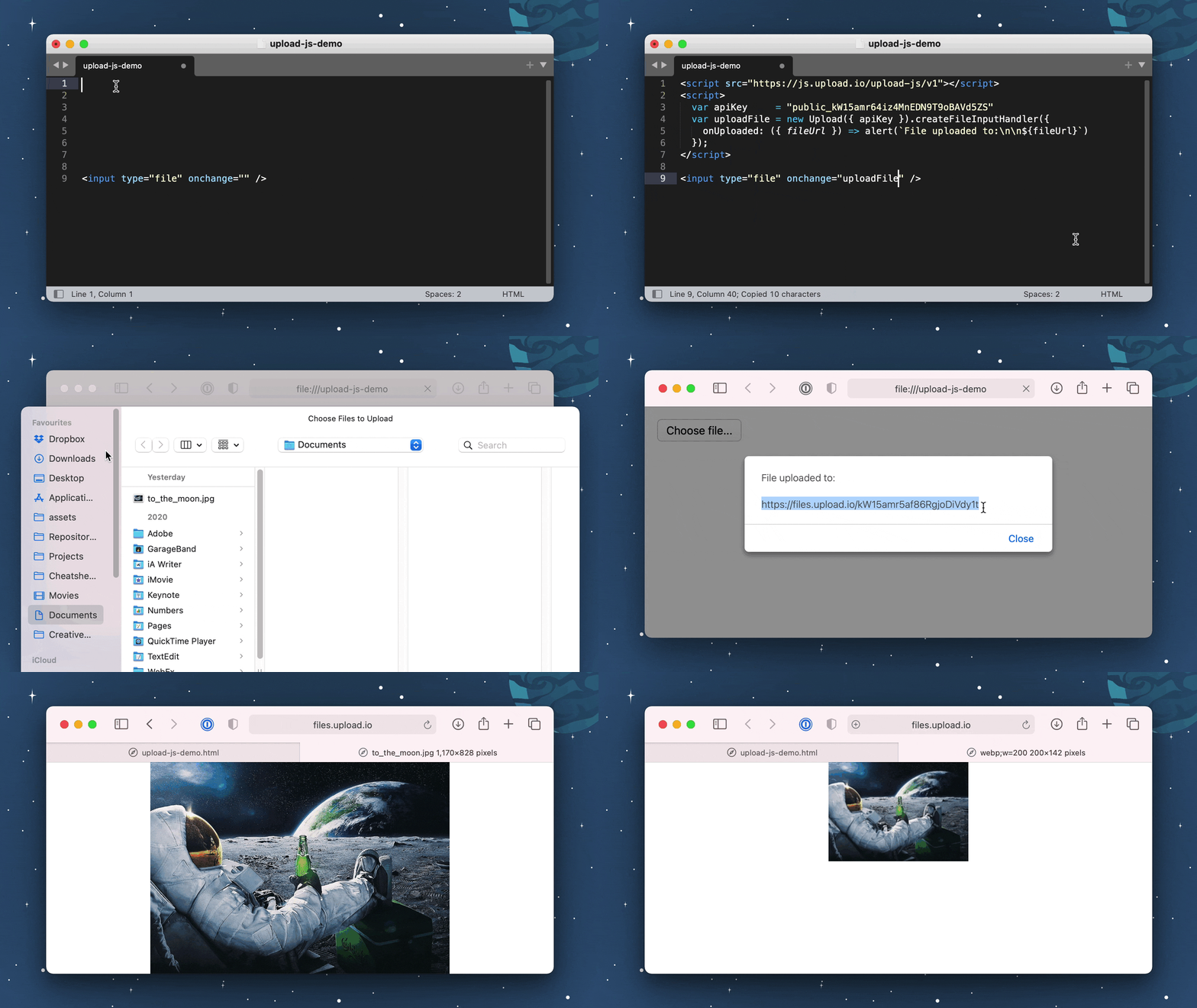
- Upload files with 7 lines of code. (Files are uploaded to the Upload CDN.)
- Download files with minimal latency. (Our CDN covers 200+ locations worldwide.)
- Secure your files. (Upload.js can integrate with your app's auth layer to decide who can download files.)
- Transform files. (Upload.js uses a plugin-based architecture: you can build your own transformations.)
- Resize images, crop images & convert images. (Upload.js offers many transformations out-the-box.)
- And much more, explore Upload.js.
👀 Examples
📖 Uploading Files (Plain HTML & JS)
<html>
  <head>
    <script src="https://js.upload.io/upload-js/v1"></script>
    <script>
      const upload = new Upload({

        // Replace with your API key. (Get from: https://upload.io/)
        apiKey: "..."

      });
      const uploadFile = upload.createFileInputHandler({
        onUploaded: ({ fileUrl, fileId }) => {
          alert(`File uploaded!\n${fileUrl}`);
        }
      });
    </script>
  </head>
  <body>
    <input type="file" onchange="uploadFile(event)" />
  </body>
</html>
📖 Uploading Files (React)
//
// JSX: <MyUploadButton />
//
const { Upload } = require("upload-js");
const upload = new Upload({ apiKey: "..." });

const MyUploadButton = () => {
  const uploadFile = upload.createFileInputHandler({
    onUploaded: ({ fileUrl, fileId }) => {
      alert(`File uploaded!\n${fileUrl}`);
    }
  });

  return <input type="file" onChange={uploadFile} />;
};
📖 Uploading Files (Angular)
//
// HTML: <input type="file" on-change="uploadFile" />
//
const { Upload } = require("upload-js");
const upload = new Upload({ apiKey: "..." });
angular
  .module("exampleApp", [])
  .controller("exampleController", $scope => {
    $scope.uploadFile = upload.createFileInputHandler({
      onUploaded: ({ fileUrl, fileId }) => {
        alert(`File uploaded!\n${fileUrl}`);
      }
    });
  })
  .directive("onChange", () => ({
    link: (scope, element, attrs) => {
      element.on("change", scope.$eval(attrs.onChange));
    }
  }));
📖 Uploading Files (Vue.js)
//
// HTML: <input id="example" type="file" @change="uploadFile" />
//
const { Upload } = require("upload-js");
const upload = new Upload({ apiKey: "..." });
const uploadFile = upload.createFileInputHandler({
  onUploaded: ({ fileUrl, fileId }) => {
    alert(`File uploaded!\n${fileUrl}`);
  }
});
const vueApp = new Vue({
  el: "#example",
  methods: { uploadFile }
});
Transforming Files
Resizing Images
To resize an image:
- Login to the Upload Dashboard.
- Click 'Transformations' in the side navigation.
- Click 'Create a transformation' -> 'Transform an image'
- Complete the transformation wizard.
- Copy the resulting transformation URL, e.g.:
https://files.upload.io/<file_id>/jpg;w=400 - Substitute
<file_id>with a real file ID (for an image). - The returned file will be the resized image.
Cropping Images
This example assumes you'll be collecting crop geometry from the user (i.e. through a UI component you've built).
This code works by uploading the original image to Upload.io, and then uploading the crop dimensions as a secondary metadata file. When the metadata file is downloaded via an image transformation (see above) the output will be the cropped image.
See below:
<html>
  <head>
    <script src="https://js.upload.io/upload-js/v1"></script>
    <script>
      const upload = new Upload({
        // Replace with your API key. (Get from: https://upload.io/)
        apiKey: "..."
      });

      // Step 1: Wait for the original file to upload...
      const onOriginalImageUploaded = ({ fileId, fileUrl: originalImageUrl }) => {

        // Step 2: Create your crop metadata.
        const crop = {
          // Full type definition:
          // https://github.com/upload-js/upload-image-plugin/blob/main/src/types/ParamsFromFile.ts
          input: fileId,
          pipeline: {
            steps: [
              {
                geometry: {
                  // Prompt your user for this...
                  offset: {
                    x: 20,
                    y: 40
                  },
                  size: {
                    width: 200,
                    height: 100,
                    type: "widthxheight!"
                  }
                },
                type: "crop"
              }
            ]
          }
        }

        // Step 3: Turn crop metadata into a BLOB.
        const blob = new Blob([JSON.stringify(crop)], {type: "application/json"});

        // Step 4: Upload the crop metadata.
        upload
          .uploadFile({
            file: {
              name: `${fileId}_cropped.json`, // Can be anything.
              type: blob.type,
              size: blob.size,
              slice: (start, end) => blob.slice(start, end)
            }
          })
          .then(
            // Step 5: Wait for the crop metadata to upload...
            ({ fileUrl: croppedImageUrl }) => {
              // Step 6: Get the cropped image by appending an image transformation slug (e.g. '/jpg') to the crop metadata file's URL.
              //         Note: '/jpg' is only illustrative -- you must use a transformation slug you've configured in the Upload Dashboard.
              alert(`Original image:\n${originalImageUrl}\n\nCropped image:\n${croppedImageUrl}/jpg`)
            },
            e => console.error(e)
          );
      };

      const uploadFile = upload.createFileInputHandler({
        onUploaded: onOriginalImageUploaded
      });
    </script>
  </head>
  <body>
    <input type="file" onchange="uploadFile(event)" />
  </body>
</html>
Produces the following result:

(The latter URL is a 200x100 crop of the former URL.)
Note: with this approach you can reuse the same original image with multiple different crops (say if the user later changes their mind on the cropping dimensions), so you don't need to keep re-uploading the same original image.
Note: in future we'll provide a UI component that performs this flow out of the box.
Contribute
If you would like to contribute to Upload.js:
- Add a GitHub Star to the project (only if you're feeling generous!).
- Determine whether you're raising a bug, feature request or question.
- Raise your issue or PR. 🚀