

Package Exports
- upload-js
- upload-js/dist/main.js
This package does not declare an exports field, so the exports above have been automatically detected and optimized by JSPM instead. If any package subpath is missing, it is recommended to post an issue to the original package (upload-js) to support the "exports" field. If that is not possible, create a JSPM override to customize the exports field for this package.
Readme

The quickest way to upload files.






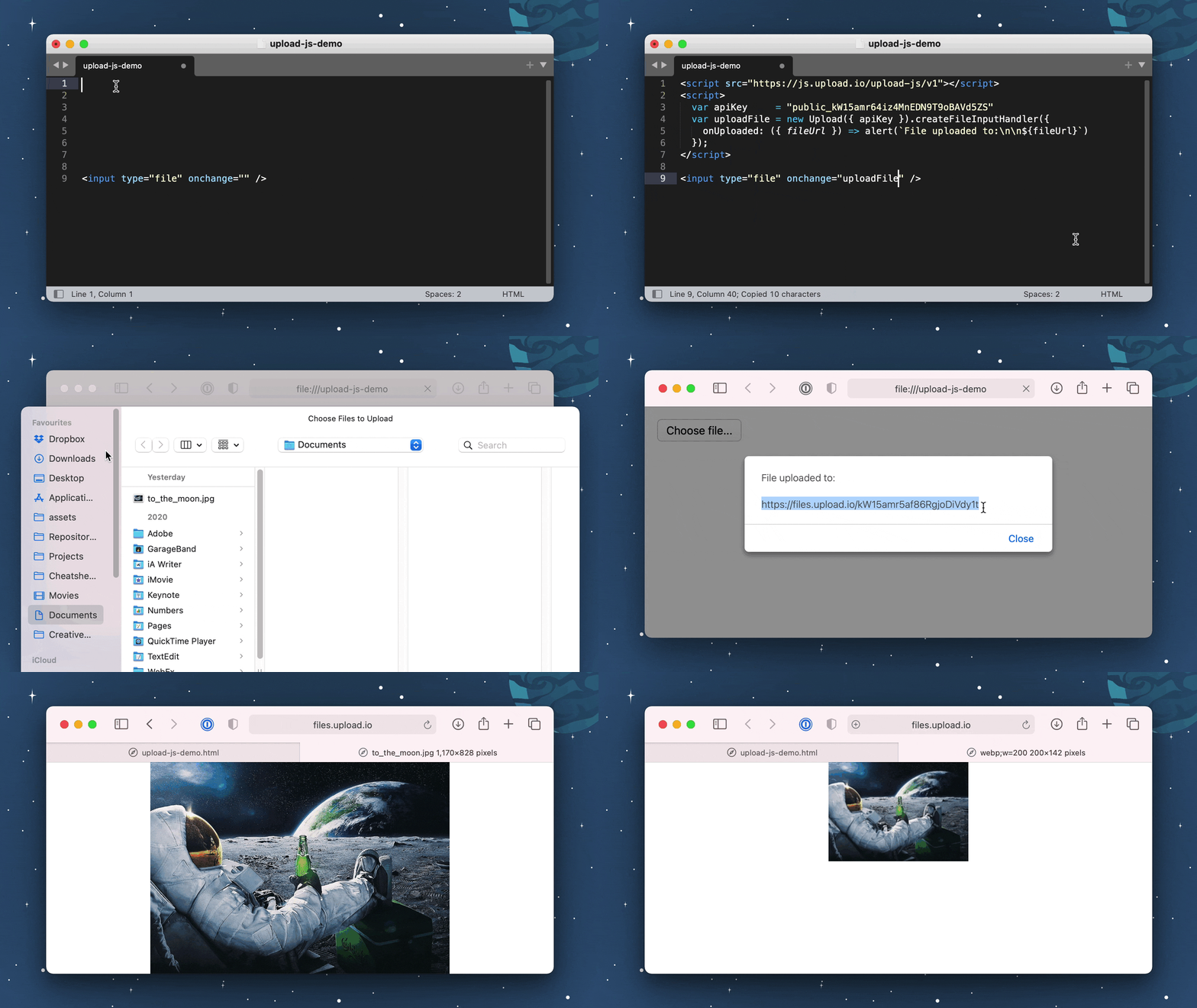
🚀 Get Started — Try on CodePen
To create a working file upload button, copy this example:
<html>
  <head>
    <script src="https://js.upload.io/upload-js/v1"></script>
    <script>
      const upload = new Upload({
        // Get production API keys from Upload.io
        apiKey: "free"
      });

      const uploadFile = upload.createFileInputHandler({
        onProgress: ({ bytesSent, bytesTotal }) => {
          console.log(`${bytesSent / bytesTotal}% complete`)
        },
        onUploaded: ({ fileUrl, fileId }) => {
          alert(`File uploaded!\n${fileUrl}`);
        },
        onError: (error) => {
          alert(`Error!\n${error.message}`);
        }
      });
    </script>
  </head>
  <body>
    <input type="file" onchange="uploadFile(event)" />
  </body>
</html>
Installation
Install via NPM:
npm install upload-jsOr via a <script> tag:
<script src="https://js.upload.io/upload-js/v1"></script>Use with Popular Frameworks
Upload Files with React — Try on CodePen
const { Upload } = require("upload-js");
const upload = new Upload({ apiKey: "free" });

const MyUploadButton = () => {
  const uploadFile = upload.createFileInputHandler({
    onProgress: ({ bytesSent, bytesTotal }) => {
      console.log(`${bytesSent / bytesTotal}% complete`)
    },
    onUploaded: ({ fileUrl, fileId }) => {
      alert(`File uploaded!\n${fileUrl}`);
    },
    onError: (error) => {
      alert(`Error!\n${error.message}`);
    }
  });

  return <input type="file" onChange={uploadFile} />;
};
Upload Files with Angular — Try on CodePen
const { Upload } = require("upload-js");
const upload = new Upload({ apiKey: "free" });
angular
  .module("exampleApp", [])
  .controller("exampleController", $scope => {
    $scope.uploadFile = upload.createFileInputHandler({
      onProgress: ({ bytesSent, bytesTotal }) => {
        console.log(`${bytesSent / bytesTotal}% complete`)
      },
      onUploaded: ({ fileUrl, fileId }) => {
        alert(`File uploaded!\n${fileUrl}`);
      },
      onError: (error) => {
        alert(`Error!\n${error.message}`);
      }
    });
  })
  .directive("onChange", () => ({
    link: (scope, element, attrs) => {
      element.on("change", scope.$eval(attrs.onChange));
    }
  }));
Upload Files with Vue.js — Try on CodePen
const { Upload } = require("upload-js");
const upload = new Upload({ apiKey: "free" });
const uploadFile = upload.createFileInputHandler({
  onProgress: ({ bytesSent, bytesTotal }) => {
    console.log(`${bytesSent / bytesTotal}% complete`)
  },
  onUploaded: ({ fileUrl, fileId }) => {
    alert(`File uploaded!\n${fileUrl}`);
  },
  onError: (error) => {
    alert(`Error!\n${error.message}`);
  }
});
const vueApp = new Vue({
  el: "#example",
  methods: { uploadFile }
});
Upload Files with jQuery — Try on CodePen
<html>
  <head>
    <script src="https://code.jquery.com/jquery-3.6.0.min.js"></script>
    <script src="https://js.upload.io/upload-js/v1"></script>
    <script>
      const upload = new Upload({
        // Get production API keys from Upload.io
        apiKey: "free"
      });

      $(() => {
        $("#file-input").change(
          upload.createFileInputHandler({
            onBegin: () => {
              $("#file-input").hide()
            },
            onProgress: ({ bytesSent, bytesTotal }) => {
              const progress = Math.round(bytesSent / bytesTotal * 100)
              $("#title").html(`File uploading... ${progress}%`)
            },
            onError: (error) => {
              $("#title").html(`Error:<br/><br/>${error.message}`)
            },
            onUploaded: ({ fileUrl, fileId }) => {
              $("#title").html(`
                File uploaded:
                <br/>
                <br/>
                <a href="${fileUrl}" target="_blank">${fileUrl}</a>`
              )
            }
          })
        )
      })
    </script>
  </head>
  <body>
    <h1 id="title">Please select a file...</h1>
    <input type="file" id="file-input" />
  </body>
</html>
Upload Multiple Files with jQuery — Try on CodePen
Please refer to the CodePen example (link above).
Overview of the code:
- Instantiate
Uploadonce in your app (at the start). - Call
createFileInputHandleronce for each file<input>element. - Use
onProgressto display the upload progress for each input element. - When
onUploadedfires, record thefileUrlfrom the callback's argument to a local variable. - When
onUploadedhas fired for all files, the form is ready to be submitted.
Note: file uploads will safely run in parallel, despite using the same Upload instance.
Force File Downloads
By default, the browser will attempt to render uploaded files:
https://files.upload.io/W142hJkHhVSQ5ZQ5bfqvanQTo force a file to download, add ?download=true to the file's URL:
https://files.upload.io/W142hJkHhVSQ5ZQ5bfqvanQ?download=trueResize Images
Given an uploaded image URL:
https://files.upload.io/W142hJkHhVSQ5ZQ5bfqvanQResize with:
https://files.upload.io/W142hJkHhVSQ5ZQ5bfqvanQ/thumbnailAutocrop with:
https://files.upload.io/W142hJkHhVSQ5ZQ5bfqvanQ/thumbnail-squareTip: to create more transformations, please register an account.
Crop Images — Try on CodePen
To crop images using manually-provided geometry:
<html>
  <head>
    <script src="https://js.upload.io/upload-js/v1"></script>
    <script>
      const upload = new Upload({
        // Get production API keys from Upload.io
        apiKey: "free"
      });

      // Step 1: Upload the original file.
      const onOriginalImageUploaded = ({ fileId, fileUrl: originalImageUrl }) => {

        // Step 2: Configure crop geometry.
        const crop = {
          // Type Def: https://github.com/upload-js/upload-image-plugin/blob/main/src/types/ParamsFromFile.ts
          input: fileId,
          pipeline: {
            steps: [
              {
                geometry: {
                  // Prompt your user for these dimensions...
                  offset: {
                    x: 20,
                    y: 40
                  },
                  size: {
                    // ...and these too...
                    width: 200,
                    height: 100,
                    type: "widthxheight!"
                  }
                },
                type: "crop"
              }
            ]
          }
        }

        // Step 3: Upload the crop geometry.
        const blob = new Blob([JSON.stringify(crop)], {type: "application/json"});
        upload
          .uploadFile({
            file: {
              name: `${fileId}_cropped.json`, // Can be anything.
              type: blob.type,
              size: blob.size,
              slice: (start, end) => blob.slice(start, end)
            }
          })
          .then(
            ({ fileUrl: cropGeometryUrl }) => {

              // Step 4: Done! Here's the cropped image's URL:
              alert(`Cropped image:\n${cropGeometryUrl}/thumbnail`)

            },
            e => console.error(e)
          );
      };

      const uploadFile = upload.createFileInputHandler({
        onUploaded: onOriginalImageUploaded
      });
    </script>
  </head>
  <body>
    <input type="file" onchange="uploadFile(event)" />
  </body>
</html>
📖 Documentation
🎯 Features
Upload.js is the JavaScript client library for Upload.io: the file upload service for developers.
Core features (available without an account):
- File Storage. (Files stored for 4 hours with the
"free"API key.) - File Hosting via CDN. (Files served from 100 locations worldwide.)
- Fast Image Transformations. (Resize images, crop images & convert images.)
All features (available with an account):
- Permanent Storage. (The
"free"API key provides temporary storage only.) - Unlimited Daily Uploads. (The
"free"API key allows 100 uploads per day per IP.) - Extended CDN Coverage. (Files served from 300+ locations worldwide.)
- More File Transformations. (Custom image resizing, cropping, converting, etc.)
- Upload & Download Authentication. (Supports federated auth via your own JWT authorizer.)
- File & Folder Management.
- Expiring Links.
- Custom CNAME.
- Advanced Rules Engine:
- Rate Limiting.
- Traffic Limiting.
- File Size Limiting.
- IP Blacklisting.
- File Type Blacklisting.
- And More...
Contribute
If you would like to contribute to Upload.js:
- Add a GitHub Star to the project (if you're feeling generous!).
- Determine whether you're raising a bug, feature request or question.
- Raise your issue or PR. 🚀